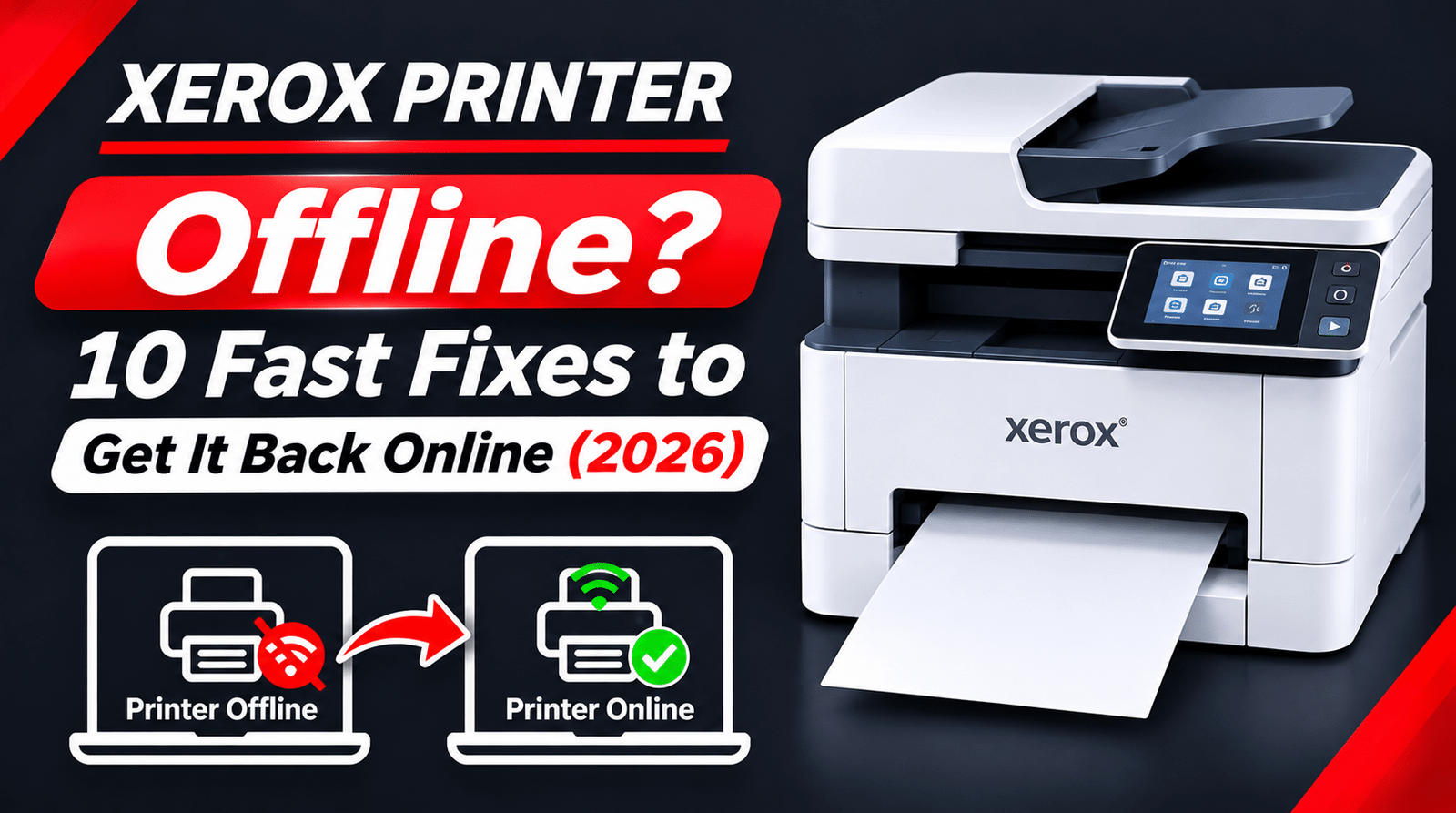
Xerox Printer Offline? 10 Fast Fixes to Get It Back Online (2026)
Is your Xerox printer showing an offline message even though it is powered on and connected to your computer or WiFi network? This is a common printing problem that can prevent documents from printing even when the printer appears to be working normally.
A Xerox printer can go offline because of network interruptions, incorrect printer settings, outdated drivers, a stuck print queue, or communication problems between the printer and computer. Sometimes, Windows incorrectly reports the printer as offline even when it is connected and ready.
The good news is that you can usually fix this problem without replacing the printer or reinstalling everything. In this guide, you will learn 10 practical ways to bring your Xerox printer back online on Windows, Mac, and wireless networks.
Quick Fix: Why Is My Xerox Printer Showing Offline?
Your Xerox printer may show offline because your computer cannot communicate with it correctly. Common causes include a disconnected WiFi network, incorrect printer selection, enabled Use Printer Offline mode, stuck print jobs, or an outdated driver.
The Solution
Restart the Xerox printer and computer, verify the USB or WiFi connection, disable Use Printer Offline mode, clear the print queue, and check the printer driver. If the problem continues, remove and re-add the printer using the correct connection.
1. Restart Your Xerox Printer
Start with a simple restart. Temporary communication problems can cause a Xerox printer to appear offline even when its hardware is functioning correctly.
Follow these steps:
- Cancel any active print jobs.
- Turn off your Xerox printer.
- Wait approximately 30 seconds.
- Turn the printer back on.
- Allow it to complete its startup process.
- Check whether the offline message disappears.
Also restart your computer if the printer remains offline. This refreshes the connection between the computer and printer and can resolve temporary communication errors.
2. Disable Use Printer Offline Mode in Windows
Windows includes an option that allows a printer to be marked offline manually. If this setting is enabled, your Xerox printer may not receive documents even when it is connected.
To check it:
- Open Settings.
- Select Bluetooth & devices.
- Click Printers & scanners.
- Select your Xerox printer.
- Open the print queue.
- Click the Printer menu if available.
- Check whether Use Printer Offline is enabled.
- Disable it if selected.
Also check whether printing is paused. Once these settings are corrected, send a test document.
3. Check Your Xerox Printer’s WiFi Connection
If you use a wireless Xerox printer, check whether it is connected to the correct WiFi network. A printer can appear installed on your computer even after losing its wireless connection.
Check the following:
- The printer’s WiFi indicator.
- The network name shown on the printer.
- Whether the router is working.
- Whether your computer is connected to the correct network.
- Whether the printer recently lost its network configuration.
If you changed your router or WiFi password, you may need to reconnect the printer. For complete instructions, see Xerox Printer WiFi Setup Guide (Windows, Mac & Mobile).
4. Check the USB or Ethernet Cable
If your Xerox printer uses a wired connection, inspect the cable.
For USB printers:
- Check both ends of the USB cable.
- Make sure the cable is securely connected.
- Try another USB port.
- Avoid unreliable USB hubs.
- Restart the printer after reconnecting.
For Ethernet printers, check that the network cable is securely connected to both the printer and router or network switch. If possible, test another cable to rule out a damaged connection.
5. Clear the Xerox Printer Queue
A stuck print job can sometimes cause Windows to show the printer as unavailable or prevent new jobs from printing.
To clear the queue:
- Open Settings.
- Go to Bluetooth & devices.
- Select Printers & scanners.
- Choose your Xerox printer.
- Open the print queue.
- Cancel pending documents.
- Wait until the queue becomes empty.
- Send a new test page.
If documents refuse to disappear, restart the Windows Print Spooler. For detailed instructions, read Xerox Printer Print Queue Stuck? Clear Jobs & Fix Spooler.
6. Restart the Windows Print Spooler
The Print Spooler is responsible for managing print jobs in Windows. If the service stops responding, your Xerox printer may remain offline or fail to process documents.
Follow these steps:
- Press Windows + R.
- Type
services.msc. - Press Enter.
- Locate Print Spooler.
- Right-click it.
- Select Restart.
- Open your Xerox printer queue again.
- Try printing a test document.
If the service is stopped, use the Start option instead. This method is particularly useful when the printer is connected but Windows cannot process print jobs.
7. Update or Reinstall the Xerox Printer Driver
An outdated or damaged printer driver can prevent Windows from communicating properly with your Xerox printer.
Driver problems commonly occur after:
- Windows updates
- Operating system upgrades
- Printer software changes
- Switching from USB to WiFi
- Installing an incorrect driver
- Removing and reinstalling printer software
To resolve the problem:
- Identify your exact Xerox printer model.
- Check the installed driver.
- Verify compatibility with your operating system.
- Remove an incorrect or damaged installation if necessary.
- Install the appropriate driver.
- Restart your computer.
- Test the printer again.
Use a driver designed for your specific Xerox model whenever available. For more help, see Xerox Printer Driver Unavailable? Fix Driver Problems Fast.
8. Set the Correct Xerox Printer as Default
If multiple printers are installed, Windows may be sending documents to an old or disconnected printer entry.
Open Settings → Bluetooth & devices → Printers & scanners. Find your active Xerox printer and check whether it is selected as the default printer.
Also inspect the print dialog in your application before printing. If you see multiple entries with similar Xerox names, identify the one that matches your current USB, WiFi, or Ethernet connection. Remove outdated entries when appropriate.
9. Restart Your WiFi Router
If your Xerox printer is connected wirelessly but repeatedly goes offline, the router may be experiencing temporary network problems.
Try the following:
- Turn off the router.
- Wait briefly.
- Turn it back on.
- Allow the WiFi network to become available.
- Check the Xerox printer’s connection.
- Confirm that your computer is connected to the same network.
- Try printing again.
If the printer still does not reconnect, configure its wireless connection again.
10. Remove and Re-Add Your Xerox Printer
If the previous solutions do not work, the existing printer installation may contain incorrect connection information. Removing and adding the printer again can rebuild the connection.
On Windows:
- Open Settings.
- Select Bluetooth & devices.
- Open Printers & scanners.
- Select your Xerox printer.
- Choose Remove.
- Restart your computer if necessary.
- Select Add device.
- Allow Windows to detect the printer.
- Select the correct Xerox printer.
- Install the appropriate driver if prompted.
After installation, print a test page and check whether the offline message has disappeared.
Xerox Printer Offline but Connected to WiFi
One confusing situation occurs when the Xerox printer shows a successful WiFi connection but Windows still reports it as offline. This usually means the wireless connection exists, but the computer is not communicating with the correct printer entry or network address.
Try these checks:
- Confirm the printer and computer are connected to the same network.
- Restart the printer and router.
- Check whether the printer has received a valid network address.
- Remove old or duplicate printer entries.
- Re-add the printer using the current network connection.
- Verify the printer port configuration if you are comfortable checking advanced Windows settings.
A printer may retain an old network address after router changes. Updating the printer installation can resolve this mismatch.
Xerox Printer Offline on Windows 11
If your Xerox printer shows offline on Windows 11, check the printer status and connection first.
Follow this sequence:
- Open Settings.
- Select Bluetooth & devices.
- Open Printers & scanners.
- Select your Xerox printer.
- Open the print queue.
- Check for paused or offline status.
- Cancel stuck documents.
- Restart the Print Spooler.
- Check the driver.
- Restart the computer.
If the issue started after a Windows update, driver compatibility should be investigated.
Xerox Printer Offline on Windows 10
Windows 10 users can also experience offline problems because of stuck print jobs, incorrect printer settings, or connection failures.
Open Settings → Devices → Printers & scanners. Select your Xerox printer and open its queue. Check whether the printer is paused or marked offline.
If necessary, restart the Print Spooler and reinstall the appropriate Xerox driver.
Xerox Printer Offline on Mac
If your Xerox printer appears offline on macOS, check the printer’s connection and queue.
Try these steps:
- Open System Settings.
- Select Printers & Scanners.
- Select your Xerox printer.
- Check its status.
- Open the print queue.
- Cancel stuck documents.
- Verify that the printer is connected to the network or USB.
- Restart the printer and Mac.
- Remove and add the printer again if necessary.
Make sure the printer software or printing method is compatible with your macOS version.
Xerox Printer Keeps Going Offline
If your Xerox printer repeatedly switches between online and offline, the issue may be caused by an unstable network, incorrect port configuration, or communication problems.
Check these possible causes:
- Unstable WiFi: A weak wireless signal may interrupt communication.
- Router changes: A new router or network configuration may affect the printer’s connection.
- Outdated driver: An incompatible driver may cause repeated communication failures.
- Incorrect printer port: Windows may be communicating with an outdated network address.
- Power-saving behavior: Some models may take time to become available after entering a power-saving state.
Try a USB connection if supported. If USB printing remains stable while WiFi printing repeatedly fails, focus on network troubleshooting.
Xerox Printer Offline After Changing WiFi
If your printer stopped working after changing your router or WiFi password, it may still be configured for the previous network.
To fix it:
- Open the wireless settings on your Xerox printer.
- Select the current WiFi network.
- Enter the correct password.
- Complete the wireless connection process.
- Confirm the printer shows a connected status.
- Re-add the printer on your computer if necessary.
- Print a test page.
Do not assume the printer has automatically joined the new network just because it remains visible in your computer’s printer list.
How to Identify the Cause of a Xerox Offline Problem
Use these simple tests to narrow down the issue.
| Test | Result | Likely Cause |
|---|---|---|
| Printer display shows disconnected | Network problem | WiFi or Ethernet connection |
| Printer display shows Ready but Windows says Offline | Software communication problem | Printer entry or port |
| USB works but WiFi fails | Wireless problem | Router or network configuration |
| Another computer can print | Original computer problem | Driver or Windows settings |
| All devices show offline | Printer or network issue | Printer connection or hardware |
| Queue remains stuck | Print processing issue | Print Spooler |
Quick Checklist to Bring Your Xerox Printer Online
Use this checklist before moving to more advanced troubleshooting:
- Restart the Xerox printer.
- Restart your computer.
- Check the printer display.
- Disable Use Printer Offline mode.
- Make sure printing is not paused.
- Check the USB or Ethernet cable.
- Confirm the correct WiFi network.
- Restart the router.
- Clear the print queue.
- Restart the Print Spooler.
- Check the Xerox driver.
- Select the correct default printer.
- Remove outdated printer entries.
- Re-add the Xerox printer if necessary.
- Print a test page.
Frequently Asked Questions
1. Why does my Xerox printer keep saying offline?
Your Xerox printer may repeatedly show offline because of unstable WiFi, a disconnected USB cable, incorrect printer settings, an outdated driver, or a stuck print queue.
2. How do I get my Xerox printer back online?
Restart the printer, check its connection, disable Use Printer Offline mode, clear the print queue, and verify the correct driver. Re-add the printer if the problem continues.
3. Why is my Xerox printer offline but connected to WiFi?
The printer may be connected to the router but not communicating correctly with your computer. Check the network, printer entry, and connection configuration.
4. How do I turn off offline mode on my Xerox printer?
On Windows, open the printer queue and check the Printer menu for Use Printer Offline. If enabled, disable it and confirm that printing is not paused.
5. Can a printer driver cause a Xerox printer to go offline?
Yes. A damaged or incompatible driver can interfere with communication between Windows and the printer. Reinstalling the correct driver may resolve the problem.
6. Why does my Xerox printer go offline after restarting my computer?
Windows may be using an outdated printer connection, or the printer may take longer to reconnect to the network. Check the printer entry and verify its connection after startup.
7. Should I reset my Xerox printer to fix an offline problem?
A factory reset is rarely the first solution. Try restarting the printer, checking the network, clearing the queue, and reinstalling the printer before considering a reset.
Related Xerox Printer Troubleshooting Guides
Explore these related guides for more help with common Xerox printer problems:
- Xerox Printer Not Printing? 15 Proven Fixes That Actually Work (2026)
- Xerox Printer Not Printing Black? Easy Fixes That Work (2026)
- Xerox Printer Not Printing Color? Fix Missing or Faded Colors
- Xerox Printer Printing Blank Pages? 11 Fixes That Actually Work
- Xerox Printer Driver Unavailable? Fix Driver Problems Fast
- Xerox Printer WiFi Setup Guide (Windows, Mac & Mobile)
- Xerox Printer in Error State? Quick Fix Guide
- Xerox Printer Connected But Not Printing? Fix It Fast
Final Thoughts
A Xerox printer showing offline does not always mean the device has lost its connection or developed a hardware fault. In many cases, the problem comes from Windows settings, a stuck print queue, outdated drivers, or temporary network interruptions.
Start with the simple solutions: restart the printer, check its connection, disable offline mode, and clear pending print jobs. If the printer remains offline, investigate the driver and network configuration. Testing another computer or connection method can also help identify whether the problem is coming from the printer or the original device.
Following these 10 fixes should help you bring most Xerox printers back online and restore normal printing without unnecessary replacement or repair costs.