Xerox Printer Not Printing Text Properly? Fix Missing Words & Lines
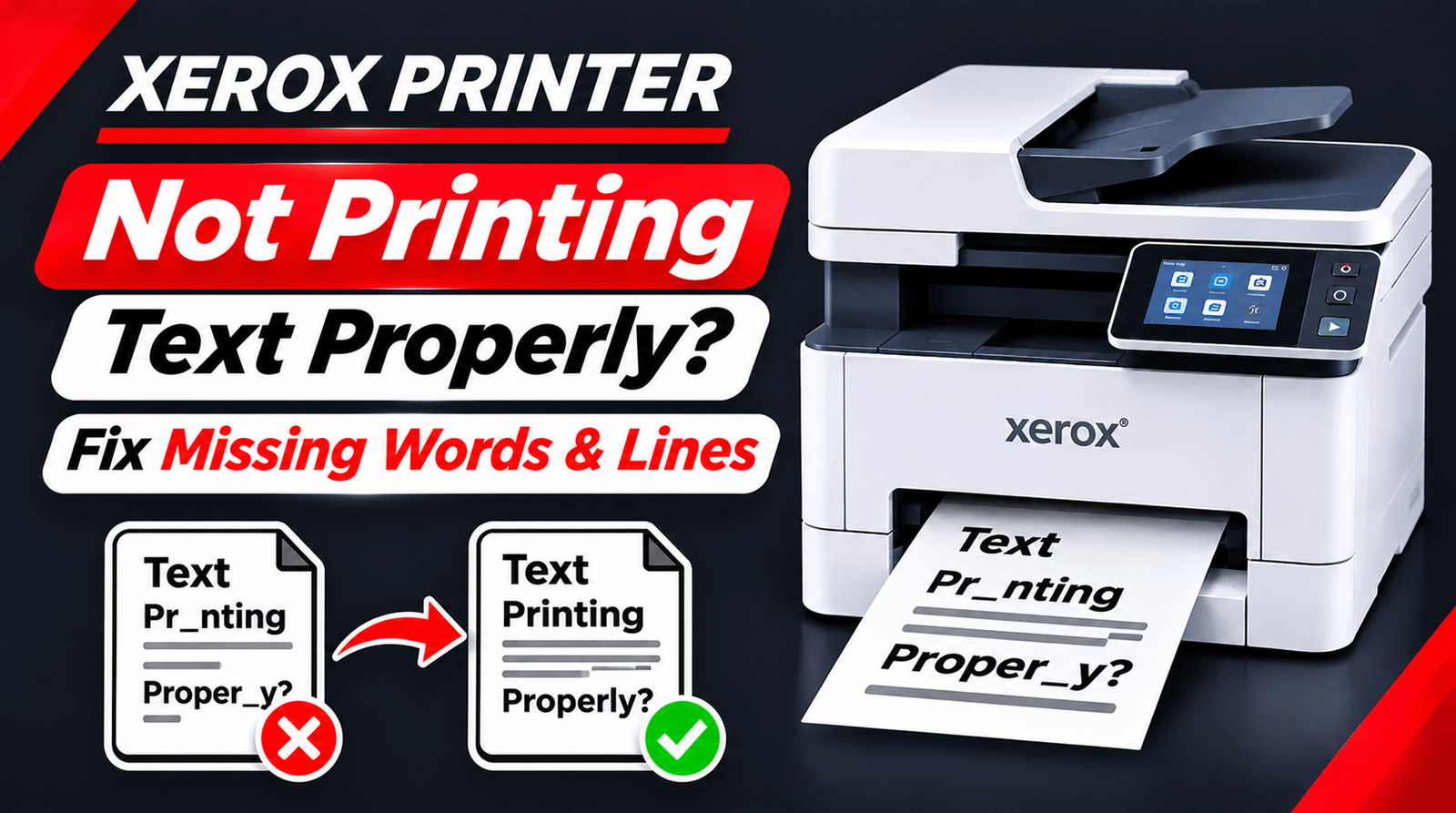
Is your Xerox printer printing documents with missing words, incomplete letters, broken lines, or sections of text that disappear? Perhaps images and graphics print normally, but text looks faded, distorted, or incomplete.
These problems can make business documents, invoices, reports, and other important files difficult to read.
A Xerox printer not printing text properly can be caused by several issues, including low toner, incorrect print settings, damaged fonts, outdated printer drivers, paper problems, or worn imaging components.
Sometimes, the printer itself is working correctly, but a particular document or application is causing the problem.
In this guide, you will learn how to identify the cause and fix common Xerox text-printing problems with practical troubleshooting steps.
Quick Fix: Why Is My Xerox Printer Not Printing Text Properly?
If your Xerox printer is missing words or printing incomplete letters, first check the toner level and print quality. Make sure the cartridge is installed correctly and that toner-saving mode is disabled. Next, print an internal configuration or quality report to determine whether the issue comes from the printer or your computer.
The Solution:
Check the cartridge, review print-quality settings, and update the Xerox printer driver. If internal reports also show missing text, inspect the toner and imaging components. If internal reports look normal, test another document and application to identify possible software or font problems.
Table of Contents
- 1. Check the Toner or Ink Level
- 2. Disable Toner Saver and Draft Mode
- 3. Reinstall the Black Toner Cartridge
- 4. Check the Drum Unit and Imaging Components
- 5. Print an Internal Quality Report
- 6. Check the Document Font and Formatting
- 7. Update or Reinstall the Xerox Printer Driver
- 8. Check the Paper Type and Print Quality Settings
- 9. Check Whether the Problem Happens in Every Application
- 10. Restart the Printer and Clear Pending Print Jobs
- Why Is My Xerox Printer Printing Missing Words?
- Why Is My Xerox Printer Printing Broken or Incomplete Letters?
- Why Is Xerox Text Printing Too Light or Faded?
- When Should You Contact a Xerox Technician?
- Frequently Asked Questions
- Related Guides
- Final Thoughts
1. Check the Toner or Ink Level
Low toner or ink can cause text to appear faded, incomplete, or difficult to read.
This is especially noticeable when printing small fonts, detailed documents, or pages containing large amounts of text.
How to check the supply level:
- Open your Xerox printer’s control panel.
- Navigate to Supplies, Toner, or Consumables.
- Check the black toner or ink level.
- Review any low-supply or replacement warnings.
- Replace the cartridge if it has reached the end of its usable life.
- Print another document to check the result.
If your printer uses separate color cartridges, check those supplies too when colored text is affected.
Remember that displayed toner levels may be estimates. A cartridge can sometimes produce poor results even when the printer reports that some toner remains.
2. Disable Toner Saver and Draft Mode
Toner Saver and Draft Mode are designed to reduce consumable usage or increase printing speed. However, these settings can make text appear lighter than expected.
Small letters may become difficult to read, and thin lines may look incomplete.
On Windows:
- Open the document.
- Press Ctrl + P.
- Select your Xerox printer.
- Open Printer Properties or Printing Preferences.
- Find Quality, Image Options, or similar settings.
- Disable Toner Saver or Draft Mode temporarily.
- Select Standard or a higher print-quality option.
- Print a test page.
On Mac:
- Open your document.
- Select File and then Print.
- Choose your Xerox printer.
- Expand the available print settings.
- Look for Quality or Printer Features.
- Select a standard or higher-quality setting.
- Print again.
Menu names vary between Xerox models and driver versions.
If the text becomes clearer after changing these settings, keep the appropriate quality option for important documents.
3. Reinstall the Black Toner Cartridge
An incorrectly installed toner cartridge can cause inconsistent printing and missing text.
This may happen after replacing toner, cleaning the printer, or moving the device.
Follow these steps:
- Check the printer display for toner warnings.
- Open the cartridge access panel according to the manufacturer’s instructions.
- Carefully remove the black toner cartridge.
- Inspect it for visible damage or leakage.
- Check for protective packaging that should have been removed.
- Reinstall the cartridge correctly.
- Close the access panel.
- Allow the printer to become ready.
- Print a test document.
If the printer continues producing incomplete text, check whether the cartridge is compatible with your exact Xerox model.
Avoid touching the sensitive imaging surfaces of the cartridge or drum unit.
4. Check the Drum Unit and Imaging Components
On compatible Xerox laser printers, the drum and imaging system help transfer toner onto paper.
When these components become worn, damaged, or contaminated, text may appear incomplete or uneven.
Common signs of an imaging problem include:
- Missing sections of letters
- Repeated black or white marks
- Vertical streaks
- Uneven text density
- Repeating defects on multiple pages
- Faded areas in the same position
How to troubleshoot:
- Check the printer display for drum or imaging-unit warnings.
- Review the consumables status.
- Identify any component that has reached its service limit.
- Follow the manufacturer’s inspection instructions.
- Replace the affected component only when necessary.
- Print another quality report.
Do not touch the sensitive drum surface. Follow the handling instructions for your particular Xerox model.
5. Print an Internal Quality Report
An internal report helps determine whether missing text is caused by printer hardware or computer software.
This is an important step because it can prevent unnecessary driver changes or cartridge replacements.
How to perform the test:
- Open the Xerox printer’s control panel.
- Find Reports, Information Pages, or Print Quality.
- Select a configuration page or quality report.
- Print the report directly from the printer.
- Examine the text and printed lines.
Understand the results:
- Internal report has missing text: Investigate toner, cartridge installation, and imaging components.
- Internal report looks normal: Check your computer, application, document, and driver.
- Text is consistently faded: Check toner levels and print-quality settings.
- Only certain areas are missing: Inspect the relevant consumable or imaging system.
If the internal report prints correctly, move on to the software troubleshooting steps.
6. Check the Document Font and Formatting
Sometimes, missing text is caused by the document rather than the printer.
Unsupported fonts, corrupted formatting, unusual text effects, or damaged files can cause words and characters to disappear during printing.
This is particularly common with documents created using specialized fonts or transferred between different computers.
Try these steps:
- Open the document on your computer.
- Select the affected text.
- Change the font to a common font such as Arial or Times New Roman.
- Check the font color and make sure it is not white.
- Remove unusual text effects temporarily.
- Save the document.
- Print it again.
If the document is a PDF, try opening it in another PDF reader.
You can also save a fresh PDF copy and print it to see whether the original file is causing the problem.
7. Update or Reinstall the Xerox Printer Driver
An outdated or damaged driver can cause incorrect text rendering.
For example, the printer may receive incomplete information about fonts, page layout, or document formatting.
How to update the driver:
- Open your computer’s printer settings.
- Select your Xerox printer.
- Check the installed printer model and driver.
- Visit the official Xerox support website.
- Search for your exact printer model.
- Download the recommended driver for your operating system.
- Install it according to the manufacturer’s instructions.
- Restart your computer.
- Print a test document.
If the problem started after a recent driver update, check whether another compatible driver version is available.
For related help, read Xerox Printer Driver Unavailable? Fix Driver Problems Fast.
8. Check the Paper Type and Print Quality Settings
Incorrect paper settings can affect the appearance of text.
For example, selecting a paper type that does not match the loaded media may cause the printer to use unsuitable printing settings.
Try these adjustments:
- Open Xerox Printing Preferences.
- Find Paper Type or Media Type.
- Select the correct paper category.
- Open the Quality or Image Options section.
- Disable Draft Mode temporarily.
- Select Standard or a higher print-quality setting.
- Print another test document.
Also check that the paper is dry, clean, and suitable for your printer.
If the text improves, keep the correct media and quality settings for future jobs.
9. Check Whether the Problem Happens in Every Application
If text is missing only when printing from one application, the printer itself may not be responsible.
For example, a document may print incorrectly from a word processor but appear normal when printed as a PDF from another program.
Test with another application:
- Open a basic text editor.
- Type several lines using a standard black font.
- Save the document.
- Print it using your Xerox printer.
- Open another application.
- Print a second test document.
- Compare the results.
If the new documents print correctly, investigate the original application or file.
You may also try reinstalling the affected application if the problem occurs with every document created in it.
10. Restart the Printer and Clear Pending Print Jobs
A stuck or corrupted print job can sometimes cause incomplete output.
Restarting the printer and clearing pending jobs can help resolve temporary printing problems.
Follow these steps:
- Open the print queue on your computer.
- Cancel pending print jobs.
- Wait until the queue is clear.
- Turn off the Xerox printer using its power control.
- Wait approximately 30 seconds.
- Turn the printer back on.
- Wait until the printer displays Ready.
- Send a fresh test document.
If the printer repeatedly produces incomplete documents, investigate the driver and connection.
Why Is My Xerox Printer Printing Missing Words?
If entire words or sections of text disappear, the cause may be related to document formatting, fonts, or printer communication.
Common reasons include:
- Corrupted document formatting
- Unsupported fonts
- Incorrect font color
- Damaged printer driver
- Application printing problems
- Low toner or poor print quality
Try printing a simple document from another application. If that works, the original file or application may be responsible.
If missing words appear in internal reports too, inspect the printer’s supplies and imaging components.
Why Is My Xerox Printer Printing Broken or Incomplete Letters?
Broken letters usually indicate inconsistent print quality.
Possible causes include low toner, incorrect quality settings, a damaged cartridge, or worn imaging components.
Try disabling Toner Saver, checking the black toner level, and printing an internal quality report.
If the problem appears repeatedly in the same areas, inspect the drum or imaging system according to the printer’s instructions.
Why Is Xerox Text Printing Too Light or Faded?
Faded text is often caused by low toner, economy printing settings, or a problem with the imaging system.
Try these steps:
- Check the black toner level.
- Disable Toner Saver.
- Select Standard or higher print quality.
- Check the paper type.
- Reinstall the toner cartridge if necessary.
- Print an internal quality report.
If the output remains faded, the cartridge or imaging components may require replacement.
For more detailed help, see Xerox Printer Printing Faded or Light? Fix Poor Print Quality.
When Should You Contact a Xerox Technician?
Basic troubleshooting can resolve many text-printing issues. However, professional servicing may be necessary when the problem involves internal hardware.
Contact a qualified technician if:
- Internal reports consistently show missing text.
- Replacing a confirmed faulty cartridge does not help.
- Drum or imaging-unit warnings remain.
- Repeated streaks or marks appear on every page.
- The printer produces unusual mechanical noises.
- Internal hardware errors prevent normal printing.
Avoid opening internal printer assemblies unless the manufacturer’s service instructions specifically allow it.
Frequently Asked Questions
1. Why is my Xerox printer not printing text properly?
Common causes include low toner, incorrect print settings, damaged fonts, outdated drivers, cartridge problems, and worn imaging components. Check the toner level and print an internal quality report first.
2. Why does my Xerox printer print images but miss text?
The issue may be related to font rendering, document formatting, or the printer driver. Try using a standard font, saving the document as a PDF, and updating the driver.
3. How do I fix missing words when printing from Xerox?
Check the document formatting, font color, and installed fonts. Print the same document from another application to determine whether the problem is software-related.
4. Why is my Xerox printer printing faded text?
Low toner, Toner Saver mode, Draft Mode, incorrect paper settings, or worn imaging components can cause faded text. Check the supply level and print-quality settings.
5. Can an outdated Xerox driver cause missing text?
Yes. An incompatible or damaged driver can affect document rendering and cause text to print incorrectly. Download the recommended driver for your exact Xerox model.
6. Why are some letters missing when printing?
Missing letters can result from damaged fonts, document formatting, low toner, or print-quality problems. Test another document with a standard font to narrow down the cause.
7. How can I test Xerox text printing?
Print an internal configuration or quality report from the printer’s control panel if supported. You can also print a simple text document from a basic text editor.
8. Should I replace my toner if text is incomplete?
Not immediately. First check the toner level, cartridge installation, print settings, and internal quality report. Replace the cartridge if it is empty or confirmed to be defective.
Related Guides
For additional Xerox printer troubleshooting, explore these guides:
- Xerox Printer Not Printing? 15 Proven Fixes That Actually Work (2026)
- Xerox Printer Not Printing Black? Easy Fixes That Work (2026)
- Xerox Printer Printing Blank Pages? 11 Fixes That Actually Work
- Xerox Printer Printing Faded or Light? Fix Poor Print Quality
- Xerox Printer Alignment Problem? Fix Crooked or Misaligned Prints
- Xerox Printer Driver Unavailable? Fix Driver Problems Fast
Final Thoughts
A Xerox printer not printing text properly can be caused by toner problems, incorrect print settings, document formatting, driver issues, or damaged imaging components.
Start with the simplest checks: inspect toner levels, disable Toner Saver, reinstall the cartridge if necessary, and print an internal quality report. These steps help determine whether the issue comes from the printer or your computer.
If the problem continues, troubleshoot the document and driver before replacing expensive components. Regular maintenance, compatible supplies, and correct print settings can help keep your Xerox printer producing clear, readable documents.