Xerox Printer Driver Unavailable? Fix Driver Problems Fast
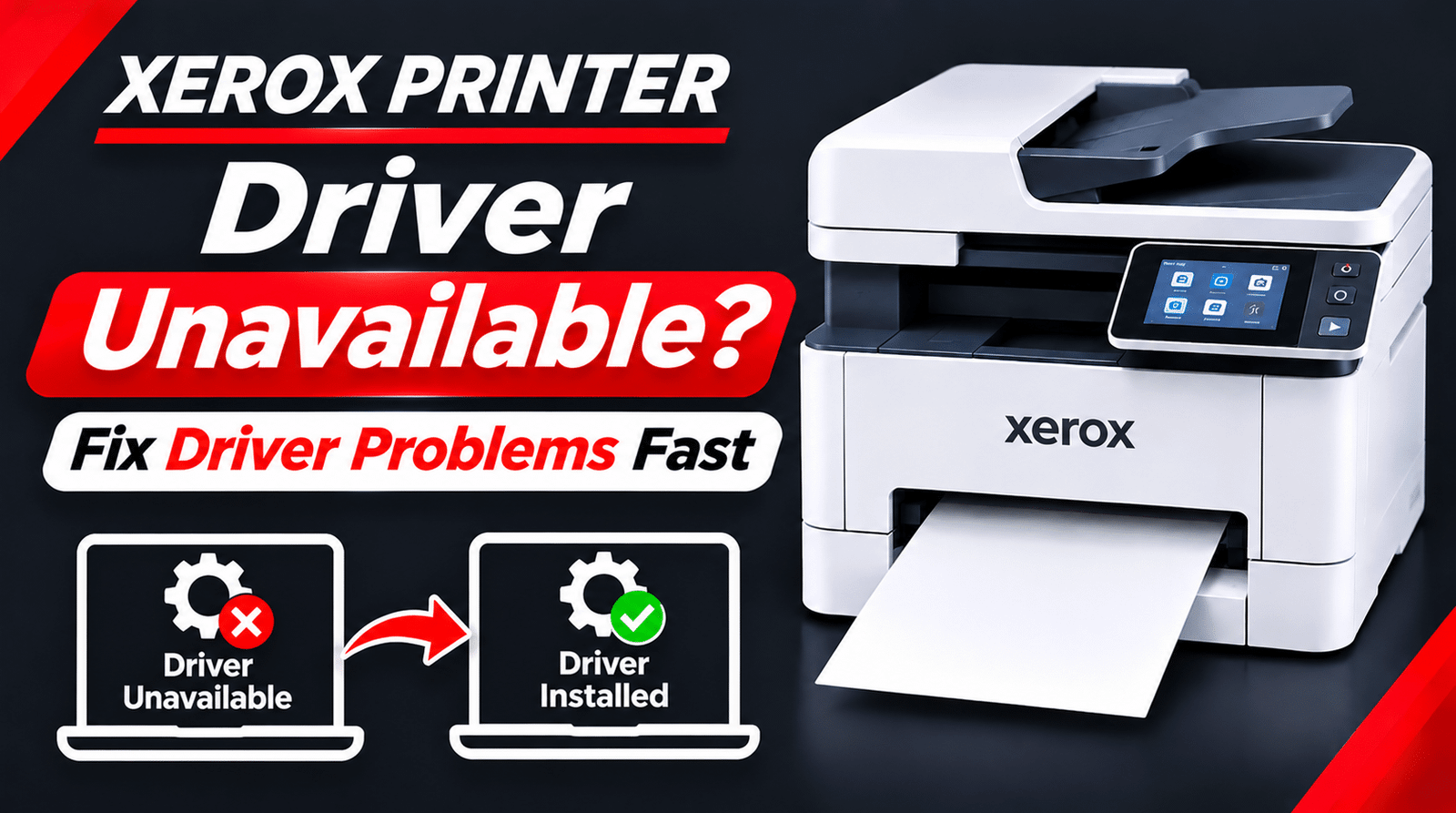
Are you seeing a “Driver Is Unavailable” message when trying to print from your Xerox printer? Does your computer recognize the printer but refuse to send documents? This problem can interrupt your work and make a properly connected printer appear unusable.
A Xerox printer driver unavailable error usually indicates that your computer cannot communicate with the printer through the installed driver. The cause may be an outdated driver, corrupted installation, incompatible operating system update, incorrect printer configuration, or connection problem.
In some cases, Windows or macOS installs a basic driver that does not provide all the features supported by your Xerox printer.
Fortunately, most driver-related problems can be fixed without replacing the printer.
This guide explains practical ways to troubleshoot Xerox driver errors on Windows and Mac computers.
Quick Fix: Why Is My Xerox Printer Driver Unavailable?
If your computer displays a Xerox printer driver unavailable message, first restart the printer and computer. Check the printer connection, remove any duplicate printer entries, and verify that the installed driver matches your exact Xerox model and operating system.
The Solution:
Download the recommended driver from the official Xerox support website, uninstall the problematic printer installation if necessary, and reinstall the correct software. After installation, restart your computer and print a test page.
Table of Contents
- 1. Restart Your Xerox Printer and Computer
- 2. Check Your Printer Connection
- 3. Download the Correct Xerox Printer Driver
- 4. Uninstall and Reinstall the Xerox Printer Driver
- 5. Update Windows or macOS
- 6. Run the Windows Printer Troubleshooter
- 7. Restart the Windows Print Spooler Service
- 8. Remove Duplicate Xerox Printer Entries
- 9. Check Whether Windows Is Using a Generic Driver
- 10. Add the Xerox Printer Again Using the Correct Connection
- How to Fix Xerox Printer Driver Unavailable on Windows 11
- How to Fix Xerox Printer Driver Unavailable on Mac
- When Should You Contact Xerox Support?
- Frequently Asked Questions
- Related Guides
- Final Thoughts
1. Restart Your Xerox Printer and Computer
Temporary communication problems can sometimes prevent your computer from recognizing an installed printer driver correctly.
A simple restart can refresh the printer connection and clear temporary system errors.
Follow these steps:
- Save any documents currently being worked on.
- Turn off your Xerox printer using its power button.
- Wait approximately 30 seconds.
- Restart your computer.
- Turn the printer back on.
- Wait until the printer displays Ready.
- Open your printer settings and check the driver status.
- Print a test document.
If the driver still appears unavailable, continue with the following troubleshooting methods.
2. Check Your Printer Connection
A printer driver may appear unavailable when the computer cannot communicate with the printer correctly.
This can happen when a USB cable becomes disconnected, a network printer changes its IP address, or the printer is connected to a different Wi-Fi network.
For USB-connected Xerox printers:
- Check that the USB cable is firmly connected.
- Disconnect and reconnect the cable.
- Try another available USB port.
- Avoid using a damaged or unreliable cable.
- Check whether the printer appears in your computer’s device list.
For wireless Xerox printers:
- Confirm that the printer is connected to your network.
- Make sure the computer uses the correct network.
- Check the printer’s network status.
- Confirm that the printer’s IP address is accessible.
- Restart your router if the network connection is unstable.
If the printer is offline rather than reporting a driver error, see Xerox Printer Offline? 10 Fast Fixes to Get It Back Online (2026).
3. Download the Correct Xerox Printer Driver
Installing the wrong driver is a common reason for printer compatibility problems.
Xerox provides different drivers for different printer models and operating systems. A driver designed for another model may not work correctly, even if the printers look similar.
How to download the correct driver:
- Find your Xerox printer’s exact model number.
- Visit the official Xerox support website.
- Open the Drivers and Downloads section.
- Enter your printer model.
- Select your operating system.
- Review the available driver options.
- Download the recommended driver.
- Follow the installation instructions.
Before downloading, confirm whether you are using Windows or macOS and check the operating system version.
Avoid downloading printer drivers from unknown third-party websites. Official Xerox downloads are the safer choice.
4. Uninstall and Reinstall the Xerox Printer Driver
If the existing driver installation is corrupted, simply updating it may not solve the problem.
Removing the old installation and installing a fresh driver can restore normal communication.
On Windows:
- Open Settings.
- Select Bluetooth and Devices.
- Open Printers and Scanners.
- Select your Xerox printer.
- Choose Remove Device.
- Confirm the removal.
- Open the downloaded Xerox driver installer.
- Follow the installation instructions.
- Add the printer again if required.
- Print a test page.
Depending on your Windows version and driver package, you may also need to remove an old driver package through the printer server properties.
On Mac:
- Open System Settings.
- Select Printers and Scanners.
- Choose your Xerox printer.
- Remove the printer from the list.
- Download the compatible driver or software from Xerox.
- Install it if your model requires a separate package.
- Add the printer again.
- Print a test document.
Menu names may vary depending on your operating system version.
5. Update Windows or macOS
An outdated operating system can create compatibility problems with printer drivers.
Similarly, a recent operating system update may affect an older driver that was previously working correctly.
On Windows:
- Open Settings.
- Select Windows Update.
- Check for available updates.
- Install relevant updates.
- Restart your computer.
- Check whether the Xerox printer is recognized.
On Mac:
- Open System Settings.
- Select General.
- Open Software Update.
- Check for available updates.
- Install compatible updates.
- Restart your Mac.
After updating the operating system, check Xerox’s support page to confirm that a compatible driver is available for your printer.
Do not assume that every older Xerox model supports every new operating system version.
6. Run the Windows Printer Troubleshooter
Windows includes troubleshooting tools that can help identify printer configuration and communication problems.
If your Xerox driver is unavailable, the troubleshooter may detect an issue involving printer settings, services, or device configuration.
How to run the troubleshooter:
- Open Windows Settings.
- Select System.
- Open Troubleshoot.
- Select Other Troubleshooters.
- Find Printer.
- Click Run.
- Follow the instructions displayed.
- Apply any recommended fixes.
- Restart the computer if requested.
The available troubleshooting options can vary between Windows versions.
After completing the process, return to Printers and Scanners and check whether your Xerox printer is working.
7. Restart the Windows Print Spooler Service
The Print Spooler is a Windows service responsible for managing print jobs.
If this service stops responding or encounters an error, your computer may have trouble communicating with the printer.
Follow these steps:
- Press Windows + R.
- Type
services.msc. - Press Enter.
- Find Print Spooler in the services list.
- Right-click the service.
- Select Restart.
- Wait for the service to restart.
- Try printing a test document.
If the service is stopped, select Start instead.
For persistent spooler problems, you may need to clear stuck print jobs. Only clear the queue when you are comfortable removing pending documents that have not yet printed.
8. Remove Duplicate Xerox Printer Entries
Sometimes Windows or macOS creates multiple entries for the same printer.
This can happen after reinstalling drivers, changing USB ports, or reconnecting a network printer.
You may see entries such as:
- Xerox Printer
- Xerox Printer Copy 1
- Xerox Printer Series
- Xerox Printer Network
Selecting an incorrect or outdated entry can cause printing problems.
How to fix this:
- Open your computer’s printer settings.
- Review the installed Xerox printer entries.
- Identify duplicate or outdated entries.
- Confirm which entry uses the correct connection and driver.
- Remove unnecessary duplicates.
- Set the correct Xerox printer as the default if appropriate.
- Print a test page.
Do not remove other users’ shared printers or office devices unless you know they are no longer needed.
9. Check Whether Windows Is Using a Generic Driver
Windows may sometimes install a basic or generic printer driver automatically.
While this can allow basic printing, it may not support all the features of your Xerox device.
Possible missing features include:
- Advanced paper settings
- Duplex printing
- Color management
- Finishing options
- Device-specific print quality settings
What to do:
- Open Printers and Scanners.
- Select your Xerox printer.
- Review the available printer properties.
- Check the installed driver information where available.
- Compare it with the recommended driver on Xerox’s support website.
- Install the appropriate Xerox driver if necessary.
If basic printing works but advanced features are missing, the installed driver may not be the best match for your device.
10. Add the Xerox Printer Again Using the Correct Connection
If your printer is connected through a network, removing and adding it again can help resolve incorrect connection information.
This is particularly useful when a network printer has received a different IP address.
For a network-connected printer:
- Check the printer’s current IP address from its network settings or configuration report.
- Open your computer’s printer settings.
- Remove the outdated printer entry if appropriate.
- Select Add Printer.
- Search for the Xerox printer.
- If automatic discovery fails, use the supported manual network setup option.
- Enter the printer’s current address if required.
- Select the correct driver.
- Complete the setup.
- Print a test page.
Make sure the printer and computer are connected to networks that can communicate with each other. Some office networks restrict communication between devices.
How to Fix Xerox Printer Driver Unavailable on Windows 11
Windows 11 users may encounter driver errors after installing updates, changing printer connections, or reinstalling devices.
Try this sequence:
- Open Settings and select Bluetooth and Devices.
- Open Printers and Scanners.
- Select your Xerox printer.
- Remove outdated or duplicate entries.
- Restart the computer.
- Download the recommended Windows 11 driver from Xerox.
- Install the driver.
- Add the printer again.
- Print a test page.
If the problem continues, run the Windows printer troubleshooter and check the Print Spooler service.
How to Fix Xerox Printer Driver Unavailable on Mac
Mac users may encounter driver compatibility problems when using older printer models or updating macOS.
Try these steps:
- Check that your Xerox printer supports your macOS version.
- Open System Settings.
- Select Printers and Scanners.
- Remove the affected printer entry.
- Visit the Xerox support website.
- Check for compatible software or driver packages.
- Install the recommended package if available.
- Add the printer again.
- Select the appropriate driver or supported AirPrint option.
- Print a test document.
Some newer Xerox models support AirPrint, while other models may require different setup methods.
When Should You Contact Xerox Support?
Most driver errors can be resolved through software installation and configuration. However, additional support may be needed when:
- Your printer model has no compatible driver for your operating system.
- The official driver installer repeatedly fails.
- Your computer cannot detect the printer through a confirmed working connection.
- The printer displays persistent hardware or network errors.
- The device requires firmware or configuration changes beyond normal setup.
Before contacting support, note your exact Xerox model, operating system version, driver version, and any error message displayed.
This information can help narrow down the problem.
Frequently Asked Questions
1. Why does my Xerox printer say the driver is unavailable?
This usually means your computer cannot use the installed printer driver. Common causes include corrupted installation files, outdated drivers, incompatible operating system updates, or incorrect printer configuration.
2. How do I fix a Xerox printer driver unavailable error?
Restart the printer and computer, check the connection, remove outdated printer entries, and install the recommended driver from the official Xerox support website.
3. How do I install a Xerox printer driver on Windows 11?
Find your exact printer model on the Xerox support website, select Windows 11 if supported, download the recommended driver, and follow the installation instructions. Add the printer again if necessary.
4. Why is my Xerox printer not recognized after installing the driver?
The printer may be connected to the wrong network, using an incorrect IP address, or connected through a faulty USB cable. Check the connection and confirm that the correct printer entry is selected.
5. Can Windows updates cause Xerox driver problems?
Yes. Some operating system updates can affect compatibility with existing printer drivers. Check the Xerox support website for an updated driver compatible with your Windows version.
6. Should I uninstall my Xerox printer driver before reinstalling it?
If the current installation is corrupted or repeatedly reports errors, removing the old printer installation before reinstalling the recommended driver can help.
7. Why does my Xerox printer work but show a driver error?
Your computer may be using a generic driver or an outdated printer entry. Basic printing may still work even when some driver features are unavailable.
8. Can I use a Xerox printer without installing its official driver?
Some Xerox printers support AirPrint or operating-system-provided drivers. However, compatibility and available features depend on the exact model and operating system.
Related Guides
For more Xerox printer troubleshooting help, explore these guides:
- Xerox Printer Not Printing? 15 Proven Fixes That Actually Work (2026)
- Xerox Printer Offline? 10 Fast Fixes to Get It Back Online (2026)
- Xerox Printer WiFi Setup Guide (Windows, Mac & Mobile)
- Xerox Printer in Error State? Quick Fix Guide
- Xerox Printer Connected But Not Printing? Fix It Fast
- Xerox Printer Printing Weird Symbols? Fix Gibberish Output
Final Thoughts
A Xerox printer driver unavailable error usually points to a software, compatibility, or communication problem rather than a damaged printer.
Start by checking the connection and restarting your devices. If that does not work, download the correct driver, remove the problematic installation, and reinstall the printer using the recommended setup procedure.
Keeping your printer driver compatible with your operating system and using the correct connection settings can help prevent recurring driver problems and restore reliable printing.