
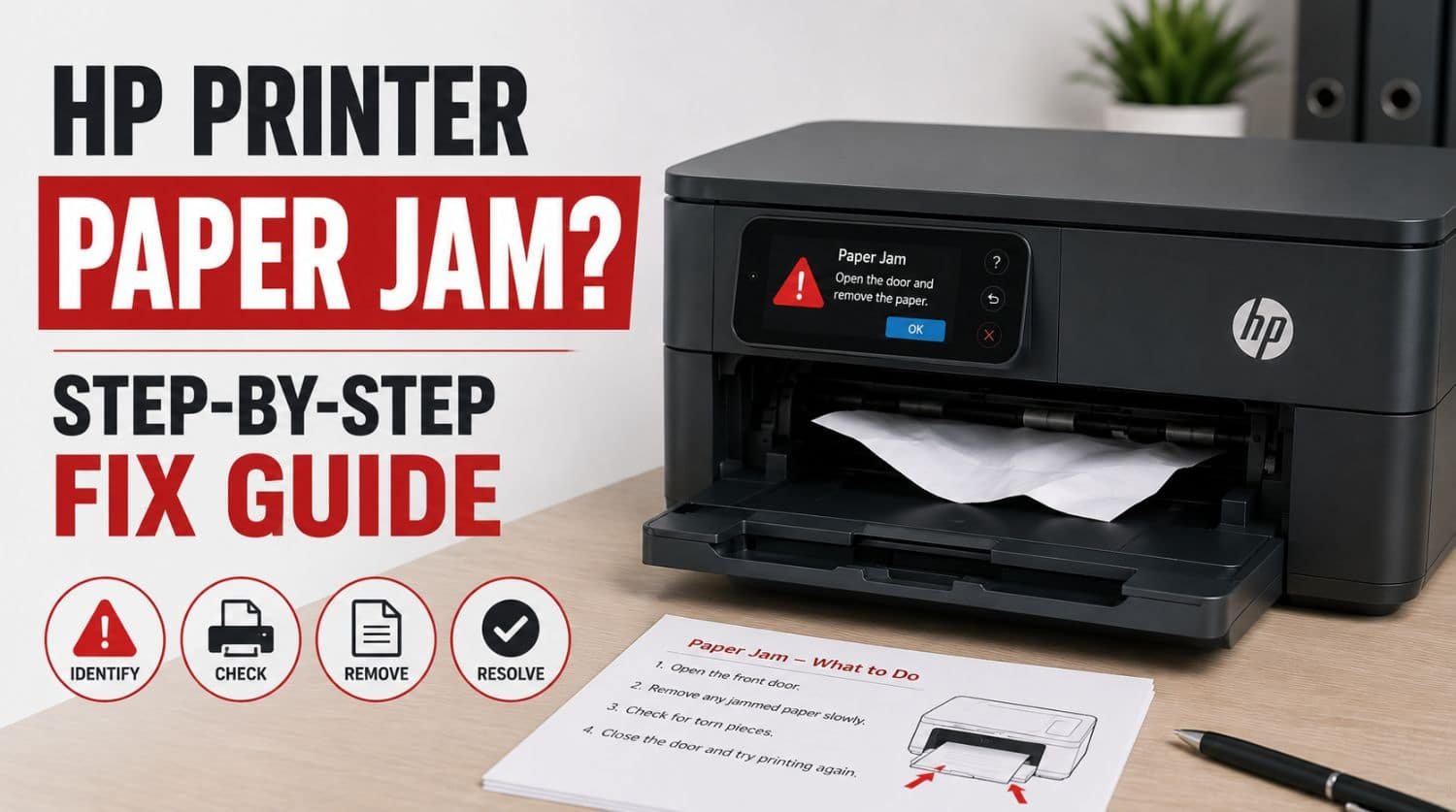
HP Printer Paper Jam? Step-by-Step Fix Guide
Quick Fix: Why Does My HP Printer Say Paper Jam?
If your HP printer says paper jam, the most common causes include stuck paper fragments, overloaded trays, damaged paper, dirty rollers, incorrect paper loading, or internal feed obstructions. Sometimes the printer may show a false paper jam even when no paper is visible.
The Solution:
Turn off the printer, carefully remove jammed paper, inspect all paper paths, clean the rollers, reload paper correctly, and restart the printer. If the jam warning remains, sensor or hardware troubleshooting may be needed.
Table of Contents
- Why Does My HP Printer Keep Saying Paper Jam?
- 1. Turn Off the Printer Immediately
- 2. Remove Visible Jammed Paper Carefully
- 3. Check for Torn Paper Fragments
- 4. Reload Paper Properly
- 5. Inspect and Clean Feed Rollers
- 6. Check Rear Access Door or Duplexer
- 7. Reset the Printer
- 8. Check for False Paper Jam Errors
- 9. Update Printer Firmware
- 10. Check for Mechanical Damage
- When Paper Jam Causes Error State Problems
- Quick Troubleshooting Checklist
- Frequently Asked Questions
- Final Thoughts
Is your HP printer showing a paper jam message?
Paper jams are one of the most common printer problems—and one of the most frustrating.
Sometimes the problem is obvious because paper is visibly stuck.
Other times the printer reports a jam even when nothing appears blocked.
This guide focuses specifically on fixing HP printer paper jams, removing stuck paper safely, and resolving false jam errors.
If your printer has broader printing problems beyond jam issues, use our complete HP Printer Not Printing Properly troubleshooting guide.
Why Does My HP Printer Keep Saying Paper Jam?
Paper jam errors happen when the printer cannot move paper through the feed path correctly.
Common causes include:
- jammed paper sheets
- torn paper fragments
- overloaded paper tray
- curled or damaged paper
- dirty rollers
- blocked feed path
- misaligned paper stack
- faulty jam sensors
- internal mechanical obstruction
The fix depends on whether the jam is real or false.
1. Turn Off the Printer Immediately
Never force jammed paper out while the printer is actively feeding.
This can damage:
- feed rollers
- internal gears
- paper sensors
- carriage movement
Steps
- Cancel print job
- Turn off printer
- Unplug power cable
- Wait 30–60 seconds
Now inspect the printer safely.
2. Remove Visible Jammed Paper Carefully
If paper is visible, remove it slowly.
Pulling too hard can tear paper inside.
Check these areas
- input tray
- output tray
- rear access door
- front access panel
- internal feed path
Best practice
Pull paper in the natural feed direction whenever possible.
Avoid twisting or ripping sheets.
If paper tears, continue with the next step.
3. Check for Torn Paper Fragments
Small paper pieces often remain hidden.
Even tiny fragments can trigger repeated jam errors.
Inspect carefully using light.
Common hidden areas:
- roller area
- rear paper path
- cartridge access area
- duplexer section
- internal corners
Remove every visible fragment.
False jams often happen because of missed scraps.
4. Reload Paper Properly
Incorrect paper loading can trigger repeated jams.
Common mistakes:
- overloading tray
- uneven stack
- curled paper
- mixed paper sizes
- damaged paper edges
Correct loading
- use clean flat paper
- align stack evenly
- avoid overfilling tray
- adjust paper guides properly
Improper loading is one of the biggest repeat causes.
5. Inspect and Clean Feed Rollers
Dirty rollers lose grip and feed paper incorrectly.
This causes:
- repeated jams
- partial feeding
- paper misfeeds
- multiple sheets feeding
Cleaning steps
- Turn off printer
- Access rollers
- Use lint-free cloth
- Lightly clean rollers
- Allow drying
- Retry printing
Dirty rollers are common in dusty environments.
6. Check Rear Access Door or Duplexer
Many HP printers hide jams in the rear access area.
Users often miss this location.
Check:
- rear access door
- duplex printing unit
- rear feed rollers
- internal path
Remove any stuck paper gently.
Reinstall panels securely afterward.
7. Reset the Printer
Temporary sensor glitches sometimes trigger false jam messages.
A reset clears temporary hardware errors.
Reset steps
- Turn printer off
- Unplug power
- Wait 60 seconds
- Reconnect
- Restart printer
If the error disappears, it was likely temporary.
8. Check for False Paper Jam Errors
Sometimes no jam exists at all.
False jam alerts happen because of:
- dirty sensors
- paper dust
- sensor obstruction
- firmware glitches
- hardware wear
Signs:
- no visible paper
- printer still shows jam
- repeated alerts after clearing path
Inspect all accessible areas again carefully.
9. Update Printer Firmware
Firmware bugs can trigger incorrect hardware alerts.
This is less common, but possible.
Update using:
- HP Smart
- printer settings
- HP software tools
Then restart printer.
10. Check for Mechanical Damage
Persistent jams may indicate hardware wear.
Possible problems:
- worn rollers
- broken feed gears
- damaged paper guides
- failed jam sensors
- internal obstructions
Signs:
- grinding noises
- repeated jams in same location
- paper stops at same point
- printer cannot feed paper consistently
Hardware service may be required.
When Paper Jam Causes Error State Problems
Paper jams sometimes trigger broader printer warning states.
If your printer continues showing warning messages even after clearing jams, the issue may extend beyond paper handling.
Use our HP Printer in Error State Fix guide.
If the printer has wider performance issues, use the full HP Printer Not Printing Properly troubleshooting guide.
Quick Troubleshooting Checklist
✅ turn off printer
✅ remove visible jammed paper
✅ inspect for torn scraps
✅ reload paper correctly
✅ clean rollers
✅ check rear access area
✅ reset printer
✅ inspect for false jams
✅ update firmware
✅ check hardware damage
Frequently Asked Questions
How do I remove a paper jam from my HP printer?
Turn off the printer, remove visible paper carefully, inspect all paper paths, remove fragments, and restart the printer.
Why does my HP printer keep saying paper jam when there is none?
This usually happens بسبب dirty sensors, hidden paper scraps, or temporary firmware glitches.
Can dirty rollers cause paper jams?
Yes. Dirty or worn rollers are one of the most common causes of repeated jams.
Why does my HP printer jam every time I print?
Repeated jams often indicate poor paper loading, damaged paper, dirty rollers, or mechanical wear.
Is it safe to pull jammed paper out?
Yes—but pull gently and preferably in the normal feed direction to avoid tearing paper inside.
Final Thoughts
HP printer paper jams are usually fixable without professional repair.
Most jam issues are caused by:
- paper loading mistakes
- hidden scraps
- dirty rollers
- false jam sensor alerts
Start with the easiest checks first.
If the same jam happens repeatedly, hardware wear may be the cause.


