
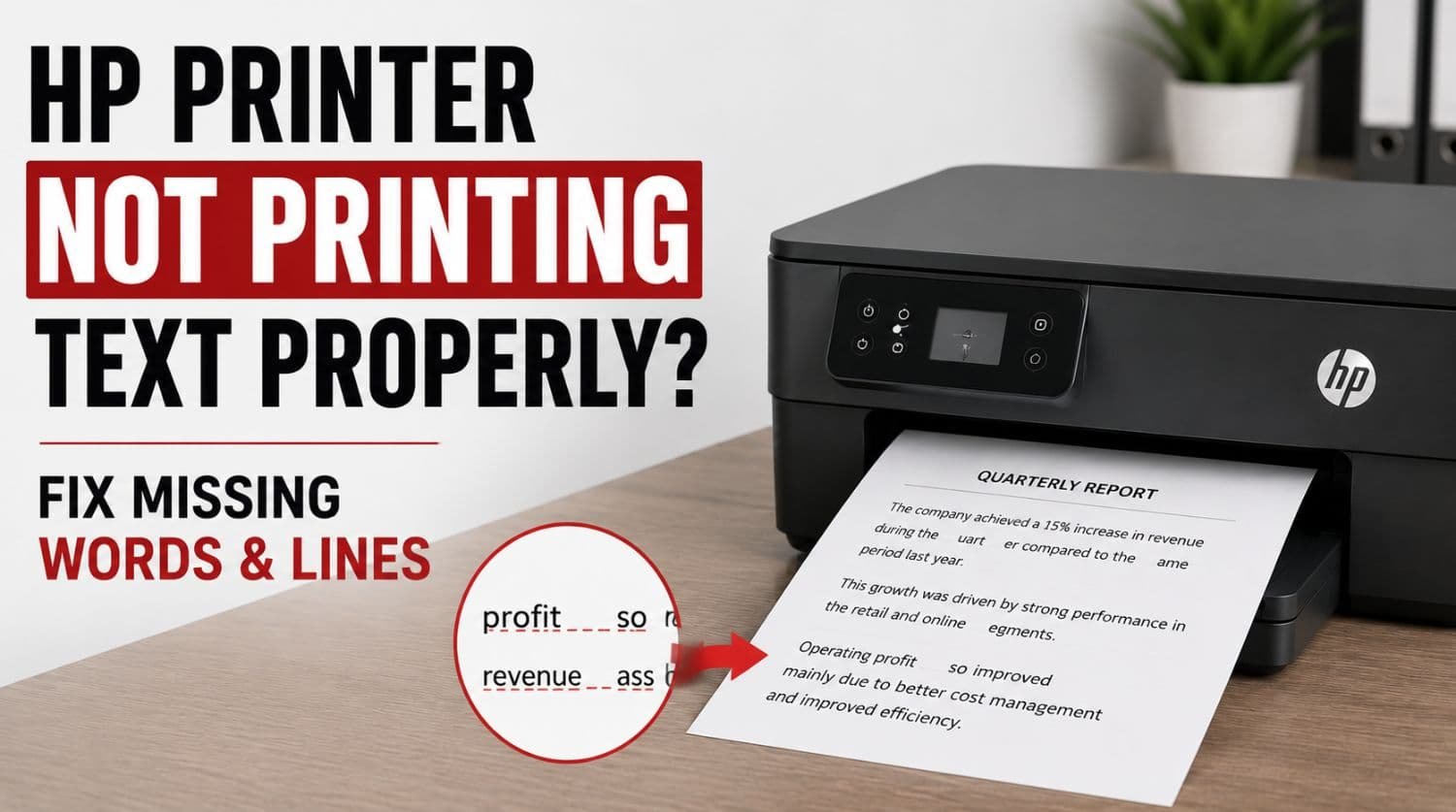
HP Printer Not Printing Text Properly? Fix Missing Words & Lines
Quick Fix: Why Is Your HP Printer Not Printing Text Properly?
If your HP printer is not printing text properly, the most common causes include clogged printheads, low ink, printer alignment problems, incorrect print settings, corrupted drivers, or font rendering issues. This can cause missing words, broken text lines, faded characters, or incomplete documents.
The Solution:
Check ink levels, clean the printhead, align the printer, review print settings, print a diagnostic page, and reinstall the printer driver if needed. The exact fix depends on whether the issue is caused by ink delivery or software rendering.
Table of Contents
- Why Is My HP Printer Not Printing Text Properly?
- 1. Check Ink Levels
- 2. Run Printhead Cleaning
- 3. Print a Diagnostic Page
- 4. Align the Printer
- 5. Disable Draft Mode
- 6. Try a Different Document or Font
- 7. Check Paper Type Settings
- 8. Restart Printer and Computer
- 9. Reinstall Printer Driver
- 10. Check Cartridge Contacts
- 11. Check for Hardware Failure
- Quick Troubleshooting Checklist
- Frequently Asked Questions
- Final Thoughts
Is your HP printer printing documents with missing words, broken lines, faded text, or incomplete characters?
This is a frustrating problem because the printer appears to work—but important parts of your document are unreadable.
Unlike blank page problems, text rendering issues usually happen when the printer partially prints content but fails to reproduce text accurately.
The good news is that most HP text printing problems are fixable without replacing the printer.
This guide focuses specifically on fixing missing text, broken text lines, and incomplete document printing.
If your printer has broader output problems, use our full HP Printer Not Printing Properly troubleshooting guide.
Why Is My HP Printer Not Printing Text Properly?
Text printing problems usually happen because of either:
- ink delivery failure
- alignment issues
- software rendering conflicts
Common causes include:
- clogged printhead nozzles
- low ink
- misaligned printer
- draft mode printing
- corrupted print drivers
- incorrect font rendering
- document scaling problems
- cartridge communication issues
Start with the easiest fixes first.
1. Check Ink Levels
Low ink can affect text quality before completely stopping printing.
Symptoms:
- faded text
- missing letters
- weak black text
- broken lines
- incomplete words
Even if the printer still prints images, text output may degrade first.
Check using:
- HP Smart app
- printer display
- printer utility software
Replace low cartridges if needed.
If black text specifically fails, see our dedicated HP Printer Not Printing Black guide.
2. Run Printhead Cleaning
Blocked nozzles often cause missing text.
Text requires precise ink delivery, so even minor clogs create visible defects.
Common symptoms:
- horizontal gaps
- broken letters
- missing lines
- incomplete paragraphs
Fix steps
- Open printer settings
- Go to Maintenance
- Select Clean Printhead
- Run cleaning cycle
- Print test page
Repeat once if needed.
Excessive cleaning wastes ink, so avoid repeated unnecessary cycles.
3. Print a Diagnostic Page
A diagnostic page helps determine whether the problem is hardware or document-specific.
If test output also shows missing text, the issue is likely printer-related.
Look for:
- broken black bars
- missing text patterns
- incomplete output
- faded sections
If diagnostics print normally, the issue may be software-related.
4. Align the Printer
Misalignment can distort text output.
This often causes:
- overlapping characters
- shifted lines
- broken text rows
- uneven spacing
Alignment issues are common after:
- cartridge changes
- maintenance cleaning
- printer resets
Fix alignment
- Open printer settings
- Go to Maintenance
- Select Align Printer
- Follow prompts
- Test print
For deeper alignment issues, see our HP Printer Alignment Problem Fix guide.
5. Disable Draft Mode
Draft mode reduces ink usage by lowering print quality.
This often makes text appear:
- faint
- incomplete
- difficult to read
- partially missing
Check settings
- Open print dialog
- Select printer preferences
- Review print quality
- Change from Draft to Normal or Best
Test printing again.
6. Try a Different Document or Font
Sometimes the printer is fine, but the document itself is causing rendering problems.
Possible issues:
- corrupted PDF
- damaged Word document
- unsupported font
- application print errors
Test with:
- simple text document
- browser print
- different font
- plain PDF
If only one file fails, the printer may not be the issue.
7. Check Paper Type Settings
Incorrect paper settings can affect text clarity.
Wrong settings may cause:
- blurred output
- incomplete text
- poor ink absorption
- faded text appearance
Check:
- plain paper mode
- photo paper mode
- media settings
Match settings to actual paper.
8. Restart Printer and Computer
Temporary communication glitches sometimes distort text output.
This may cause:
- incomplete rendering
- missing content
- inconsistent output
Restart:
- printer
- computer
- printing application
Then test again.
9. Reinstall Printer Driver
Driver corruption can distort document rendering.
Symptoms:
- missing words
- broken formatting
- strange characters
- incomplete text
Driver problems often happen after:
- software updates
- interrupted installs
- printer communication failures
Fix
Windows
- Open Device Manager
- Remove printer
- Restart system
- Install latest driver
Mac
Remove and re-add printer.
10. Check Cartridge Contacts
Dirty cartridge contacts can interrupt precise ink delivery.
This may cause partial text failure.
Fix
- Turn off printer
- Remove cartridges
- Inspect contacts
- Clean gently with lint-free cloth
- Reinstall
- Test print
11. Check for Hardware Failure
If text still prints incorrectly after all troubleshooting, hardware damage may be the cause.
Possible failures:
- damaged printhead
- internal ink delivery failure
- carriage malfunction
- sensor issue
Signs:
- repeated failed diagnostics
- missing text despite new cartridges
- persistent incomplete output
Repair may be required.
Quick Troubleshooting Checklist
✅ check ink levels
✅ clean printhead
✅ print diagnostic page
✅ align printer
✅ disable draft mode
✅ test another document
✅ check paper settings
✅ restart printer
✅ reinstall driver
✅ clean cartridge contacts
✅ inspect hardware
Frequently Asked Questions
Why is my HP printer missing words when printing?
This is usually caused by clogged printheads, low ink, alignment problems, or document rendering issues.
Why does my HP printer print broken text lines?
Broken lines usually indicate blocked nozzles or alignment problems.
Why does my HP printer print images but not text properly?
This often points to text rendering conflicts, font issues, or partial black ink delivery problems.
Can a bad printer driver affect text printing?
Yes. Corrupted drivers can distort document rendering and cause missing text.
Why are letters missing from printed documents?
Common causes include clogged printheads, low ink, poor print settings, or cartridge communication issues.
Final Thoughts
If your HP printer is not printing text properly, the issue is usually related to ink precision, alignment, or software rendering.
Most users solve the issue by:
- cleaning printheads
- aligning the printer
- replacing low ink
- correcting print settings
- reinstalling drivers
Work through the fixes in order for the fastest solution.


