Canon Error E05? Fix Cartridge Recognition Problems (2026)
Quick Fix: How Do You Fix Canon Error E05?
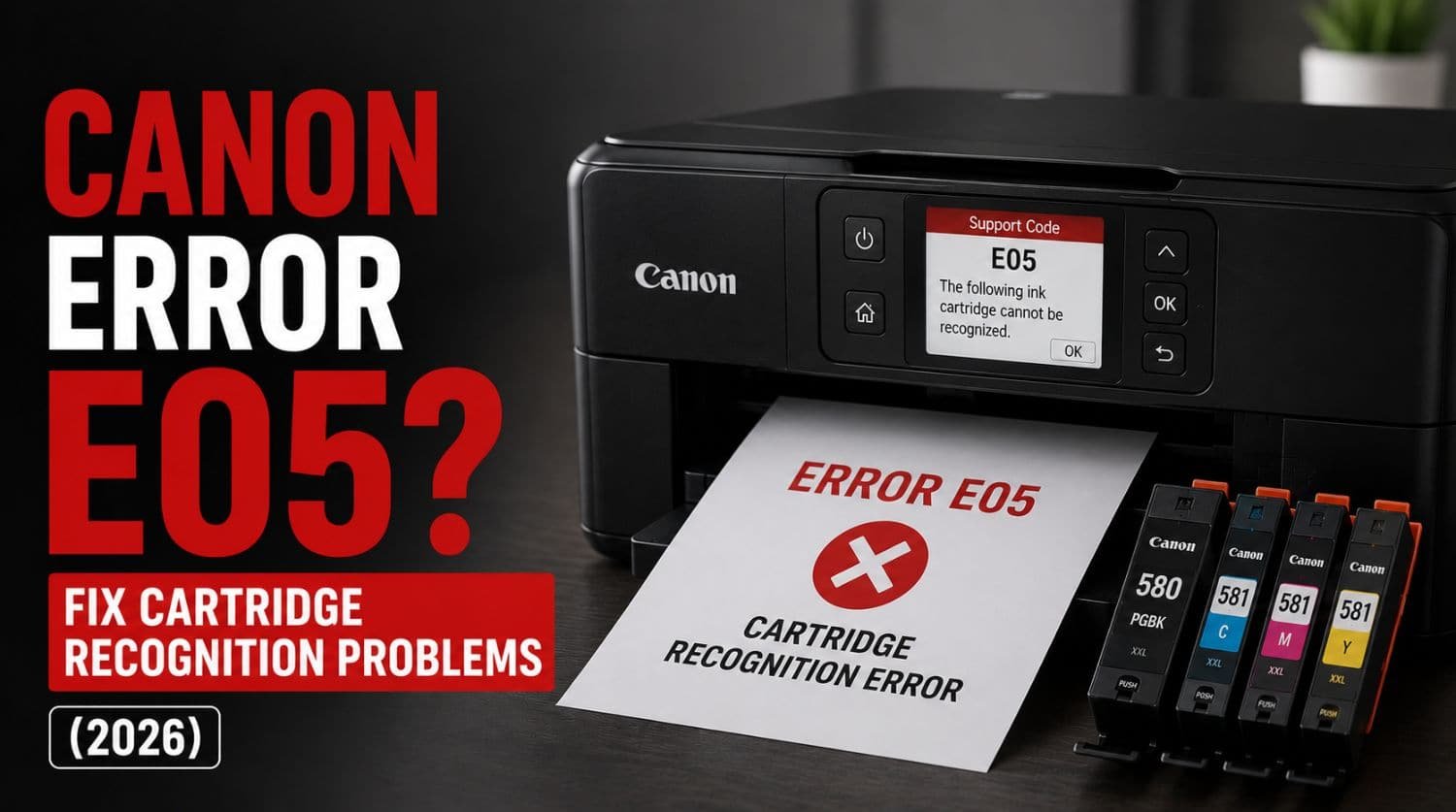
Canon Error E05 usually means the printer cannot recognize one or more ink cartridges. This commonly happens because of improperly installed cartridges, dirty cartridge contacts, incompatible cartridges, damaged chips, or communication issues between the printer and cartridge.
The Solution:
Remove and reinstall the cartridges, clean the cartridge contacts, verify cartridge compatibility, and restart the printer. Most Canon E05 errors are caused by cartridge recognition problems rather than serious hardware failures.
Table of Contents
- Introduction
- What Does Canon Error E05 Mean?
- Why Does Canon Error E05 Happen?
- Common Symptoms of Error E05
- Fix 1: Turn Off and Restart the Printer
- Fix 2: Remove and Reinstall the Cartridges
- Fix 3: Check Cartridge Compatibility
- Fix 4: Remove Protective Tape
- Fix 5: Clean Cartridge Contacts
- Fix 6: Inspect Cartridge Chips
- Fix 7: Test Cartridges Individually
- Fix 8: Install a New Cartridge
- Fix 9: Reset the Printer
- Fix 10: Update Printer Firmware
- When Error E05 Is Related to Ink System Problems
- Signs the Cartridge May Be Defective
- Quick Troubleshooting Checklist
- Frequently Asked Questions
- Final Thoughts
Introduction
Seeing Canon Error E05 on your printer?
This is one of the most common Canon cartridge-related errors and typically appears when the printer cannot detect or communicate with an installed ink cartridge.
When this happens, the printer may:
- refuse to print
- display a cartridge warning
- stop initialization
- show ink recognition errors
The good news is that Error E05 is usually easy to fix.
In most cases, the problem involves cartridge installation, cartridge compatibility, or dirty electrical contacts.
This guide explains what Canon Error E05 means, why it occurs, and the best ways to fix it.
For a complete overview of Canon printer support codes, visit our Canon Printer Error Codes Explained guide.
What Does Canon Error E05 Mean?
Canon Error E05 is a cartridge recognition error.
The printer displays this warning when it cannot properly identify one or more installed ink cartridges.
Canon printers communicate electronically with cartridges through small contact points and identification chips.
When that communication fails, Error E05 appears.
Why Does Canon Error E05 Happen?
The most common causes include:
- improperly installed cartridges
- incompatible cartridges
- dirty cartridge contacts
- damaged cartridge chips
- cartridge communication failures
- defective cartridges
- internal contact contamination
- printer firmware issues
Most cases are related to cartridge recognition rather than ink delivery.
Common Symptoms of Error E05
Users often notice:
- printer refuses to print
- cartridge warning messages
- flashing indicator lights
- printer startup interruption
- cartridge not recognized messages
- sudden failure after cartridge replacement
These symptoms usually point directly to cartridge communication issues.
Fix 1: Turn Off and Restart the Printer
Always begin with a basic restart.
Temporary communication glitches sometimes trigger cartridge recognition errors.
Steps
- Turn off printer
- Disconnect power cable
- Wait 60 seconds
- Reconnect power
- Restart printer
If the error remains, continue troubleshooting.
Fix 2: Remove and Reinstall the Cartridges
Improperly seated cartridges are one of the most common causes of Error E05.
Steps
- Turn off printer
- Open cartridge compartment
- Remove all cartridges
- Inspect cartridges carefully
- Reinstall each cartridge firmly
- Close compartment
- Restart printer
Ensure every cartridge clicks securely into position.
Fix 3: Check Cartridge Compatibility
Not all cartridges work with every Canon printer model.
Error E05 often appears after installing:
- incompatible cartridges
- incorrect cartridge models
- unsupported third-party cartridges
Verify
- cartridge model number
- printer compatibility
- packaging information
Always use cartridges designed for your printer model.
Fix 4: Remove Protective Tape
New cartridges often include protective materials.
If these are not removed, the printer may fail to recognize the cartridge.
Check for:
- orange tabs
- protective film
- shipping tape
- plastic covers
Remove all packaging materials before reinstalling.
Fix 5: Clean Cartridge Contacts
Dirty electrical contacts are a major cause of Canon E05 errors.
The printer relies on these contacts to identify the cartridge.
Cleaning Steps
- Remove cartridge
- Locate copper contacts
- Use soft lint-free cloth
- Clean contacts gently
- Allow contacts to dry
- Reinstall cartridge
Avoid touching contacts with bare fingers.
Fix 6: Inspect Cartridge Chips
Modern Canon cartridges contain identification chips.
If the chip is damaged, the printer may reject the cartridge.
Check for:
- scratches
- cracks
- contamination
- visible damage
Damaged chips usually require cartridge replacement.
Fix 7: Test Cartridges Individually
If multiple cartridges are installed, one defective cartridge may trigger the error.
Process
- Remove all cartridges
- Install one cartridge at a time
- Restart printer
- Observe behavior
This helps identify the problematic cartridge.
Fix 8: Install a New Cartridge
Sometimes the cartridge itself has failed.
This is especially common with:
- older cartridges
- refilled cartridges
- damaged cartridges
Replacing the cartridge often resolves the issue immediately.
Fix 9: Reset the Printer
A basic reset can clear temporary recognition errors.
Steps
- Turn off printer
- Disconnect power
- Wait several minutes
- Reconnect power
- Restart printer
The printer will reinitialize cartridge detection.
Fix 10: Update Printer Firmware
Firmware updates may improve cartridge compatibility and communication.
Update through:
- Canon printer software
- Canon maintenance tools
- Canon support utilities
Restart the printer after updating.
When Error E05 Is Related to Ink System Problems
Sometimes cartridge recognition issues occur alongside broader ink system warnings.
If you also experience:
- ink system errors
- printhead warnings
- cartridge communication failures
see: Canon Support Code 5200? Fix Ink System Problems
Signs the Cartridge May Be Defective
Possible indicators include:
- only one cartridge triggers the error
- printer works with other cartridges
- cartridge fails repeatedly
- chip appears damaged
In these cases, replacement is usually necessary.
Looking for a Reliable Canon Printer?
If your printer is outdated or frequently causing issues, upgrading can save time and cost.
Quick Troubleshooting Checklist
✅ restart printer
✅ reinstall cartridges
✅ verify compatibility
✅ remove protective tape
✅ clean cartridge contacts
✅ inspect cartridge chips
✅ test cartridges individually
✅ replace faulty cartridge
✅ reset printer
✅ update firmware
Frequently Asked Questions
What causes Canon Error E05?
The most common causes are improperly installed cartridges, dirty contacts, incompatible cartridges, and damaged cartridge chips.
Is Canon Error E05 serious?
Usually no. Most cases involve cartridge recognition problems that can be fixed at home.
Can a refilled cartridge cause Error E05?
Yes. Some refilled or remanufactured cartridges may not communicate properly with the printer.
Why does my Canon printer not recognize the cartridge?
Dirty contacts, chip damage, compatibility issues, or improper installation are the most common reasons.
Can I fix Canon Error E05 myself?
In most cases, yes. Cleaning contacts and reinstalling cartridges usually resolves the problem.
Final Thoughts
Canon Error E05 is typically caused by cartridge recognition issues rather than major printer failures.
Most users successfully fix the problem by:
- reinstalling cartridges
- cleaning cartridge contacts
- verifying compatibility
- replacing defective cartridges
- resetting the printer
Start with the simplest fixes first.
If the error continues after troubleshooting, the cartridge chip or cartridge itself may need replacement.
Using the correct diagnosis is the fastest way to restore normal printing and avoid unnecessary repairs.