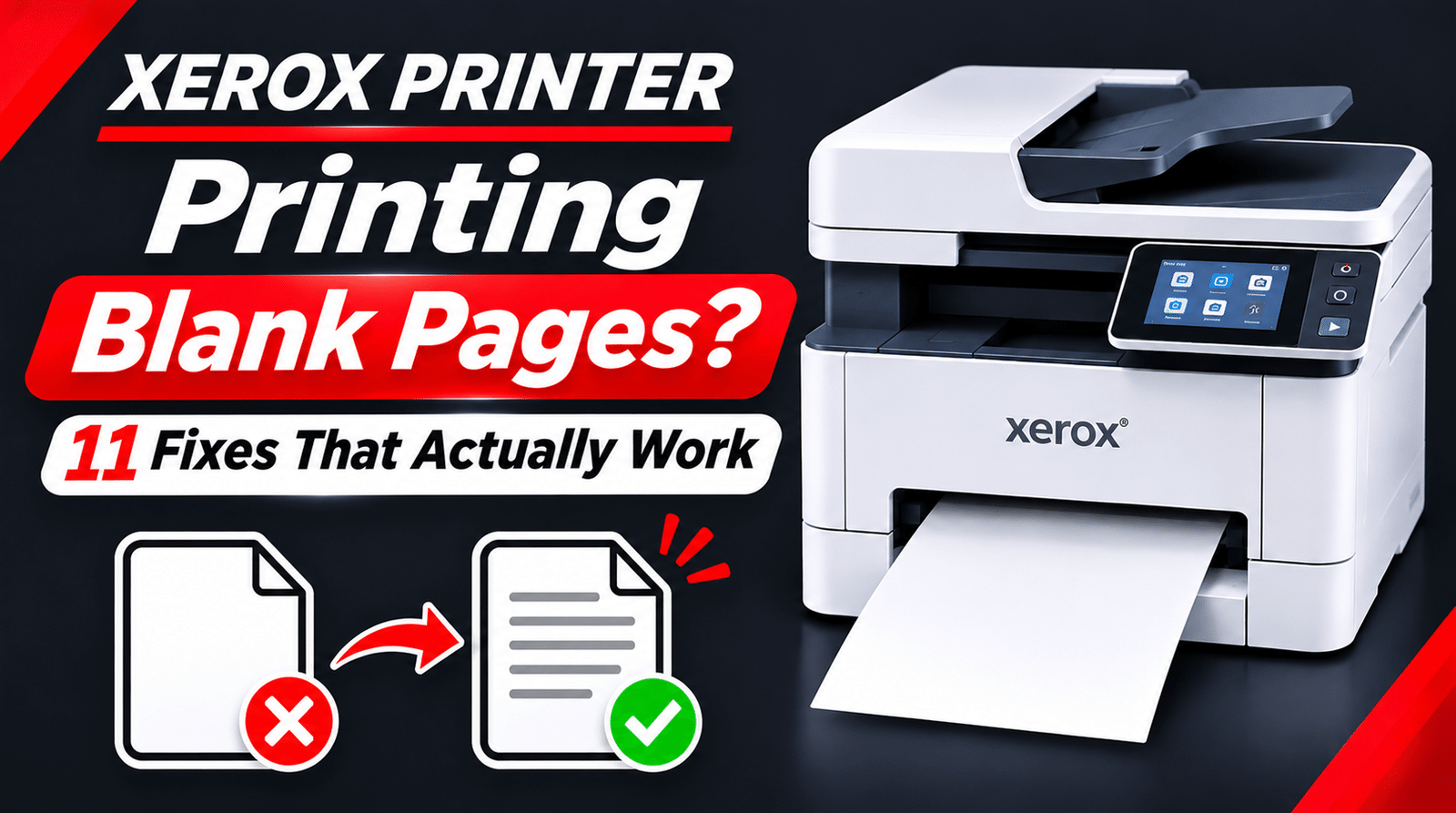
Xerox Printer Printing Blank Pages? 11 Fixes That Actually Work
Is your Xerox printer feeding paper correctly but producing completely blank pages? Does it print multiple sheets without showing any text, images, or graphics? This problem can be frustrating, especially when you need important documents printed quickly.
A Xerox printer printing blank pages does not necessarily mean the printer is damaged. The issue may be caused by an empty toner cartridge, incorrect cartridge installation, blocked printhead on compatible inkjet models, outdated drivers, incorrect print settings, or problems with the imaging system.
Sometimes, the printer works normally when printing an internal report but produces blank pages from your computer. This usually indicates a software, document, or driver-related issue.
In this guide, we will explain 11 practical ways to troubleshoot Xerox blank page problems and restore normal printing.
Quick Fix: Why Is My Xerox Printer Printing Blank Pages?
If your Xerox printer is producing blank sheets, start by checking the toner or ink supply. Make sure the cartridge is installed correctly and all protective packaging has been removed. Next, print an internal configuration or quality report to determine whether the problem comes from the printer or your computer.
The Solution
Check the cartridge levels, reinstall the affected cartridge, and verify your print settings. If internal reports are also blank, investigate the toner, drum, imaging unit, or printhead, depending on your printer type. If internal reports print correctly, update the driver and test another document.
1. Check the Toner or Ink Level
An empty or depleted cartridge is one of the most common reasons a Xerox printer produces blank pages.
When the printer cannot transfer enough toner or ink onto the paper, documents may come out completely blank or contain very faint text.
How to check the supply level:
- Open your Xerox printer’s control panel.
- Navigate to Supplies, Toner, or Consumables.
- Check the black toner or ink level.
- Review the remaining color supplies if you use a color printer.
- Look for low-supply or replacement warnings.
- Replace any depleted cartridge using the recommended procedure.
You may also be able to check supply information through the printer’s embedded web interface.
Important: A displayed toner level is sometimes only an estimate. A cartridge may show remaining supply but still be defective or unable to produce a proper print.
2. Remove and Reinstall the Toner Cartridge
A cartridge that is not seated properly can prevent toner or ink from reaching the paper. This often happens after replacing a cartridge or moving the printer.
Follow these steps:
- Check the printer display for cartridge warnings.
- Open the cartridge access panel according to the manufacturer’s instructions.
- Carefully remove the black toner or ink cartridge.
- Inspect it for visible damage.
- Check whether protective seals or packaging remain attached.
- Reinstall the cartridge correctly.
- Close the access panel.
- Wait for the printer to become ready.
- Print a test page.
If your Xerox printer uses multiple cartridges, check the supplies identified by its warning messages.
Avoid touching the sensitive imaging surfaces of toner cartridges and drum units.
3. Remove Any Protective Seals From a New Cartridge
If your Xerox printer started printing blank pages immediately after installing a new cartridge, protective packaging may be the cause.
New toner and ink cartridges often include protective tapes, seals, clips, or other packaging materials. If these are not removed correctly, the cartridge may not deliver toner or ink.
What to do:
- Remove the cartridge according to the printer’s instructions.
- Check the packaging and installation guide.
- Identify any remaining protective seals or clips.
- Remove only the materials intended to be removed by the user.
- Reinstall the cartridge.
- Print a test page.
Do not forcefully pull components or remove protective parts that the manufacturer instructs you to leave in place.
4. Check Whether the Cartridge Is Compatible
Using an incorrect or unsupported cartridge can cause blank pages and other printing problems.
Even if a cartridge physically fits inside the printer, it may not be compatible with your exact Xerox model.
Check the following:
- Confirm the cartridge number.
- Compare it with the supplies recommended for your printer.
- Check whether the cartridge is designed for your printer model and region.
- Look for cartridge recognition warnings.
- Inspect the cartridge for damage or leakage.
If the printer does not recognize the cartridge or continues producing blank pages, try a confirmed compatible replacement if available.
5. Print an Internal Configuration or Quality Report
This is one of the most useful troubleshooting steps because it helps identify whether the problem comes from the printer or your computer.
An internal report is generated directly by the printer rather than through a computer application.
How to print an internal report:
- Open the Xerox printer’s control panel.
- Navigate to Reports, Information Pages, or Print Quality.
- Select a configuration page, demo page, or quality report.
- Print the selected report.
- Check whether text and graphics appear correctly.
Understand the results:
- Internal report is also blank: Investigate toner, cartridge installation, drum, imaging components, or printhead.
- Internal report prints correctly: The issue may involve your computer, driver, application, or document.
- Report is faded: Check toner or ink levels and print-quality settings.
- Only certain areas are missing: Inspect the relevant cartridge or imaging components.
This test can help you avoid replacing parts unnecessarily.
6. Check the Drum Unit and Imaging Components
On compatible Xerox laser printers, the drum unit and imaging system help transfer the printed image onto paper.
If the drum or another imaging component is damaged, worn, or not functioning properly, the printer may produce blank or incomplete pages.
Possible signs of an imaging problem include:
- Completely blank output
- Repeated missing sections
- Faded or uneven text
- Vertical streaks
- Repeated marks on pages
- Imaging-unit or drum warnings
How to troubleshoot:
- Check the printer’s display for imaging-unit warnings.
- Review the consumables status.
- Identify any component that has reached its service limit.
- Follow the manufacturer’s inspection instructions.
- Replace a component only when necessary.
- Print another quality report.
Do not touch the sensitive surface of a drum unit. Some imaging components can be damaged by direct contact or excessive exposure to light.
7. Run Printhead Cleaning on Compatible Inkjet Models
If you use a Xerox inkjet printer, blocked printhead nozzles may prevent ink from reaching the paper. This can cause blank pages, missing text, or incomplete images.
Try the following:
- Open the printer’s maintenance menu.
- Find Printhead Cleaning or a similar option.
- Run the recommended cleaning cycle.
- Print a nozzle check or test page.
- Check whether black and color output has improved.
- Repeat only if the manufacturer’s instructions recommend it.
Repeated cleaning cycles may consume a significant amount of ink, so avoid running them unnecessarily.
Note: Printhead cleaning applies to compatible inkjet printers. Do not use this procedure for Xerox laser printers, which use toner and imaging components.
8. Check Your Print Settings
Incorrect print settings can sometimes cause documents to print incorrectly or produce blank output. This may happen when the wrong paper size, output option, or document setting is selected.
On Windows:
- Open the document.
- Press Ctrl + P.
- Select your Xerox printer.
- Open Printer Properties or Printing Preferences.
- Review the paper size and output settings.
- Confirm that the correct printer is selected.
- Check that the document is not configured with white text on a white background.
- Print another copy.
On Mac:
- Open the document.
- Select File and then Print.
- Choose your Xerox printer.
- Review the available print options.
- Confirm the paper size and other relevant settings.
- Print a test page.
If the printer works with another document, the original file or its formatting may be responsible.
9. Update or Reinstall the Xerox Printer Driver
A damaged or outdated driver can cause communication problems between your computer and printer. In some cases, the printer receives an incomplete or incorrectly formatted print job, resulting in blank pages.
How to update the driver:
- Open your computer’s printer settings.
- Select your Xerox printer.
- Check the installed driver and printer model.
- Visit the official Xerox support website.
- Search for your exact printer model.
- Download the recommended driver for your operating system.
- Install it according to the instructions.
- Restart your computer.
- Print a test document.
If the problem began after a recent driver update, check whether another compatible driver version is available.
For more help, read Xerox Printer Driver Unavailable? Fix Driver Problems Fast.
10. Clear the Print Queue and Restart the Printer
Stuck print jobs can sometimes cause repeated printing errors. If a corrupted job remains in the queue, the printer may continue receiving problematic instructions.
Try these steps:
- Open the print queue on your computer.
- Cancel all pending print jobs.
- Wait until the queue is clear.
- Turn off the Xerox printer using its power control.
- Wait approximately 30 seconds.
- Turn the printer back on.
- Wait until the printer displays Ready.
- Send a new test document.
If blank pages continue appearing after clearing the queue, investigate the driver and printer hardware.
11. Test Another Document or Application
Sometimes the printer is not responsible for the blank pages. The problem may be limited to a particular document or software application.
A corrupted PDF, unusual formatting, unsupported fonts, or application-specific print settings can cause unexpected output.
How to test:
- Open a basic text editor.
- Type a few lines of ordinary black text.
- Save the document.
- Print it using your Xerox printer.
- Open another application.
- Print a second test document.
- Compare the results.
If the new documents print correctly, the original file may be damaged or incorrectly formatted.
For PDF documents, try opening the file in another PDF reader or saving a fresh copy before printing.
Why Is My Xerox Printer Printing Blank Pages After Replacing Toner?
If blank pages started immediately after replacing toner, the cartridge installation should be your first priority.
Possible causes include:
- Protective seals were not removed.
- The cartridge is not seated correctly.
- The replacement cartridge is incompatible.
- The cartridge is defective.
- The printer has not recognized the new supply.
- An imaging component also needs attention.
Remove and reinstall the cartridge according to the manufacturer’s instructions. Check the cartridge number and print an internal quality report.
If the printer still produces blank pages, see Xerox Printer Toner Not Recognized? Easy Fix Guide.
Why Is My Xerox Printer Printing Blank Pages From Computer but Not Internal Reports?
If internal reports print correctly but documents from your computer are blank, the printer’s basic printing system may be functioning properly.
The issue is more likely related to:
- Incorrect printer driver
- Corrupted document
- Application print settings
- Unsupported fonts
- Incorrect printer selection
- Print queue problems
Try printing a simple text document from another application. If that works, troubleshoot the original file or application before replacing printer components.
When Should You Contact a Xerox Technician?
Most blank-page problems can be investigated through basic troubleshooting. However, professional service may be necessary when the issue involves internal hardware.
Contact a qualified technician if:
- Internal reports remain completely blank.
- A compatible replacement cartridge does not solve the problem.
- The printer displays persistent drum or imaging-unit errors.
- The printer produces unusual mechanical noises.
- Toner or ink leaks inside the device.
- Hardware errors prevent normal printing.
Avoid disassembling internal components unless the manufacturer’s service instructions specifically allow it.
Frequently Asked Questions
1. Why is my Xerox printer printing blank pages?
Common causes include empty toner, incorrectly installed cartridges, protective seals, incompatible supplies, imaging-unit problems, driver errors, and incorrect print settings.
2. Why does my Xerox printer print blank pages after changing toner?
The new cartridge may have protective packaging attached, may not be installed correctly, or may be incompatible with your printer. Check the cartridge number and reinstall it according to the manufacturer’s instructions.
3. Can low toner cause completely blank pages?
Yes. When a toner cartridge is empty or unable to supply toner properly, the printer may produce very faint output or completely blank sheets.
4. How do I stop my Xerox printer from printing blank pages?
Check the toner or ink level, reinstall the cartridge, remove required protective seals, print an internal report, and verify your computer’s print settings. Update the driver if necessary.
5. Why does my Xerox printer print blank pages from PDFs?
The PDF may contain corrupted formatting, unsupported fonts, or application-specific printing issues. Try opening it in another PDF reader or printing a simple test document.
6. Can a damaged drum cause Xerox blank pages?
Yes. On compatible laser models, a damaged or worn drum or imaging component can prevent the printer from producing a proper image on paper.
7. Why does my Xerox printer print a test page but not documents?
If the internal test page works, the problem may be related to the computer, printer driver, document, or application. Try another application and update the driver.
8. Should I replace the toner if my Xerox printer prints blank pages?
Not automatically. First check the toner level, cartridge installation, compatibility, and internal print-quality report. Replace the cartridge if it is empty, defective, or confirmed to be the cause.
Related Guides
For additional Xerox printer troubleshooting, explore these guides:
- Xerox Printer Not Printing? 15 Proven Fixes That Actually Work (2026)
- Xerox Printer Not Printing Black? Easy Fixes That Work (2026)
- Xerox Printer Not Printing Color? Fix Missing or Faded Colors
- Xerox Printer Toner Not Recognized? Easy Fix Guide
- Xerox Printer Printing Faded or Light? Fix Poor Print Quality
- Xerox Printer Driver Unavailable? Fix Driver Problems Fast
Final Thoughts
A Xerox printer printing blank pages can be caused by cartridge problems, low toner, incorrect installation, damaged imaging components, or software-related issues.
Start with the basic checks: inspect the toner or ink supply, reinstall the cartridge, check protective seals, and print an internal quality report. These steps can help you identify whether the problem is related to the printer hardware or your computer.
If the issue continues, follow the troubleshooting instructions for your exact Xerox model or contact a qualified technician.
Regular maintenance, compatible cartridges, and updated printer drivers can help prevent recurring blank-page problems and keep your Xerox printer working reliably.