
Canon Error 6000? Step-by-Step Paper Feed Fix Guide (2026)
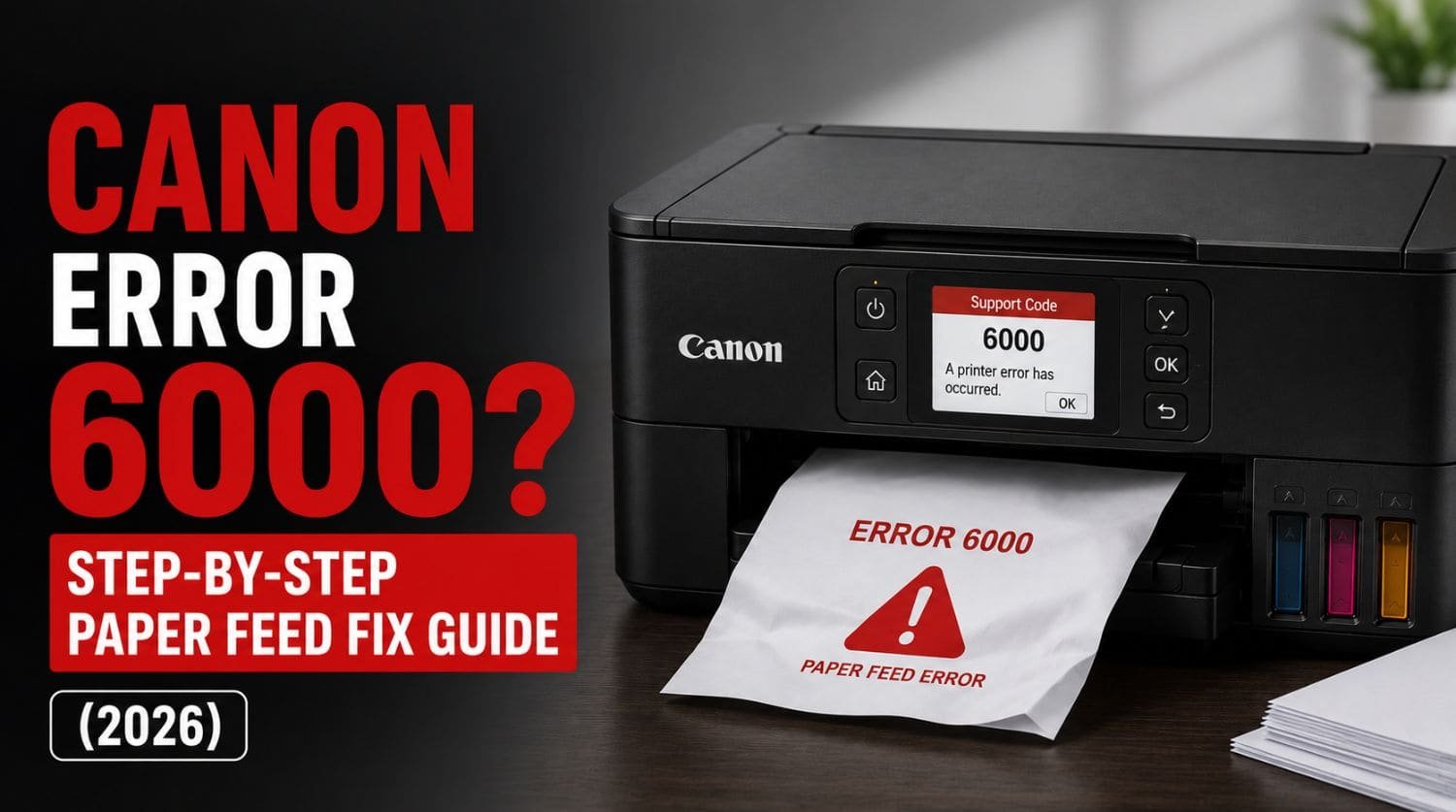
Quick Fix: How Do You Fix Canon Error 6000?
Canon Error 6000 usually indicates a paper feed problem. The error commonly occurs when paper jams, paper scraps, dirty rollers, feed path obstructions, or paper handling issues prevent the printer from feeding paper correctly.
The Solution:
Turn off the printer, inspect the paper path, remove any paper jams or debris, clean the feed rollers, reload paper correctly, and restart the printer. Most Canon Error 6000 issues can be resolved without replacing any parts.
Table of Contents
- Introduction
- What Does Canon Error 6000 Mean?
- Why Does Canon Error 6000 Happen?
- Common Symptoms of Error 6000
- Fix 1: Turn Off and Restart the Printer
- Fix 2: Check for Paper Jams
- Fix 3: Remove Torn Paper Fragments
- Fix 4: Reload Paper Correctly
- Fix 5: Clean the Feed Rollers
- Fix 6: Check for Foreign Objects
- Fix 7: Inspect Rear Paper Path
- Fix 8: Check Paper Quality
- Fix 9: Reset the Printer
- Fix 10: Update Printer Firmware
- When Error 6000 Is Related to Carriage Problems
- Fix 11: Check for Feed Mechanism Damage
- Quick Troubleshooting Checklist
- Frequently Asked Questions
- Final Thoughts
Introduction
Seeing Canon Error 6000 on your printer?
This is one of the most common Canon printer errors and is usually related to paper feeding problems.
When the printer cannot move paper through its feed system correctly, it stops operation and displays Error 6000.
Many users encounter this error after:
- paper jams
- loading paper incorrectly
- using damaged paper
- ignoring maintenance cleaning
Fortunately, most Error 6000 issues are relatively easy to fix.
This guide explains what Canon Error 6000 means, why it happens, and how to restore normal printer operation.
For a complete overview of Canon printer support codes, visit our Canon Printer Error Codes Explained guide.
What Does Canon Error 6000 Mean?
Canon Error 6000 is a paper feed system error.
The printer displays this warning when it detects a problem moving paper through the feed path.
This may happen before printing begins or during the printing process.
To prevent damage to internal components, Canon stops printing until the issue is resolved.
Why Does Canon Error 6000 Happen?
The most common causes include:
- paper jams
- torn paper fragments
- dirty feed rollers
- overloaded paper tray
- incorrectly loaded paper
- foreign objects inside printer
- feed sensor problems
- paper feed mechanism issues
Most cases involve simple paper handling problems rather than serious hardware failures.
Common Symptoms of Error 6000
Users often notice:
- printer refuses to print
- paper stops feeding
- grinding noises
- paper partially feeds
- repeated paper feed failures
- error appears during startup
These symptoms usually indicate an interruption in the paper feeding process.
Fix 1: Turn Off and Restart the Printer
Always begin with a basic restart.
Temporary feed sensor glitches occasionally trigger Error 6000.
Steps
- Turn off printer
- Disconnect power cable
- Wait 60 seconds
- Reconnect power
- Restart printer
If the error returns immediately, continue troubleshooting.
Fix 2: Check for Paper Jams
Paper jams are the most common cause of Canon Error 6000.
Even small pieces of paper can trigger the warning.
Inspect
- input tray
- output tray
- rear feed path
- duplex unit
- internal paper path
Remove paper carefully to avoid tearing it.
Fix 3: Remove Torn Paper Fragments
Many users remove the main paper jam but miss small scraps.
Tiny paper pieces can block sensors and feed rollers.
Use a flashlight to inspect:
- corners
- roller areas
- feed channels
- rear access sections
Remove all visible fragments.
Fix 4: Reload Paper Correctly
Improper paper loading often causes feed errors.
Common mistakes include:
- overfilling tray
- mixing paper sizes
- using curled paper
- loading damaged paper
Correct Loading
- use clean paper
- align stack evenly
- avoid overloading tray
- adjust paper guides properly
Reload paper and test printing again.
Fix 5: Clean the Feed Rollers
Dirty rollers may lose grip and fail to feed paper properly.
Symptoms include:
- repeated feed failures
- multiple sheets feeding
- paper slipping
Cleaning Steps
- Turn off printer
- Access feed rollers
- Use soft lint-free cloth
- Clean rollers gently
- Allow rollers to dry
- Retest printer
Dirty rollers are a major cause of recurring Error 6000 warnings.
Fix 6: Check for Foreign Objects
Small objects inside the printer can block paper movement.
Common examples:
- staples
- paper clips
- labels
- packaging materials
- dust buildup
Inspect all accessible areas carefully.
Remove any obstruction found.
Fix 7: Inspect Rear Paper Path
Many Canon printers allow access through the rear paper feed path.
Users often overlook this area.
Check for:
- hidden jams
- paper scraps
- feed obstructions
Clearing the rear path resolves many persistent Error 6000 issues.
Fix 8: Check Paper Quality
Low-quality paper can cause feeding problems.
Avoid paper that is:
- damp
- curled
- wrinkled
- excessively thin
- damaged
Use paper recommended by Canon whenever possible.
Fix 9: Reset the Printer
After clearing jams and cleaning rollers, perform a reset.
Reset Steps
- Turn off printer
- Disconnect power
- Wait several minutes
- Reconnect power
- Restart printer
This allows the printer to recheck its paper feed system.
Fix 10: Update Printer Firmware
Firmware updates can improve paper handling and resolve false sensor warnings.
Update through:
- Canon software
- maintenance utilities
- Canon support tools
Restart the printer afterward.
When Error 6000 Is Related to Carriage Problems
In some cases, paper feed interruptions affect carriage movement.
If you also see carriage-related warnings, visit: Canon Support Code 5100? Fix Carriage Errors Fast
The two errors sometimes appear together when internal movement is restricted.
Fix 11: Check for Feed Mechanism Damage
If Error 6000 continues after all troubleshooting, hardware wear may be present.
Possible causes include:
- worn rollers
- damaged gears
- feed motor problems
- faulty feed sensors
Common signs include:
- repeated jams in the same location
- unusual noises
- paper not moving at all
Professional service may be necessary.
Looking for a Reliable Canon Printer?
If your printer is outdated or frequently causing issues, upgrading can save time and cost.
Quick Troubleshooting Checklist
✅ restart printer
✅ check paper jams
✅ remove paper scraps
✅ reload paper correctly
✅ clean rollers
✅ inspect for foreign objects
✅ check rear paper path
✅ use quality paper
✅ reset printer
✅ update firmware
✅ inspect hardware damage
Frequently Asked Questions
What causes Canon Error 6000?
The most common causes are paper jams, paper feed obstructions, dirty rollers, and incorrectly loaded paper.
Is Canon Error 6000 serious?
Usually no. Most cases involve paper handling issues that can be fixed at home.
Can dirty rollers cause Error 6000?
Yes. Dirty feed rollers are one of the most common causes of repeated feed failures.
Why does Error 6000 keep returning?
Recurring errors often indicate hidden paper scraps, dirty rollers, or worn feed components.
Can I fix Canon Error 6000 myself?
In most cases, yes. Removing obstructions and cleaning the feed system usually resolves the issue.
Final Thoughts
Canon Error 6000 is typically caused by paper feed interruptions rather than major hardware failure.
Most users solve the problem by:
- removing paper jams
- clearing paper scraps
- cleaning rollers
- reloading paper properly
- resetting the printer
Start with the simplest fixes first.
If the error continues after troubleshooting, worn feed components or sensor problems may require professional repair.
Using the correct diagnosis is the fastest way to restore normal paper feeding and prevent future printing interruptions.