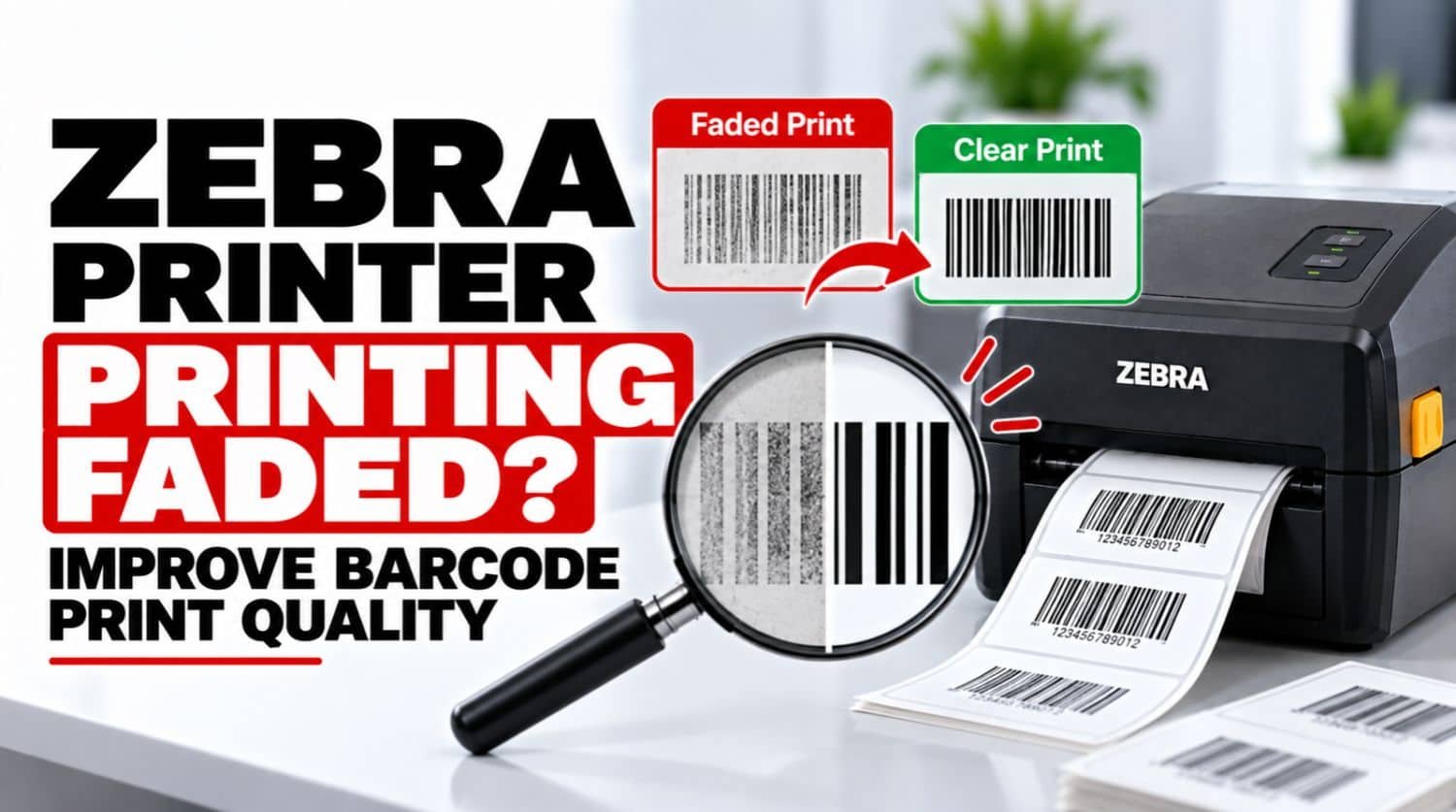
Zebra Printer Printing Faded? Improve Barcode Print Quality
A Zebra printer should produce dark, sharp, and consistent labels. If your Zebra printer is printing faded, light, or uneven labels, the problem can affect both text readability and barcode scanning.
Faded printing can result from a dirty printhead, incorrect darkness settings, excessive print speed, unsuitable media, ribbon problems, or worn printer components. Sometimes the printer is working correctly, but its settings do not match the labels being used.
This guide explains common reasons a Zebra printer prints faded and how to improve barcode and label print quality.
Quick Fix: Why Is My Zebra Printer Printing Faded?
If your Zebra printer is printing faded labels, first clean the printhead and check the ribbon or thermal media. Then verify print darkness, reduce print speed, and confirm that the printer settings match the labels you are using.
The Solution:
Clean the printhead and platen roller, inspect the ribbon and media, gradually increase print darkness, and reduce print speed if necessary. If fading continues in the same area of every label, inspect the printhead for damaged or worn elements.
Table of Contents
- 1. Clean the Zebra Printhead
- 2. Increase Print Darkness
- 3. Reduce Print Speed
- 4. Check the Ribbon
- 5. Check Thermal Media
- 6. Check the Printing Method
- 7. Clean the Platen Roller
- 8. Inspect Printhead Damage
- 9. Check Printhead Pressure
- 10. Check Label Alignment
- 11. Check Barcode Settings
- 12. Check Label Software
- 13. Balance Speed and Darkness
- 14. Test Known-Good Labels
- 15. Check Environmental Conditions
- Faded Printing by Symptom
- Improve Barcode Print Quality
- Frequently Asked Questions
- Related Zebra Printer Guides
1. Clean the Zebra Printhead
A dirty printhead is one of the first things to check when Zebra labels become faded. Dust, adhesive, and label residue can prevent the printhead from transferring heat evenly.
A contaminated printhead can cause light printing, white streaks, uneven darkness, missing sections, and poor barcode definition.
Turn off the printer and allow the printhead to cool before cleaning it. Use a cleaning method recommended for your Zebra printer model, and avoid sharp objects that could scratch the printhead.
2. Increase Print Darkness
If the entire label is consistently too light, the print darkness setting may be too low. Increase darkness gradually and print another test label.
Avoid immediately selecting the highest darkness level. Excessive heat can contribute to smudging, poor barcode edges, ribbon problems, and excessive printhead wear. Aim for clear, dark output without using more heat than necessary.
3. Reduce Print Speed
High print speed can contribute to lighter output, especially when printing detailed barcodes or small text. Try reducing the speed and printing another test label.
A slower print speed gives the printhead more time to transfer heat to the media and may improve barcode definition, small text, fine graphics, and overall print density. If reducing speed significantly improves output, the previous speed and darkness combination may not have suited the media.
4. Check the Ribbon
If your Zebra printer uses thermal transfer printing, inspect the ribbon. Make sure it is installed correctly, compatible with the media, feeding smoothly, undamaged, not excessively wrinkled, and not installed backward.
An incompatible or poorly installed ribbon can produce faded or inconsistent labels. For more help, read Zebra Printer Ribbon Problems.
5. Check the Thermal Media
Label material can have a major effect on print darkness. Check whether the media is compatible with your printer and printing method, and whether it is damaged, dirty, poorly stored, or inconsistent in quality.
Try printing on a known-good roll of compatible media. If the new media produces darker labels, the original media may be contributing to the problem.
6. Check Whether You Are Using Direct Thermal or Thermal Transfer
Zebra printers may use different printing methods:
- Direct thermal: Media reacts to heat from the printhead and normally does not require a ribbon.
- Thermal transfer: A ribbon transfers the image onto the label.
Using the wrong media or printing configuration can result in poor or missing output. Confirm that the printer mode matches the actual media and ribbon configuration.
7. Clean the Platen Roller
The platen roller moves the label through the printer and helps maintain consistent contact. A dirty or damaged roller can contribute to inconsistent printing.
Inspect the roller for adhesive buildup, dust, label residue, cracks, and uneven wear. Clean it using an appropriate procedure for your Zebra model. If the roller is damaged, replacement may be required.
8. Inspect the Printhead for Damage
If cleaning and setting adjustments do not solve the problem, inspect the printhead. Look for repeated defects in the same location.
If a vertical section of every label remains light or blank, a damaged printhead element may be responsible. Worn or damaged elements may require printhead replacement. Do not attempt to repair a physically damaged printhead yourself.
9. Check Printhead Pressure
Uneven pressure can cause one section of a label to appear darker while another remains faded. If only one side is light, check printhead positioning, media alignment, printhead pressure, and platen roller condition.
The printhead should maintain consistent contact with the media across the printable area.
10. Check Label Alignment
Improper media alignment can affect print quality and positioning. Make sure the label roll is installed correctly, media guides are positioned properly, labels travel straight, the printhead closes correctly, and media is not shifting during printing.
If labels are also misaligned or skipping, perform the appropriate media calibration. See How to Calibrate Zebra Media Sensor.
11. Check Barcode Settings
A faded barcode may fail to scan even when the rest of the label looks acceptable. Check barcode size, print darkness, print speed, barcode type, scaling, quiet zones, and printer resolution.
Avoid shrinking barcodes excessively through label software. If a barcode is too small or has insufficient contrast, increasing printer darkness alone may not solve the scanning problem.
12. Check the Label Software
Your label-design software can affect the final print. Check that the correct Zebra printer is selected, label dimensions are correct, scaling is not reducing the design, print resolution is appropriate, and the correct media settings are being used.
If the same printer produces good output from another application, the issue may be related to the original label software or its printer configuration.
13. Check Print Speed and Darkness Together
Print speed and darkness should be considered together. A high print speed combined with low darkness may produce noticeably lighter labels.
Instead of making one extreme adjustment, clean the printhead, confirm compatible media, increase darkness slightly, reduce speed slightly, print a test label, and compare the result. This controlled approach helps identify which setting is affecting print quality.
14. Try a Known-Good Label
If possible, test the printer with a known-good roll of compatible media. This helps determine whether the problem is caused by the printer or the consumables.
If known-good media produces normal output, investigate the original labels, ribbon, media coating, storage conditions, and compatibility. If both rolls produce the same defect, focus on the printer and printhead.
15. Check Environmental Conditions
Extreme environmental conditions can sometimes affect thermal printing. Pay attention to excessive dust, high humidity, very low temperatures, direct sunlight, and poor media storage.
Store labels and ribbons according to their manufacturer’s recommendations. Keeping the printer and consumables in a suitable environment can help maintain consistent output.
Zebra Printer Faded Printing by Symptom
- Entire label is too light: Check print darkness, speed, media, ribbon, and printhead cleanliness.
- One side is faded: Inspect printhead pressure, media alignment, and platen condition.
- Vertical white lines appear: Clean the printhead. If the same lines remain in the same locations, inspect the printhead elements.
- Barcode looks light: Check darkness, speed, barcode sizing, ribbon, media, and printhead condition.
- Printing starts dark then becomes faded: Check the ribbon, media supply, printhead condition, and operating conditions.
- Labels are faded after changing media: Verify media compatibility and confirm the printer’s media and printing settings are configured correctly.
How to Improve Zebra Barcode Print Quality
For consistently readable barcodes:
- Keep the printhead clean.
- Use compatible thermal media.
- Use the correct ribbon when required.
- Avoid unnecessarily high print speeds.
- Set appropriate print darkness.
- Keep barcodes at a suitable physical size.
- Avoid excessive image or barcode scaling.
- Calibrate the printer after changing media.
- Replace worn print components when necessary.
- Test barcode readability before large print runs.
Frequently Asked Questions
Why is my Zebra printer printing faded?
Common causes include a dirty or worn printhead, low print darkness, high print speed, incompatible media, ribbon problems, and incorrect printer settings.
How do I make my Zebra printer print darker?
Clean the printhead first, then gradually increase print darkness. Reducing print speed can also improve darkness and detail.
Why is only one side of my Zebra label faded?
Uneven printhead pressure, incorrect media alignment, or a worn platen roller can cause one side of a label to print lighter.
Why is my Zebra barcode faded?
The barcode may be affected by low darkness, high print speed, an unsuitable ribbon or media, poor printhead condition, or incorrect barcode sizing.
Can a dirty printhead cause faded labels?
Yes. Dirt, adhesive, and residue on the printhead can prevent consistent heat transfer and create faded or missing areas.
Do I need to replace my Zebra printhead?
Replacement may be necessary when worn or damaged elements continue producing the same defect after cleaning and proper adjustment.
Related Zebra Printer Guides
- Zebra Printer Print Quality Problems
- Zebra Printer Ribbon Problems
- Zebra Printer Cleaning Guide: Improve Print Quality & Lifespan
- How to Calibrate Zebra Media Sensor Correctly
- Printed Zebra Barcode Not Scanning? Fix Barcode Quality Issues
- Zebra Printer Not Printing
Final Thoughts
A Zebra printer printing faded labels is usually related to printhead condition, print darkness, print speed, ribbon, media, or printer configuration.
Start with the simplest solutions: clean the printhead, check the ribbon and labels, increase darkness gradually, and reduce print speed if necessary. If one particular area remains faded across every label, inspect the printhead and platen roller for wear or damage.
For barcode printing, focus on both printer quality and barcode dimensions. A dark, sharp barcode with adequate sizing and contrast is more likely to scan reliably.