
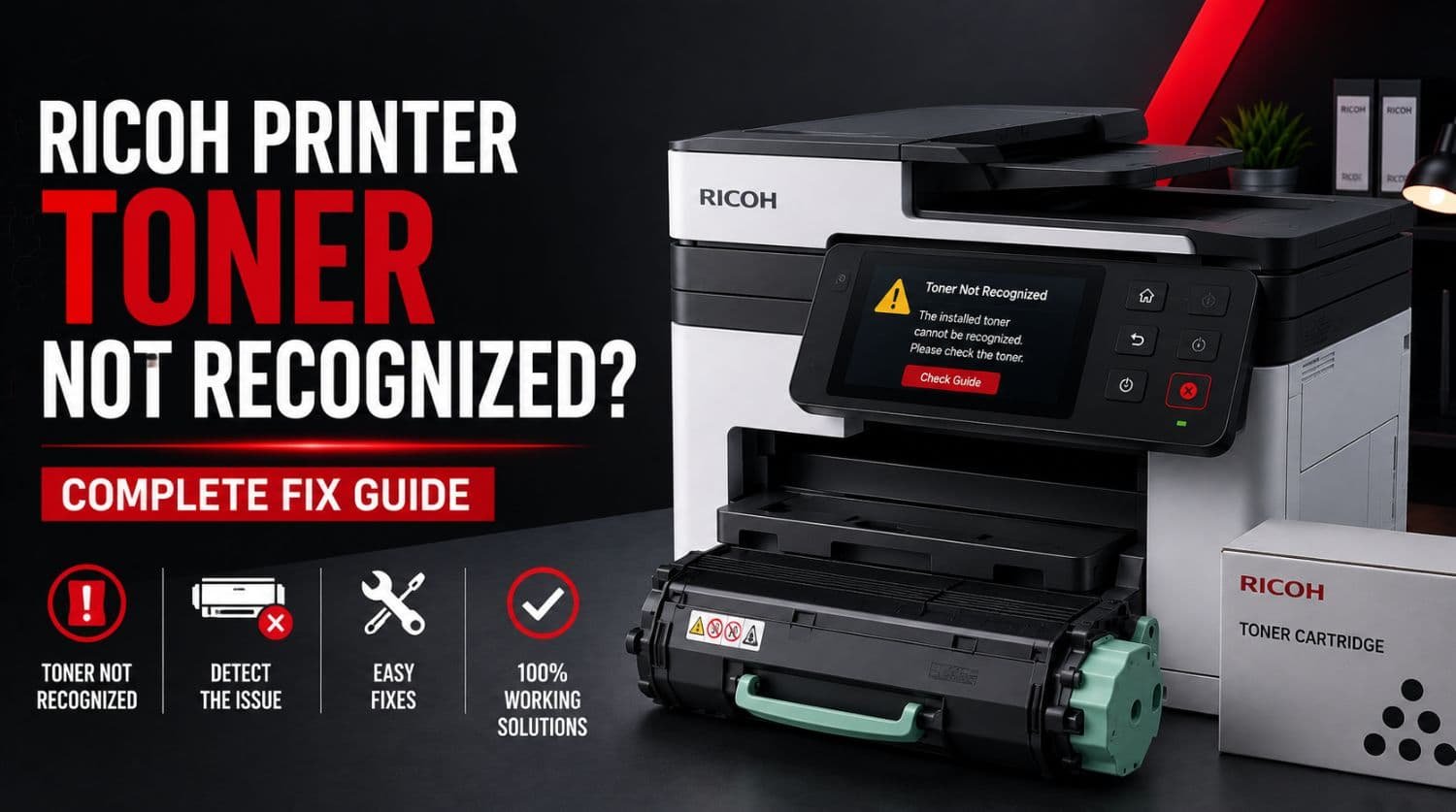
Ricoh Printer Toner Not Recognized? Complete Fix Guide (2026)
Has your Ricoh printer displayed a “Toner Not Recognized” error after installing a new cartridge? Maybe the printer says the toner is missing, incompatible, or empty even though you’ve just replaced it.
A toner recognition error can prevent your Ricoh printer from printing altogether. Fortunately, in most cases, the problem is caused by an improperly installed cartridge, dirty contacts, incompatible toner, outdated firmware, or a faulty toner chip—not a serious hardware failure.
In this guide, you’ll learn 10 proven fixes to resolve Ricoh printer toner not recognized errors and get your printer working again.
Quick Fix: Why Is My Ricoh Printer Not Recognizing the Toner?
If your Ricoh printer does not recognize the toner cartridge, the problem is usually caused by an incompatible or damaged toner cartridge, a dirty or defective toner chip, incorrect installation, dirty electrical contacts, outdated firmware, or a hardware communication error inside the printer.
The Solution:
Remove and reinstall the toner cartridge, make sure all protective packaging has been removed, clean the cartridge contacts, verify that you’re using the correct Ricoh toner for your printer model, restart the printer, update the firmware, and replace the toner if it is defective. These steps resolve most Ricoh toner recognition errors.
Table of Contents
- Common Symptoms
- Fix 1: Make Sure the Toner Cartridge Is Installed Correctly
- Fix 2: Remove All Protective Packaging
- Fix 3: Verify Toner Compatibility
- Fix 4: Clean the Toner Chip and Contacts
- Fix 5: Restart the Printer
- Fix 6: Update the Printer Firmware
- Fix 7: Test with Another Toner Cartridge
- Fix 8: Inspect the Printer’s Toner Contacts
- Fix 9: Reset the Printer
- Fix 10: Replace the Toner Cartridge
- When Should You Replace the Toner?
- How to Prevent Toner Recognition Problems
- Frequently Asked Questions
- Related Guides
- Final Thoughts
Common Symptoms
You may see messages such as:
- Toner Not Recognized
- Install Toner
- Replace Toner
- Invalid Toner
- Toner Cartridge Error
- Cannot Detect Toner
- Cartridge Missing
- Unsupported Toner
The printer may also refuse to print until the issue is resolved.
Fix 1: Make Sure the Toner Cartridge Is Installed Correctly
Improper installation is the most common cause.
Steps:
- Open the toner compartment.
- Remove the toner cartridge.
- Check for visible damage.
- Reinsert it firmly until it locks into place.
- Close the printer cover.
Restart the printer afterward.
Fix 2: Remove All Protective Packaging
If you’ve installed a new toner cartridge:
Check that you’ve removed:
- Plastic covers
- Orange shipping clips
- Pull tabs
- Protective sealing tape
Leaving any packaging attached can prevent the printer from detecting the cartridge.
Fix 3: Verify Toner Compatibility
Ricoh printers are designed to work with specific toner models.
Confirm:
- Toner model number
- Printer compatibility
- Region compatibility
- Genuine or high-quality compatible cartridge
Using the wrong toner cartridge will trigger recognition errors.
Fix 4: Clean the Toner Chip and Contacts
Every toner cartridge contains a small electronic chip that communicates with the printer.
Turn the printer off.
Carefully clean:
- Toner chip
- Gold electrical contacts
- Printer contact pins
Use a soft lint-free cloth.
Avoid touching the chip directly with your fingers.
Fix 5: Restart the Printer
Temporary software glitches sometimes prevent toner detection.
Restart the printer:
- Turn it off.
- Disconnect the power cable.
- Wait one minute.
- Reconnect power.
- Turn it back on.
Check whether the toner is now recognized.
Fix 6: Update the Printer Firmware
Firmware updates often fix:
- Toner compatibility bugs
- Detection issues
- Communication errors
- Hardware stability problems
Install the latest firmware available for your Ricoh printer model.
See also:
How to Update Ricoh Printer Firmware Safely (Internal Link)
Fix 7: Test with Another Toner Cartridge
If available:
Install another compatible toner cartridge.
If the second cartridge works normally:
- Your original toner is defective.
- The toner chip may have failed.
- Replace the cartridge.
Fix 8: Inspect the Printer’s Toner Contacts
Inside the printer are small contact pins that communicate with the toner chip.
Check for:
- Bent pins
- Dust buildup
- Broken contacts
- Physical damage
If damaged, the printer may require servicing.
Fix 9: Reset the Printer
Some Ricoh models allow printer resets.
Resetting clears temporary hardware communication errors.
After the reset:
- Reinstall the toner.
- Restart the printer.
- Print a configuration page.
Fix 10: Replace the Toner Cartridge
If none of the previous fixes work, the cartridge itself is likely defective.
Replace it with:
- Genuine Ricoh toner
- High-quality compatible toner from a trusted supplier
Avoid extremely cheap cartridges that may contain unreliable toner chips.
When Should You Replace the Toner?
Replace the toner cartridge if:
- The chip is damaged.
- The printer never recognizes it.
- The cartridge is physically damaged.
- Recognition errors continue after reinstalling.
- Another compatible cartridge works correctly.
How to Prevent Toner Recognition Problems
Use Genuine or Trusted Compatible Toner
Quality cartridges reduce chip and compatibility issues.
Install Toner Carefully
Always insert cartridges completely until they click into place.
Keep Contacts Clean
Dust and toner residue can interfere with electrical communication.
Update Firmware
Firmware updates improve cartridge compatibility and printer stability.
Store Toner Properly
Store cartridges in a cool, dry environment away from direct sunlight and moisture.
Frequently Asked Questions
Why won’t my Ricoh printer recognize a new toner cartridge?
The cartridge may be incompatible, incorrectly installed, have a defective chip, or require a firmware update.
Can compatible toner cause recognition errors?
Yes. Poor-quality compatible cartridges often use unreliable chips that some Ricoh printers cannot detect.
Should I clean the toner chip?
Yes. Carefully cleaning the chip and printer contacts can restore proper communication.
Does firmware affect toner recognition?
Yes. Updated firmware often improves compatibility with newer toner cartridges.
When should I replace the toner cartridge?
Replace it if the printer consistently fails to recognize it after reinstalling, cleaning the contacts, and verifying compatibility.
Related Guides
Continue troubleshooting with these helpful resources:
- Ricoh Printer Not Printing?
- Ricoh Printer Not Printing Black?
- Ricoh Printer Printing Blank Pages?
- Ricoh Printer Printing Faded?
- Ricoh Printer Driver Unavailable?
- How to Update Ricoh Printer Firmware Safely?
- Ricoh Printer Cleaning Guide.
Final Thoughts
A Ricoh printer toner not recognized error is usually caused by an incompatible cartridge, faulty toner chip, dirty contacts, outdated firmware, or improper installation. By reinstalling the toner, cleaning the contacts, verifying compatibility, updating the firmware, and replacing defective cartridges when necessary, you can resolve most toner detection problems quickly.
If your Ricoh printer still fails to recognize the toner after completing these troubleshooting steps, continue with the related guides above to diagnose print quality issues, driver problems, firmware updates, or other Ricoh printer errors. Routine maintenance and high-quality toner cartridges will help ensure reliable, uninterrupted printing.