
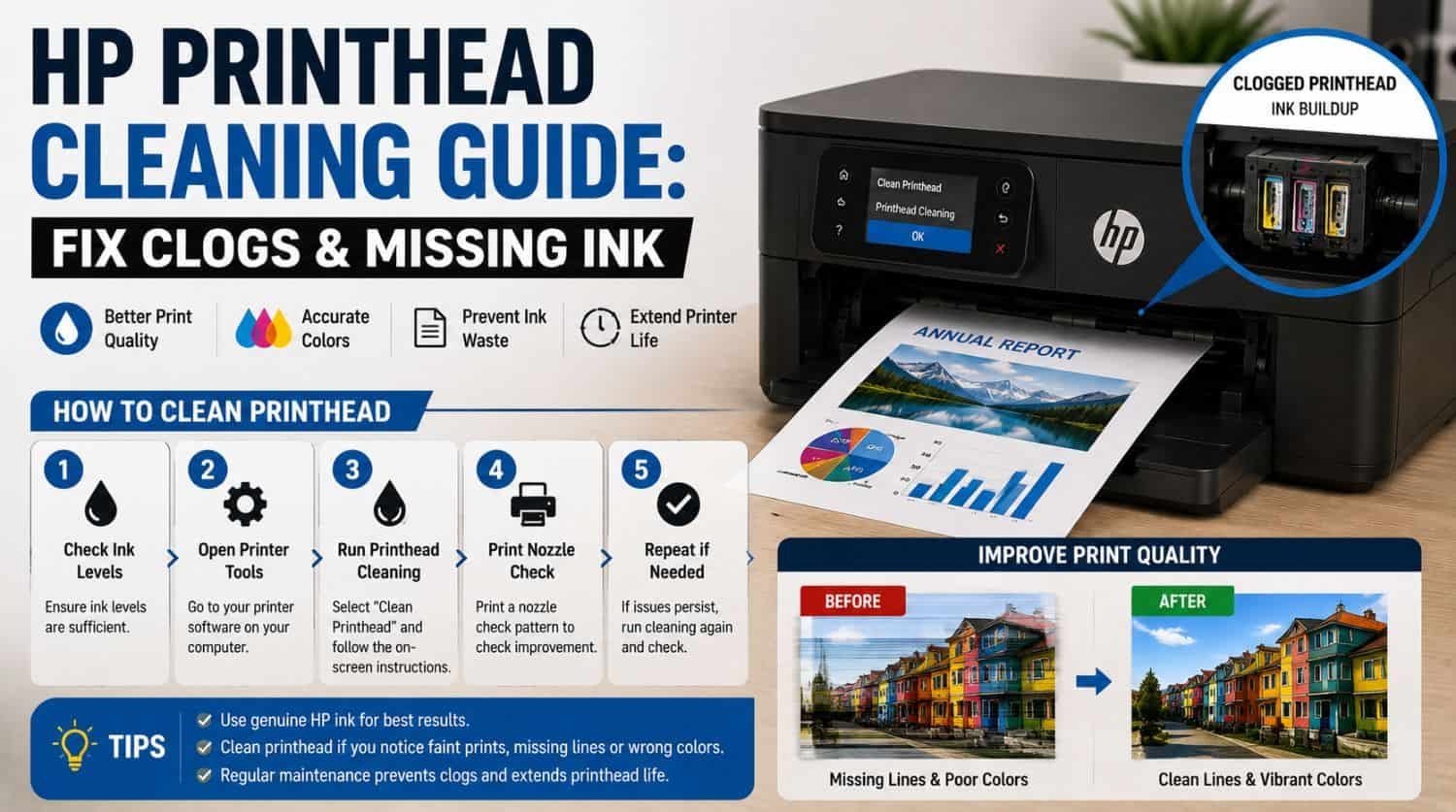
HP Printhead Cleaning Guide: Fix Clogs & Missing Ink
Quick Fix: How Do You Clean an HP Printhead?
To clean an HP printhead, use the printer’s built-in automatic cleaning tool first. If print quality does not improve, inspect cartridges, run a nozzle test, and use careful manual cleaning only if your printer model supports removable printheads.
The Solution:
Start with automatic printhead cleaning, print a diagnostic test page, repeat one additional cleaning cycle if needed, and move to manual cleaning only for severe clogs.
Table of Contents
- What Does a Printhead Do?
- Signs Your HP Printhead Is Clogged
- Before Cleaning: Check Ink Levels
- Method 1: Use Automatic HP Printhead Cleaning (Recommended)
- Should You Run Cleaning More Than Once?
- Method 2: Print a Diagnostic or Nozzle Test Page
- Method 3: Reseat Ink Cartridges
- Method 4: Manual Printhead Cleaning (Advanced)
- What NOT to Do
- When Cleaning Does NOT Fix the Problem
- Prevent Future Printhead Clogs
- When Printhead Issues Mean a Bigger Problem
- Quick Troubleshooting Checklist
- Frequently Asked Questions
- Final Thoughts
Is your HP printer producing faded text, missing colors, broken lines, or blank sections?
A clogged printhead is one of the most common causes.
Printheads deliver ink onto paper through tiny nozzles. When ink dries or debris builds up, normal printing quality drops.
Common symptoms include:
- missing black ink
- missing colors
- faded output
- streaky prints
- blank sections
- incomplete text
This guide focuses specifically on cleaning HP printheads safely and restoring print quality.
If your issue goes beyond printhead maintenance, use our complete HP Printer Not Printing Properly troubleshooting guide.
What Does a Printhead Do?
The printhead controls how ink is delivered onto paper.
Tiny nozzles spray ink precisely during printing.
When these nozzles clog:
- black ink may disappear
- colors may stop printing
- text may break
- pages may print blank
- output may look faded
Because many printing problems originate here, printhead cleaning is an important maintenance fix.
Signs Your HP Printhead Is Clogged
Common symptoms include:
- missing black text
- faded colors
- streaky lines
- broken output
- incomplete graphics
- blank sections
- weak print density
If your printer shows these symptoms, clogged nozzles may be responsible.
For black-only issues, see HP Printer Not Printing Black.
For color-only issues, see HP Printer Not Printing Color.
For blank page issues, see HP Printer Printing Blank Pages.
Before Cleaning: Check Ink Levels
Do this first.
Low or empty cartridges can mimic clogged printhead symptoms.
Check:
- black ink
- cyan
- magenta
- yellow
Use:
- HP Smart app
- printer control panel
- printer utility software
Replace empty cartridges before cleaning.
Method 1: Use Automatic HP Printhead Cleaning (Recommended)
This is the safest and best first step.
Most HP printers include built-in maintenance cleaning.
Steps
- Open printer settings
- Go to Maintenance
- Select Clean Printhead
- Start cleaning cycle
- Wait for completion
- Print a test page
Automatic cleaning clears light nozzle blockages.
Should You Run Cleaning More Than Once?
Sometimes yes.
If the first cycle improves quality slightly, run one more cleaning cycle.
But avoid excessive repeated cleaning because:
- it wastes ink
- overheats maintenance systems
- may not help severe clogs
General rule:
Maximum 2 cleaning cycles before further diagnosis.
Method 2: Print a Diagnostic or Nozzle Test Page
This helps confirm clog severity.
Look for:
- missing black bars
- broken color patterns
- faded sections
- incomplete output
Diagnostic results help determine whether cleaning worked.
If the pattern improves, the clog is clearing.
Method 3: Reseat Ink Cartridges
Poor cartridge communication can mimic printhead failure.
Symptoms:
- missing colors
- missing black
- inconsistent output
Steps
- Turn printer off
- Open cartridge compartment
- Remove cartridges
- Inspect contacts
- Reinstall securely
- Retest
Sometimes the issue is cartridge communication—not clogging.
Method 4: Manual Printhead Cleaning (Advanced)
Only do this if:
- automatic cleaning failed
- your model supports removable printheads
- you are comfortable with manual maintenance
Not all HP printers allow manual printhead removal.
Check your model first.
Basic manual process
- Turn off printer
- Remove cartridges
- Remove printhead (if removable)
- Use lint-free cloth
- Lightly clean dried ink
- Allow full drying
- Reinstall carefully
- Run diagnostic test
Never force delicate components.
What NOT to Do
Avoid common mistakes:
❌ excessive repeated cleaning cycles
❌ forcing non-removable printheads out
❌ using harsh chemicals
❌ scraping nozzles
❌ cleaning while printer powered on
❌ using excessive water
These mistakes can damage the printer.
When Cleaning Does NOT Fix the Problem
If cleaning fails, the problem may be something else.
Possible causes:
- failed cartridge
- damaged printhead
- hardware ink delivery failure
- electrical contact issues
- printer firmware problem
Signs:
- repeated failed diagnostics
- zero improvement after cleaning
- new cartridges do not help
Prevent Future Printhead Clogs
Simple habits reduce clogging.
Best practices:
✅ print regularly
✅ avoid long inactivity
✅ use quality cartridges
✅ keep printer powered correctly
✅ run maintenance when needed
✅ store printer in clean environment
Regular use prevents dried ink buildup.
When Printhead Issues Mean a Bigger Problem
Sometimes clog symptoms are part of broader printer problems.
Use specific guides if needed:
HP Printer Not Printing Black
HP Printer Not Printing Color
HP Printer Printing Blank Pages
HP Printer Not Printing Properly
Quick Troubleshooting Checklist
✅ check ink levels
✅ run automatic cleaning
✅ print diagnostic page
✅ repeat one cleaning cycle if needed
✅ reseat cartridges
✅ attempt manual cleaning if supported
✅ inspect hardware failure signs
Frequently Asked Questions
How do I clean my HP printhead?
Use the built-in automatic cleaning tool first. Manual cleaning should only be used if your model supports removable printheads.
Can clogged printheads cause blank pages?
Yes. Severe clogs can completely block ink delivery.
How many times should I clean the printhead?
Usually no more than 1–2 cleaning cycles before further troubleshooting.
Can I manually clean an HP printhead?
Sometimes—but only if the printer model supports removable printheads.
Why is my printer still missing ink after cleaning?
The issue may be cartridge failure, electrical contact problems, or hardware damage.
Final Thoughts
HP printhead cleaning solves many common print quality problems.
Most users restore print quality by:
- using automatic cleaning
- checking cartridges
- confirming nozzle output
- avoiding over-cleaning
Start with the safest maintenance steps first.


