
Epson Error 0xEA? Fix Scanner and Carriage Issues (2026)
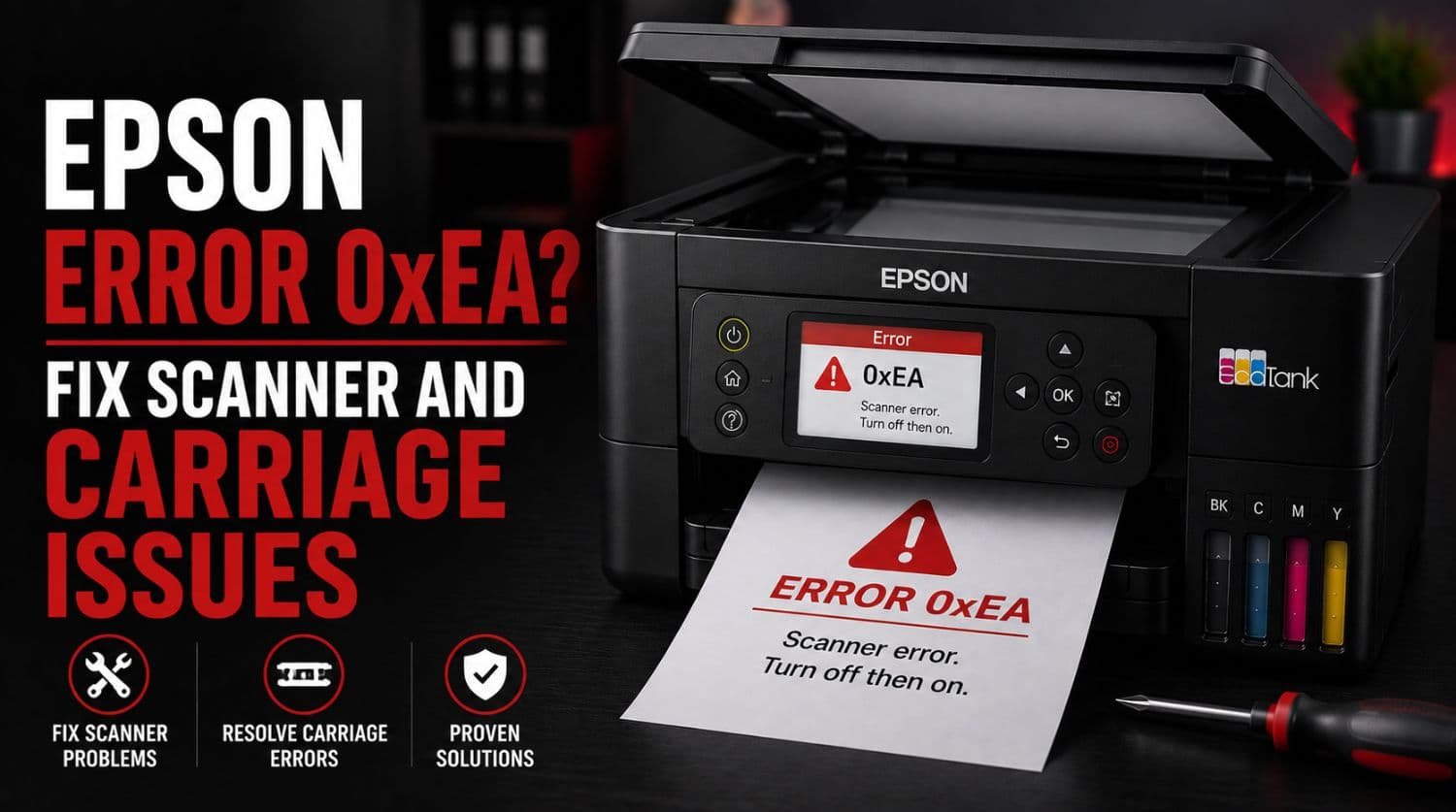
Quick Fix: What Is Epson Error 0xEA?
Epson Error 0xEA is a printer initialization error that usually occurs when the printhead carriage, scanner assembly, or another moving component cannot move correctly during startup. The most common causes include paper jams, foreign objects inside the printer, carriage obstructions, scanner issues, and mechanical failures.
The Solution:
In many cases, the problem can be fixed by removing obstructions, restarting the printer, checking carriage movement, and performing basic maintenance.
Table of Contents
- Introduction
- What Causes Epson Error 0xEA?
- Common Symptoms of Epson Error 0xEA
- Fix 1: Turn the Printer Off and Perform a Full Restart
- Fix 2: Check for Paper Jams
- Fix 3: Inspect the Printhead Carriage
- Fix 4: Remove Foreign Objects Inside the Printer
- Fix 5: Check Scanner Movement
- Fix 6: Gently Verify Carriage Movement
- Fix 7: Clean Dust and Debris
- Fix 8: Disconnect USB and Network Connections
- Fix 9: Update Printer Firmware
- Fix 10: Reinstall Epson Printer Drivers
- Fix 11: Check for Carriage Belt Problems
- Fix 12: Reset Printer Settings
- Error 0xEA vs Error 0x97
- When Error 0xEA Requires Professional Repair
- How to Prevent Epson Error 0xEA
- Quick Troubleshooting Checklist
- Frequently Asked Questions
- Does Error 0xEA mean my printer is broken?
- Final Thoughts
Introduction
If your Epson printer suddenly displays Error Code 0xEA, you’re not alone.
This is one of the most frequently reported Epson printer errors and typically appears during startup when the printer is performing its internal checks.
You may see messages such as:
- Epson Error 0xEA
- Printer Error 0xEA
- A Printer Error Has Occurred
- Turn Printer Off and On Again
When this happens, the printer usually stops functioning completely until the issue is resolved.
The good news is that Error 0xEA is often caused by a physical obstruction or movement problem rather than a major hardware failure.
This guide explains what Epson Error 0xEA means, why it happens, and the proven fixes you should try before seeking professional repair.
For a complete overview of Epson printer error codes, visit: Epson Printer Error Codes Explained: Complete Fix Guide (2026)
What Causes Epson Error 0xEA?
Error 0xEA occurs when the printer detects that an internal component cannot complete its normal movement during initialization.
Most commonly, this involves:
- Printhead carriage
- Scanner mechanism
- Carriage motor
- Position sensors
- Paper feed components
The printer automatically stops operation to prevent further damage.
Common Symptoms of Epson Error 0xEA
Users typically report:
- Error appears immediately after startup
- Printer freezes during initialization
- Printhead stops moving
- Grinding or clicking noises
- Scanner fails to initialize
- Printer won’t print anything
- Restarting does not solve the problem
These symptoms usually indicate a movement-related issue.
Fix 1: Turn the Printer Off and Perform a Full Restart
The first step is performing a complete power cycle.
Steps
- Turn off the printer.
- Disconnect the power cable.
- Wait 5 minutes.
- Reconnect power.
- Turn the printer back on.
Temporary initialization errors sometimes disappear after a proper restart.
Fix 2: Check for Paper Jams
Paper jams are one of the most common causes of Epson Error 0xEA.
Inspect:
- Input tray
- Rear paper path
- Output tray
- Internal paper feed area
Look carefully for:
- Torn paper fragments
- Labels
- Small pieces of paper
Even tiny scraps can prevent normal movement.
Fix 3: Inspect the Printhead Carriage
The printhead carriage moves back and forth during printer operation.
If it becomes blocked, Error 0xEA may appear.
Steps
- Turn off the printer.
- Open the printer cover.
- Locate the printhead carriage.
- Check for obstructions.
- Ensure nothing is blocking movement.
Look for:
- Paper pieces
- Dust buildup
- Packaging materials
- Foreign objects
Remove anything preventing free movement.
Fix 4: Remove Foreign Objects Inside the Printer
Small objects accidentally dropped into the printer frequently cause Error 0xEA.
Common examples include:
- Paper clips
- Staples
- Pen caps
- Labels
- Plastic packaging
Use a flashlight to inspect the interior carefully.
Many users discover hidden objects causing the issue.
Fix 5: Check Scanner Movement
On Epson all-in-one printers, scanner problems may trigger Error 0xEA.
Inspect:
- Scanner lid
- Scanner glass area
- Scanner rail
Make sure:
- Nothing blocks movement
- Scanner lock is disengaged
- Scanner can initialize properly
Scanner-related problems are especially common on multifunction printers.
Fix 6: Gently Verify Carriage Movement
With power disconnected:
- Open the printer cover.
- Carefully inspect the carriage.
- Check whether movement feels restricted.
The carriage should move smoothly without resistance.
If movement feels blocked, an obstruction is likely present.
Do not force the carriage aggressively.
Fix 7: Clean Dust and Debris
Dust buildup can interfere with sensors and moving parts.
Use:
- Soft lint-free cloth
- Compressed air (carefully)
- Soft brush
Clean:
- Carriage area
- Paper path
- Internal surfaces
This helps restore proper movement.
Fix 8: Disconnect USB and Network Connections
Communication conflicts occasionally interfere with startup processes.
Disconnect:
- USB cables
- Ethernet cables
- External storage devices
Start the printer using only the power connection.
If the error disappears, reconnect devices individually.
Fix 9: Update Printer Firmware
Firmware issues can occasionally contribute to initialization problems.
If the printer still allows access to maintenance functions:
- Open Epson software.
- Check for firmware updates.
- Install updates.
- Restart the printer.
Firmware updates often improve stability.
Fix 10: Reinstall Epson Printer Drivers
Although Error 0xEA is usually mechanical, software conflicts can sometimes contribute.
Steps
- Remove existing Epson drivers.
- Restart your computer.
- Install the latest drivers.
- Reconnect the printer.
This eliminates driver-related communication issues.
Fix 11: Check for Carriage Belt Problems
The carriage belt helps move the printhead assembly.
If damaged, symptoms may include:
- Grinding noises
- Incomplete movement
- Startup failures
Inspect visually if accessible.
Do not attempt major repairs unless experienced.
Fix 12: Reset Printer Settings
Some Epson models support maintenance or factory reset options.
Resetting settings may resolve:
- Initialization conflicts
- Configuration problems
- Startup errors
Refer to your specific Epson model documentation.
Error 0xEA vs Error 0x97
Many users confuse Error 0xEA and Error 0x97.
Here are the differences:
| Error | Typical Cause | Severity |
| 0xEA | Carriage or scanner movement issue | Medium |
| 0x97 | Hardware or mainboard issue | High |
Error 0xEA usually involves moving components.
Error 0x97 more commonly indicates internal hardware faults.
For hardware troubleshooting, see: Epson Error 0x97? Proven Fixes Before Calling Service
When Error 0xEA Requires Professional Repair
Professional service may be necessary if:
- Error returns repeatedly
- Carriage motor fails
- Scanner assembly is damaged
- Internal gears are broken
- Mechanical components wear out
Persistent movement problems often require replacement parts.
How to Prevent Epson Error 0xEA
Preventive maintenance helps reduce future problems.
Keep the Printer Clean
Remove dust regularly.
Avoid Foreign Objects
Keep small items away from the printer.
Use Proper Paper
Poor-quality paper increases jam risk.
Update Firmware
Install Epson updates when available.
Inspect the Paper Path
Remove scraps immediately after jams.
These simple habits reduce movement-related errors.
Quick Troubleshooting Checklist
- ✅ Restart the printer
- ✅ Disconnect power for 5 minutes
- ✅ Remove paper jams
- ✅ Check carriage movement
- ✅ Inspect scanner assembly
- ✅ Remove foreign objects
- ✅ Clean internal components
- ✅ Disconnect external devices
- ✅ Update firmware
- ✅ Reinstall drivers
- ✅ Test printer again
Frequently Asked Questions
What does Epson Error 0xEA mean?
Error 0xEA typically indicates a carriage movement or scanner initialization problem.
Can a paper jam cause Error 0xEA?
Yes. Even small paper fragments can trigger this error.
Is Epson Error 0xEA serious?
Usually not. Many cases are caused by obstructions and can be fixed at home.
Can I fix Error 0xEA myself?
Yes. Most users can resolve the issue by removing obstructions and checking carriage movement.
Does Error 0xEA mean my printer is broken?
Not necessarily. Many Epson printers recover fully after simple troubleshooting.
Final Thoughts
Epson Error 0xEA is one of the most common Epson printer startup and movement-related errors.
Fortunately, it is often caused by:
- Paper jams
- Foreign objects
- Carriage obstructions
- Scanner issues
- Initialization failures
Most users can fix the problem by carefully inspecting the printer, removing obstructions, restarting the device, and performing basic maintenance.
If the error persists after completing all troubleshooting steps, professional repair may be necessary to address deeper mechanical problems.
Following this guide gives you the best chance of resolving Epson Error 0xEA and restoring your printer to normal operation without costly repairs.