Canon Error P07? Reset Waste Ink Counter Easily (2026)
Quick Fix: How Do You Fix Canon Error P07?
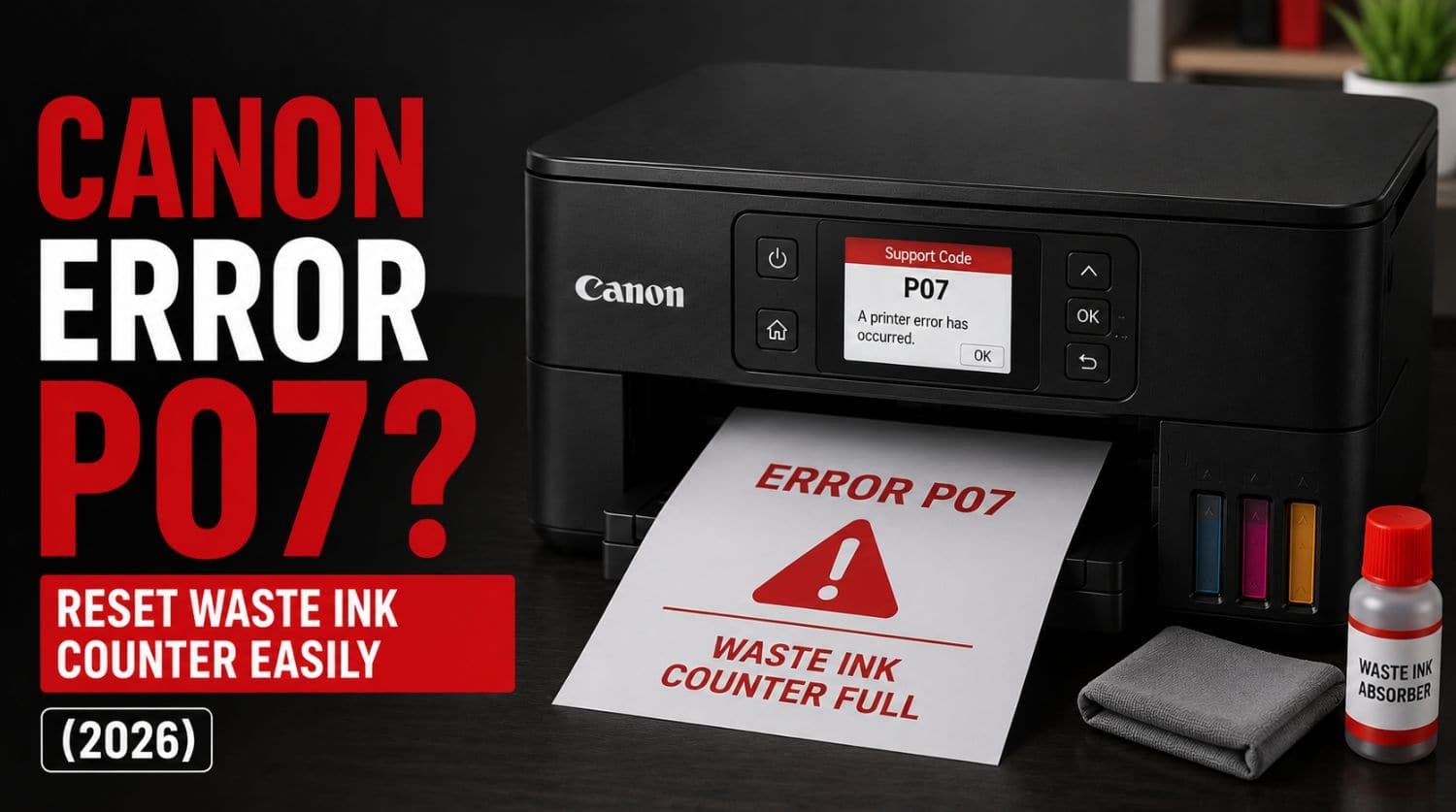
Canon Error P07 usually appears when the printer’s waste ink absorber counter reaches its predefined limit. The printer detects that maintenance is required and temporarily stops printing to prevent potential ink overflow.
The Solution:
Restart the printer, enter service mode if supported, reset the waste ink counter, inspect the waste ink absorber, and perform necessary maintenance. In many cases, Error P07 can be resolved without replacing the printer.
Table of Contents
- Introduction
- What Does Canon Error P07 Mean?
- What Is a Waste Ink Absorber?
- Why Does Canon Error P07 Happen?
- Common Symptoms of Error P07
- Fix 1: Restart the Printer
- Fix 2: Understand the Waste Ink Counter
- Fix 3: Enter Service Mode (Supported Models)
- Fix 4: Reset the Waste Ink Counter
- Fix 5: Inspect the Waste Ink Absorber Area
- Fix 6: Avoid Excessive Printhead Cleaning
- Fix 7: Update Printer Firmware
- Fix 8: Reset the Printer
- When Error P07 Is Related to Printhead Maintenance
- Can You Continue Printing With Error P07?
- When Professional Service May Be Needed
- Quick Troubleshooting Checklist
- Frequently Asked Questions
- Final Thoughts
Introduction
Seeing Canon Error P07 on your printer?
This error often surprises users because the printer may have been working perfectly until suddenly displaying a warning and refusing to print.
Unlike paper jam or cartridge errors, P07 is a maintenance-related warning connected to the printer’s waste ink management system.
Many Canon users encounter this error after years of normal printing.
The good news is that Error P07 is often fixable.
This guide explains what Canon Error P07 means, why it occurs, and the safest ways to resolve it.
For a complete overview of Canon support codes, visit our Canon Printer Error Codes Explained guide.
What Does Canon Error P07 Mean?
Canon Error P07 is a waste ink absorber warning.
During normal operation, Canon printers use small amounts of ink for:
- printhead cleaning
- nozzle maintenance
- startup procedures
- print quality optimization
This unused ink is collected inside special absorbent pads called the waste ink absorber.
When the printer estimates that the absorber is approaching its limit, it displays Error P07.
What Is a Waste Ink Absorber?
The waste ink absorber is a sponge-like component inside the printer.
Its purpose is to collect excess ink generated during maintenance operations.
Without this system:
- excess ink could leak
- internal components could become contaminated
- print quality could suffer
To prevent overflow, Canon tracks usage through an internal counter.
Why Does Canon Error P07 Happen?
The most common causes include:
- waste ink counter reached limit
- frequent printhead cleaning cycles
- long-term printer usage
- maintenance accumulation
- firmware maintenance warnings
In most cases, the printer is responding to accumulated usage rather than an active failure.
Common Symptoms of Error P07
Users often notice:
- printer refuses to print
- maintenance warning appears
- startup interruption
- flashing indicator lights
- support code P07 displayed
The printer may otherwise appear to function normally.
Fix 1: Restart the Printer
Begin with a simple restart.
Temporary system glitches can occasionally trigger maintenance warnings.
Steps
- Turn off printer
- Disconnect power cable
- Wait 60 seconds
- Reconnect power
- Restart printer
If Error P07 remains, continue troubleshooting.
Fix 2: Understand the Waste Ink Counter
Many users assume the absorber is physically full.
However, Canon printers usually rely on an estimated counter.
The printer calculates:
- cleaning cycles
- maintenance usage
- ink consumption patterns
Once the calculated threshold is reached, the error appears.
This means the warning is often software-based rather than an immediate overflow situation.
Fix 3: Enter Service Mode (Supported Models)
Many Canon printers allow access to service mode.
Service mode provides maintenance functions, including waste ink counter resets on supported models.
Because procedures vary significantly between printer models, always verify the correct process for your specific device.
Improper service mode procedures can create additional problems.
Fix 4: Reset the Waste Ink Counter
The most common solution for Error P07 is resetting the waste ink counter.
After resetting:
- maintenance warning disappears
- printer operation resumes
- printing functionality returns
Important:
Counter reset should only be performed when appropriate maintenance has been considered.
Resetting without understanding the cause may allow future ink accumulation issues.
Fix 5: Inspect the Waste Ink Absorber Area
If your printer has been heavily used for years, inspect the absorber area if accessible.
Look for:
- excessive ink buildup
- saturated absorber pads
- visible leakage
- contamination
Many home users never need to access this component directly.
Fix 6: Avoid Excessive Printhead Cleaning
Frequent cleaning cycles accelerate waste ink accumulation.
Many users unknowingly increase absorber usage by repeatedly running:
- deep cleaning
- nozzle cleaning
- maintenance routines
Only run cleaning procedures when necessary.
This helps extend the life of the waste ink system.
Fix 7: Update Printer Firmware
Occasionally firmware updates improve maintenance monitoring and system stability.
Update using:
- Canon printer software
- Canon maintenance tools
- Canon support utilities
Restart the printer after updating.
Fix 8: Reset the Printer
A basic reset may clear temporary maintenance-related communication errors.
Steps
- Turn off printer
- Disconnect power
- Wait several minutes
- Reconnect power
- Restart printer
While this usually will not reset the waste ink counter itself, it can resolve temporary system issues.
When Error P07 Is Related to Printhead Maintenance
Waste ink accumulation often increases because of frequent printhead cleaning.
Users who previously experienced:
- clogged nozzles
- printhead errors
- ink delivery problems
may encounter P07 sooner.
If you are also seeing printhead-related issues, see:
Canon Error B200? Causes and Proven Fixes That Work
(Internal link to B200 cluster)
Can You Continue Printing With Error P07?
In most cases, the printer blocks printing until the warning is addressed.
Canon does this to reduce the risk of:
- ink overflow
- internal contamination
- maintenance-related damage
Ignoring the warning is generally not possible on affected models.
Looking for a Reliable Canon Printer?
If your printer is outdated or frequently causing issues, upgrading can save time and cost.
When Professional Service May Be Needed
Consider professional service if:
- P07 returns immediately after reset
- visible ink leakage exists
- absorber pads appear saturated
- printer has extremely high usage
Technicians can inspect and replace waste ink absorber components when necessary.
Quick Troubleshooting Checklist
✅ restart printer
✅ understand waste ink counter warning
✅ access service mode if supported
✅ reset waste ink counter
✅ inspect absorber area
✅ reduce unnecessary cleaning cycles
✅ update firmware
✅ perform printer reset
✅ inspect for leakage
Frequently Asked Questions
What causes Canon Error P07?
Canon Error P07 is usually caused by the printer’s waste ink counter reaching its maintenance limit.
What is a waste ink absorber?
A waste ink absorber collects excess ink produced during printhead cleaning and maintenance operations.
Can I reset Canon Error P07?
Yes. Many Canon printers allow waste ink counter resets through service mode or maintenance procedures.
Is Error P07 dangerous?
Not usually. It is primarily a maintenance warning designed to prevent ink overflow.
Does Error P07 mean my printer is broken?
No. Most cases involve maintenance requirements rather than major hardware failure.
Final Thoughts
Canon Error P07 is one of the most common maintenance-related Canon printer warnings.
Most users resolve the issue by:
- understanding the waste ink system
- resetting the waste ink counter
- reducing unnecessary cleaning cycles
- performing basic maintenance
Unlike cartridge or paper feed errors, P07 is usually linked to long-term printer usage rather than sudden hardware failure.
By addressing the warning correctly, you can restore normal printing and extend the life of your Canon printer.