
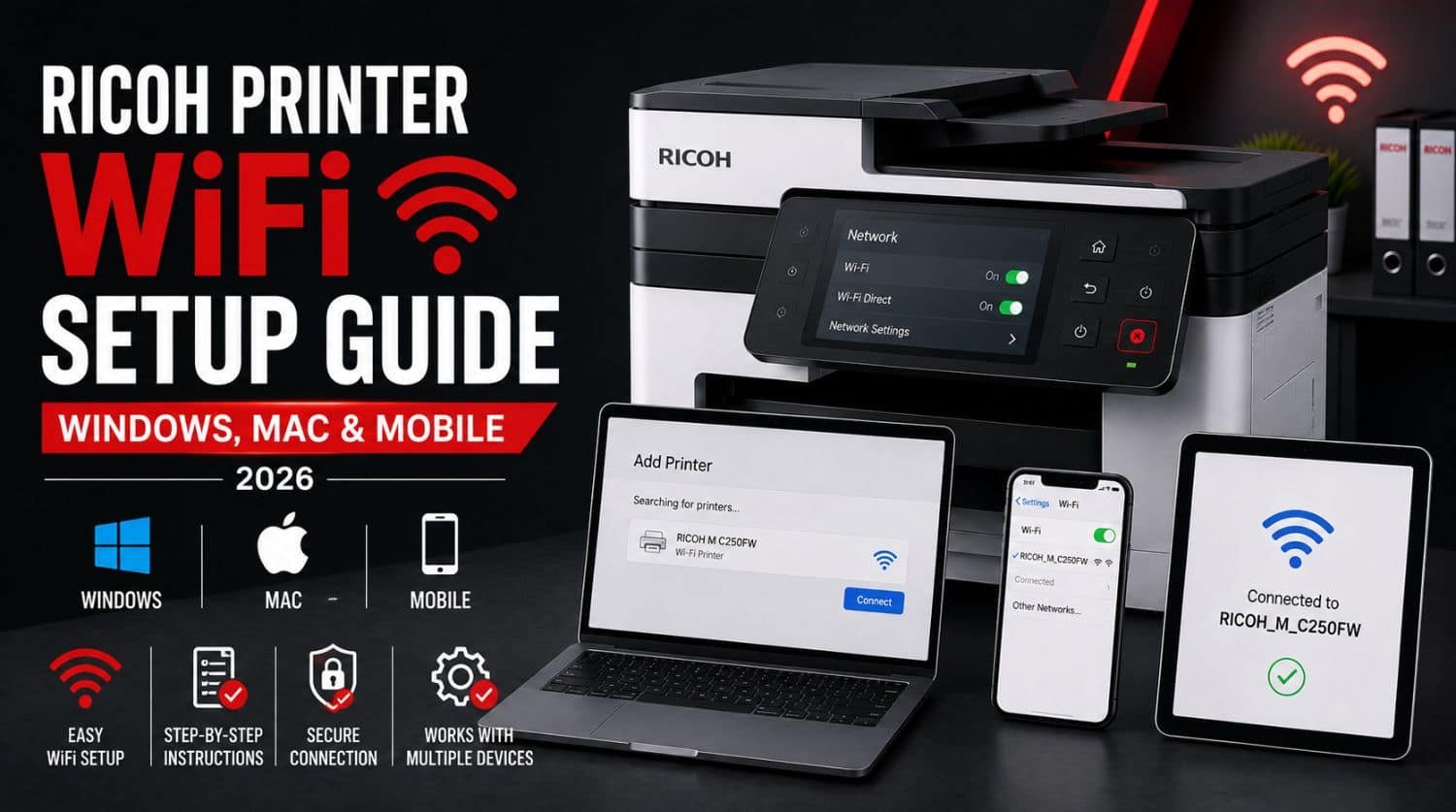
Ricoh Printer WiFi Setup Guide (Windows, Mac & Mobile) 2026
Setting up your Ricoh printer on WiFi allows multiple users to print wirelessly from computers, laptops, smartphones, and tablets without connecting USB cables. Whether you’re installing a new Ricoh printer or reconnecting it after changing your wireless router, the setup process is usually quick and straightforward.
However, many users experience problems such as the printer not finding the WiFi network, connection failures, offline status, or the printer not appearing on their computer after setup.
This guide walks you through step-by-step Ricoh printer WiFi setup for Windows, macOS, Android, and iPhone, along with solutions to the most common wireless connection problems.
Quick Fix: How Do I Connect My Ricoh Printer to WiFi?
If your Ricoh printer won’t connect to WiFi, the problem is usually caused by incorrect wireless settings, entering the wrong WiFi password, weak signal strength, router compatibility issues, outdated firmware, or incorrect network configuration.
The Solution:
Place the printer near your wireless router, connect it to the correct 2.4GHz or supported WiFi network, enter the correct password, install the latest Ricoh printer driver, add the printer through your operating system, assign a static IP address if necessary, and restart both the router and printer. These steps resolve most Ricoh wireless setup problems.
Table of Contents
- Method 1: Connect the Ricoh Printer Using the Control Panel
- Method 2: Connect the Printer to Windows
- Method 3: Connect the Printer to macOS
- Method 4: Print from Android
- Method 5: Print from iPhone or iPad
- How to Find Your Ricoh Printer’s IP Address
- Common Ricoh WiFi Setup Problems
- Tips for a Reliable Wireless Connection
- Frequently Asked Questions
- Related Guides
- Final Thoughts
Method 1: Connect the Ricoh Printer Using the Control Panel
Most modern Ricoh printers include a built-in wireless setup wizard.
Steps
- Turn on the printer.
- Open Menu or Settings.
- Select Network Settings.
- Choose Wireless LAN Settings.
- Select WiFi Setup Wizard.
- Wait for available networks to appear.
- Choose your WiFi network.
- Enter the wireless password.
- Confirm the settings.
- Wait until the printer displays Connected.
Print a Network Configuration Page to verify the connection.
Method 2: Connect the Printer to Windows
Once the printer joins the wireless network, add it to your Windows computer.
Windows 11
- Open Settings.
- Select Bluetooth & Devices.
- Click Printers & Scanners.
- Select Add Device.
- Wait for Windows to detect the Ricoh printer.
- Click Add.
- Install the recommended driver if prompted.
Print a test page to confirm the installation.
Method 3: Connect the Printer to macOS
Mac computers automatically detect many Ricoh printers on the same network.
Steps
- Open System Settings.
- Select Printers & Scanners.
- Click the + button.
- Choose your Ricoh printer.
- Click Add.
- Allow macOS to download any required drivers.
Print a sample document to verify the setup.
Method 4: Print from Android
Most Android devices support wireless printing.
You can use:
- Mopria Print Service
- Ricoh Smart Device Connector
- Built-in Android Print Service
Both the phone and printer must be connected to the same WiFi network.
Method 5: Print from iPhone or iPad
Many Ricoh printers support Apple AirPrint.
Steps
- Open the document or photo.
- Tap Share.
- Select Print.
- Choose your Ricoh printer.
- Tap Print.
Ensure the iPhone and printer are connected to the same wireless network.
How to Find Your Ricoh Printer’s IP Address
Knowing the printer’s IP address helps with troubleshooting and manual installation.
You can find it by:
- Printing a Network Configuration Page
- Viewing Network Settings on the printer display
- Logging into your router
- Using Windows Printer Properties
Many businesses assign a static IP address to prevent connection problems after router restarts.
Common Ricoh WiFi Setup Problems
Printer Cannot Find the WiFi Network
Possible causes include:
- Router too far away
- Hidden SSID
- Weak signal
- Unsupported WiFi frequency
Move the printer closer to the router and refresh the available networks.
Incorrect WiFi Password
Entering an incorrect password prevents the printer from connecting.
Re-enter the password carefully, paying attention to uppercase and lowercase letters.
Printer Connected but Offline
If the printer appears connected but shows Offline, check:
- Network connectivity
- Printer status
- Default printer settings
- Print queue
Read:
Ricoh Printer Offline? 10 Fast Fixes That Get It Back Online (Internal Link)
Computer Cannot Find the Printer
Try:
- Restarting both devices
- Reconnecting to WiFi
- Running Windows printer troubleshooting
- Reinstalling the Ricoh printer driver
See:
Ricoh Printer Driver Unavailable? Fix Driver Problems Fast (Internal Link)
Slow Wireless Printing
Wireless printing may slow down because of:
- Weak WiFi signal
- Large print jobs
- Network congestion
- Outdated firmware
Restart your router and update the printer firmware if necessary.
Tips for a Reliable Wireless Connection
Place the Printer Near the Router
A stronger signal improves printing reliability.
Use a Stable WiFi Network
Avoid switching between multiple wireless networks.
Assign a Static IP Address
A static IP prevents connection issues caused by changing IP addresses.
Keep Firmware Updated
Firmware updates improve wireless stability and compatibility.
Restart Your Network Equipment Occasionally
Restarting the router and printer helps maintain a reliable connection.
Frequently Asked Questions
How do I connect my Ricoh printer to WiFi?
Open the printer’s Wireless LAN Settings, run the WiFi Setup Wizard, select your wireless network, enter the password, and complete the connection.
Does my Ricoh printer support AirPrint?
Many newer Ricoh multifunction printers support Apple AirPrint. Check your printer model’s specifications to confirm compatibility.
Why won’t my Ricoh printer connect to WiFi?
The problem is usually caused by an incorrect password, weak signal, unsupported network settings, outdated firmware, or router compatibility issues.
Can I connect my Ricoh printer without a USB cable?
Yes. Most modern Ricoh wireless printers can be configured entirely over WiFi using the printer’s control panel.
Why does my printer disconnect from WiFi?
This may happen because of weak signal strength, changing IP addresses, router restarts, or outdated firmware.
Related Guides
Continue troubleshooting with these helpful articles:
- Ricoh Printer Not Printing?
- Ricoh Printer Offline?
- Ricoh Printer Driver Unavailable?
- Ricoh Printer Connected But Not Printing?
- Ricoh Printer in Error State?
- Ricoh Printer Firmware Update.
- Ricoh Printer Print Queue Stuck?
Final Thoughts
Setting up a Ricoh printer on WiFi is usually a straightforward process when the printer, router, and computer are configured correctly. By using the printer’s wireless setup wizard, installing the latest Ricoh drivers, connecting all devices to the same network, and assigning a static IP address when needed, you can achieve a fast and reliable wireless printing experience.
If you still experience connection problems after completing this guide, continue with the related articles above for help with offline printers, driver issues, firmware updates, print queues, and other common Ricoh printer troubleshooting topics. Routine software updates and a stable wireless network will keep your Ricoh printer connected and printing reliably.