Why Epson Printer Not Printing Black? Common Fixes Explained!
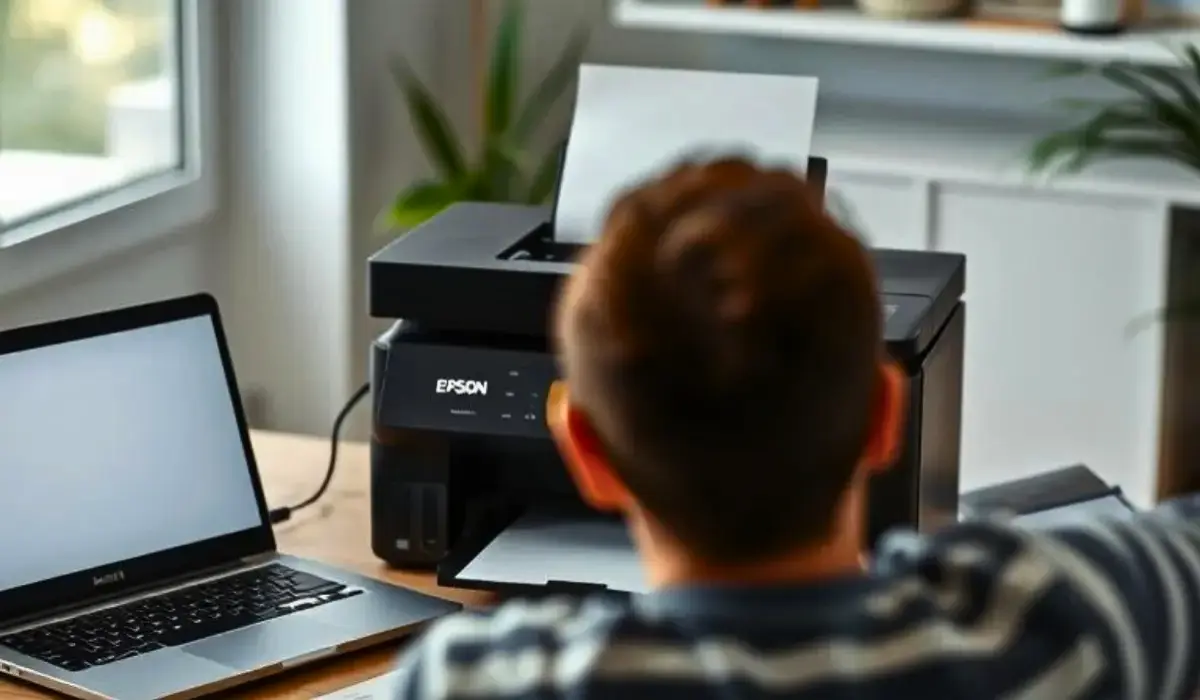
It can be frustrating when your printer will not print black ink, interrupting important tasks and creating unnecessary tension. Many people want to find information on why Epson printer not printing black, which can range from something simple like clogged nozzles, to larger concerns like technical issues, outdated drivers, or incorrect printer settings. With this information, you will quickly identify the root cause and have your printer back running normally, before damage is done from improperly using your Epson.
The issue also tends to repeat itself, so knowing the problems will also prevent repeat issues and maintain an efficient working printer. Knowing why Epson printer not printing black will also save you time and money by troubleshooting at home, before calling a repair professional. Whether you use your Epson printer for work, school, or recreationally, it is important to have the reliability of quality prints. This article goes through some of the most frequent reasons and offers practical solutions that are user-friendly and effective for both the novice user and the more seasoned professional.
Common Causes of Black Ink Not Printing
Clogged Nozzles
One of the most typical causes that prevents an Epson printer from printing black ink is a clogged print head. Over time, dried ink can block the small nozzles that release black ink onto the paper. If your printing is fading, streaking, or completely blank, you likely have a clogged ink nozzle. You can often fix this problem by running a print head cleaning cycle from your printer’s maintenance menu.
Empty or Low Black Ink Cartridge
As basic as it sounds, an ink cartridge that is nearly empty or not properly installed can also prevent black ink from printing. Be sure that your black cartridge is full, it is properly seated, and your printer has registered it. You need to be aware that, at times, 3rd party ink cartridges will fail to communicate properly with your Epson printer and cause printing problems to occur.
Incorrect Printing Settings
You could have incorrect print settings, which can cause black ink to not print on your pages. For example, if printing settings are set to “grayscale,” “color only,” or “draft mode,” the printer could alter and distribute ink in a different way. Always confirm your print preferences to confirm you are printing in the correct mode.
Technical Issues That Affect Black Ink Printing
Outdated Printer Drivers
Printer drivers function as the link between your computer and your printer. If they are old or corrupted, your Epson printer may not respond well to send black ink to the printhead. Correcting printer drivers from the Epson website or updating drivers through your operating system will correct the issue.
Printhead Misalignment
A misaligned printhead can cause gaps, streaks, or missing colors. Most Epson printers have an alignment tool in the maintenance settings within their menu, and running this will align the printhead so that all colors print evenly.
Firmware Problems
If the internal software of the printer has an error, the printer may not print correctly. Power cycling the printer or updating the firmware will resolve any unintended errors that might affect black ink.
Environmental and Maintenance Factors
Dust and Debris Inside the Printer
Accumulated dust can interfere with ink flow and block printheads. Keeping your printer clean and using the built-in maintenance tools can significantly improve print quality and prevent long-term issues.
Infrequent Use of the Printer
Printers that sit unused for long periods tend to develop clogged nozzles faster. Printing a page or two every week helps keep the ink flowing and prevents drying inside the printhead.
How to Fix Black Ink Printing Problems?
Run a Printhead Cleaning Cycle
Most Epson models include an automated cleaning function. This process helps dissolve dried ink and clear blocked nozzles. If the issue persists after one cleaning cycle, try running it again, but avoid excessive repetitions to prevent ink waste.
Replace or Reinstall the Ink Cartridge
If the cartridge is old, leaking, or incompatible, replacing it with a genuine Epson cartridge often fixes the issue. Carefully reinstalling the cartridge can also resolve errors caused by improper placement.
Adjust Printer Settings
Make sure that the print mode is set to “Normal” or “Standard” instead of “Draft.” Ensure that “Black & White” or “Use Black Cartridge” modes are activated when necessary.
Update Drivers and Firmware
Visit the official Epson website to download the latest drivers and firmware. Updated software improves compatibility and resolves known printing bugs.
Perform a Nozzle Check
A nozzle check helps you visually confirm which colors are printing correctly. If the black pattern is missing or broken, it clearly indicates where the issue lies.
Preventing Black Ink Problems in the Future
Use Printer Regularly
Frequent use prevents ink from drying and keeps the printhead clear.
Use Genuine Epson Ink
Original cartridges ensure consistent ink flow and better compatibility with your printer.
Keep the Printer Covered
A dust cover helps protect internal components and maintains print quality.
Maintain Ideal Storage Conditions
Avoid placing your printer in extremely hot, cold, or humid areas, as these conditions can affect ink performance.
Conclusion
Dealing with printing problems can be annoying when you’re trying to understand why epson printer not printing black, but most causes have relatively simple and reliable solutions. Understanding what causes black ink problems, whether it’s clogged nozzles, cartridge issues, incorrect settings, or outdated drivers, can help you resolve the problem quickly and ensure easy future printing. Regular maintenance, correct handling of ink, and timely software updates can help ensure your printer maintains optimal performance each day without issues in the future. If troubleshooting isn’t helping restore black ink printing, consider contacting a professional.