
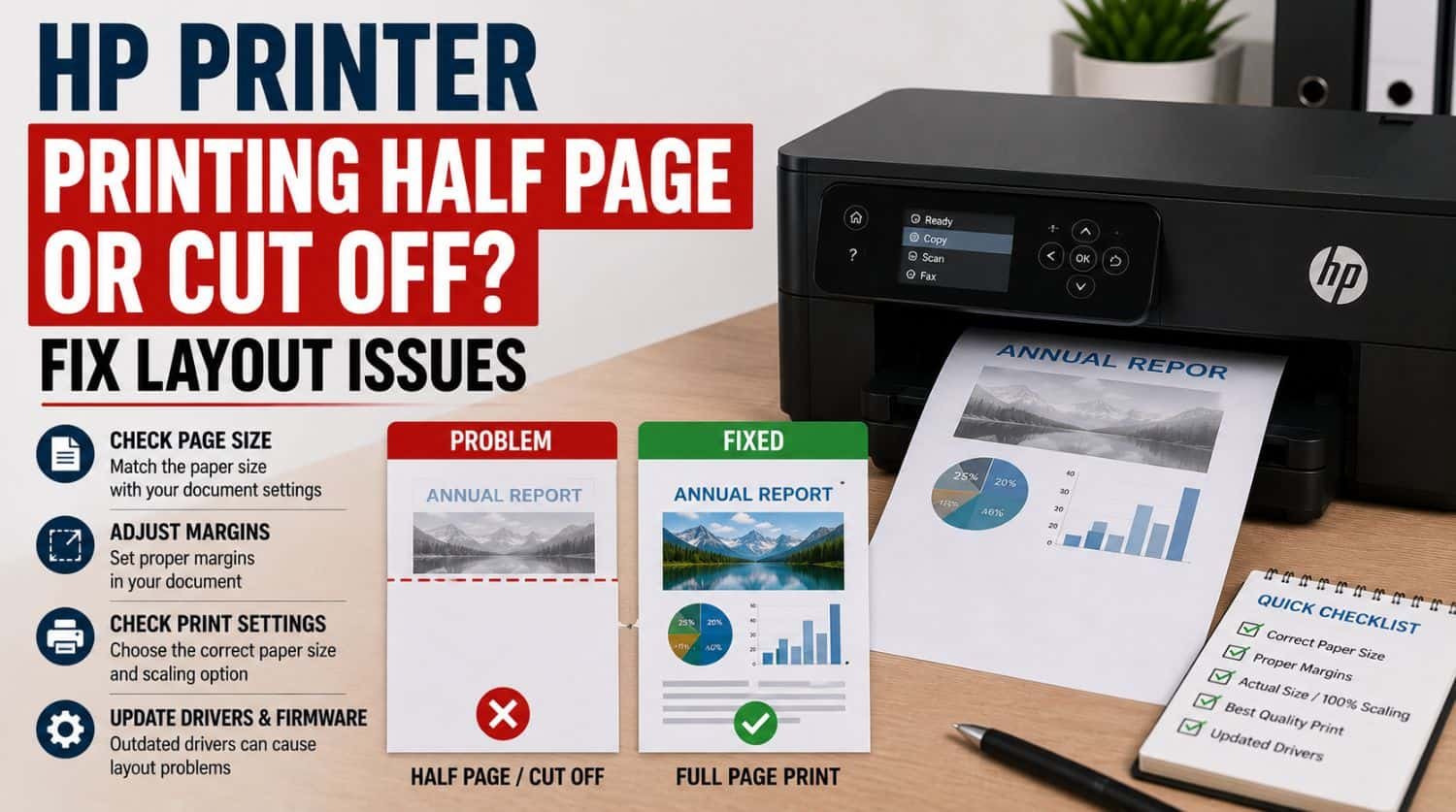
HP Printer Printing Half Page or Cut Off? Fix Layout Issues
Quick Fix: Why Is My HP Printer Printing Only Half a Page?
If your HP printer is printing only half a page or cutting off content, the most common causes include incorrect paper size settings, print scaling errors, driver issues, corrupted document formatting, margin conflicts, or printer alignment problems.
The Solution:
Check paper size, reset print scaling, update the printer driver, test another document, verify margins, and restart the printer. Most half-page printing issues are caused by layout or software configuration problems.
Table of Contents
- Why Is My HP Printer Printing Half a Page?
- 1. Check Paper Size Settings
- 2. Reset Print Scaling
- 3. Check Margins and Page Layout
- 4. Try Another Document
- 5. Restart Printer and Computer
- 6. Clear Corrupted Print Jobs
- 7. Reinstall Printer Driver
- 8. Check Orientation Settings
- 9. Align the Printer
- 10. Update Printer Firmware
- When Half-Page Printing Means a Bigger Problem
- Quick Troubleshooting Checklist
- Frequently Asked Questions
- Final Thoughts
Is your HP printer printing only half the page?
Maybe documents are getting cut off, images are clipped, text disappears near the edges, or only part of the page prints.
This problem is frustrating because the printer appears functional, but the final output is incomplete.
Unlike blank page problems, this issue usually happens because of layout configuration, scaling conflicts, or communication between the document and printer.
This guide focuses specifically on fixing HP printers that print partial or cut-off pages.
If your printer has broader printing issues, use our complete HP Printer Not Printing Properly troubleshooting guide.
Why Is My HP Printer Printing Half a Page?
Partial printing usually happens when the printer receives incorrect layout instructions.
Common causes include:
- wrong paper size settings
- print scaling errors
- oversized document layout
- driver communication problems
- margin conflicts
- corrupted print jobs
- application formatting bugs
- printer alignment issues
Most cases are software-related.
1. Check Paper Size Settings
One of the most common causes is paper size mismatch.
Example:
- document set to A4
- printer loaded with Letter paper
This mismatch causes clipped output.
Fix
Before printing:
- Open print dialog
- Check selected paper size
- Match it with actual loaded paper
Common sizes:
- A4
- Letter
- Legal
Mismatch = cut-off printing.
2. Reset Print Scaling
Scaling errors often shrink or crop documents incorrectly.
Common settings causing issues:
- Fit to page
- Custom scaling
- oversized percentage
- actual size conflicts
Fix
Open print settings and reset scaling to:
- 100%
or - Fit to printable area
Then test again.
3. Check Margins and Page Layout
Improper document margins can push content outside printable boundaries.
This happens with:
- Word documents
- PDFs
- browser print layouts
- spreadsheets
Fix
Review:
- top margin
- bottom margin
- left margin
- right margin
Reduce oversized margins or use standard layout settings.
4. Try Another Document
Sometimes the printer is not the problem.
A corrupted file may produce incomplete output.
Test with:
- simple text document
- browser print
- image print
If only one file fails, the issue is document-specific.
5. Restart Printer and Computer
Temporary communication glitches can distort print rendering.
This may cause:
- partial pages
- clipped output
- incomplete document processing
Steps
- Turn off printer
- Shut down computer
- Wait 60 seconds
- Restart both
- Retest
Simple restart often helps.
6. Clear Corrupted Print Jobs
Damaged print jobs may render incorrectly.
Symptoms:
- repeated cut-off printing
- same incomplete output
- queued jobs behaving strangely
Fix
- Open print queue
- Cancel all jobs
- Restart printer
- Retry print
Fresh print jobs often resolve rendering problems.
7. Reinstall Printer Driver
Driver issues can distort layout communication.
Common symptoms:
- clipped printing
- incomplete pages
- formatting errors
- unexpected scaling
Fix
- Open Device Manager
- Locate printer
- Uninstall device
- Restart computer
- Reinstall printer
Driver corruption is a common hidden cause.
8. Check Orientation Settings
Wrong page orientation can cut off content.
Examples:
- landscape document printed in portrait
- portrait content forced into landscape
Fix
Verify:
- portrait
- landscape
Match orientation to document format.
9. Align the Printer
Printer alignment can sometimes affect edge output.
This is less common, but possible.
Run printer alignment from maintenance settings.
If text itself prints incorrectly, see our HP Printer Not Printing Text Properly guide.
10. Update Printer Firmware
Older firmware may create print rendering conflicts.
Update using:
- HP Smart
- printer settings
- software tools
Then retest.
When Half-Page Printing Means a Bigger Problem
Sometimes partial output is part of a broader printer issue.
If you also see:
- missing words
- incomplete text
- blank pages
- communication failures
the root cause may extend beyond layout.
Use the full HP Printer Not Printing Properly troubleshooting guide.
Quick Troubleshooting Checklist
✅ check paper size
✅ reset scaling
✅ review margins
✅ test another document
✅ restart printer
✅ clear print queue
✅ reinstall driver
✅ check orientation
✅ align printer
✅ update firmware
Frequently Asked Questions
Why is my HP printer cutting off part of the page?
This is usually caused by paper size mismatch, scaling issues, margin conflicts, or layout formatting problems.
Why does my printer only print half the document?
The printer may be receiving incorrect layout instructions or processing corrupted print data.
Can a bad printer driver cause cut-off printing?
Yes. Driver communication issues often distort document layout.
Why do PDFs print cut off?
PDF scaling or paper size mismatches commonly cause this issue.
Why is my printer clipping spreadsheet content?
Large spreadsheet layouts often exceed printable page boundaries.
Final Thoughts
If your HP printer prints only half a page, the issue is usually software or layout-related—not hardware failure.
Most users solve the problem by:
- fixing paper size settings
- resetting scaling
- clearing corrupted jobs
- reinstalling drivers
Start with the easiest fixes first.


