
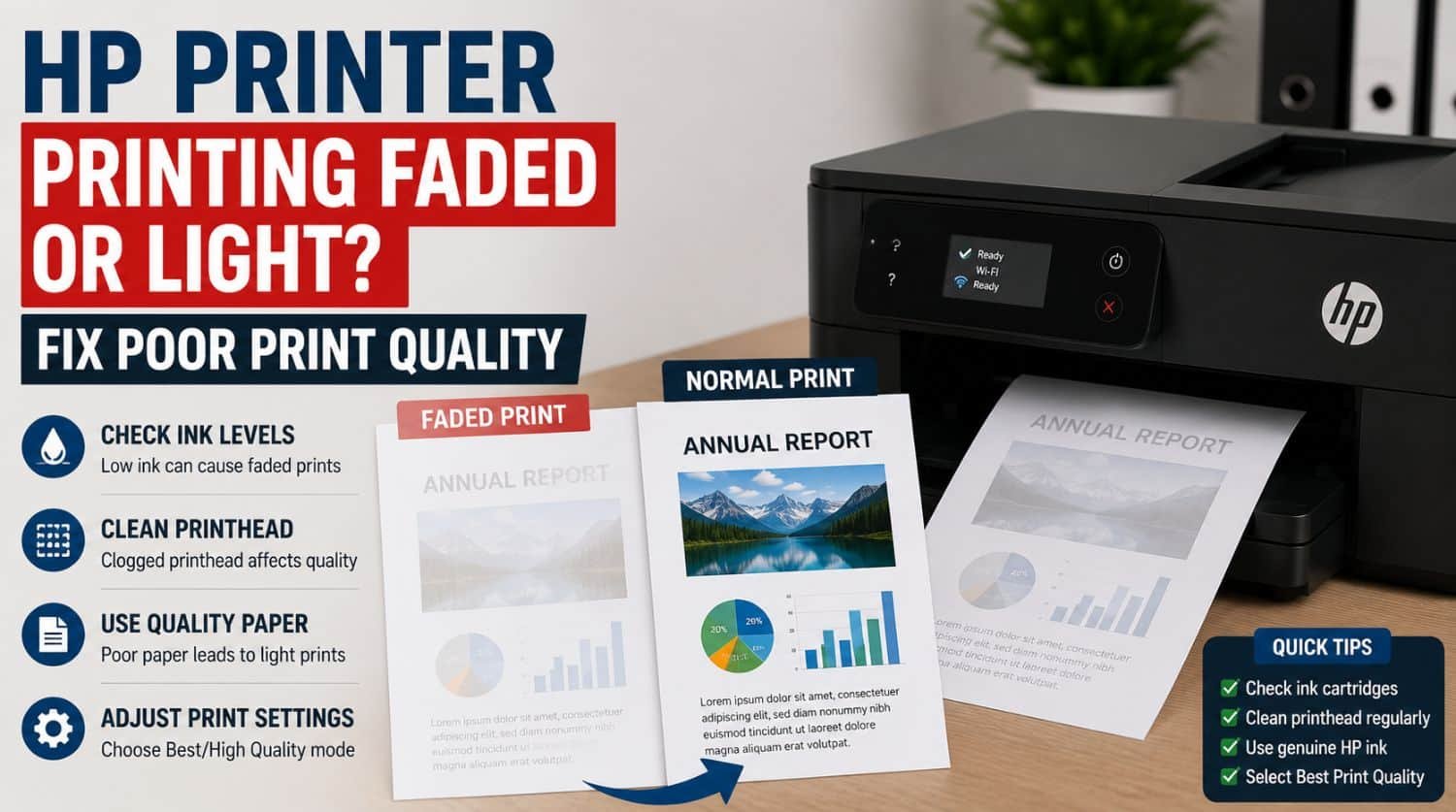
HP Printer Printing Faded or Light? Fix Poor Print Quality
Quick Fix: Why Is My HP Printer Printing Faded?
If your HP printer is printing faded or light pages, the most common causes include low ink, clogged printhead nozzles, draft mode settings, alignment problems, poor cartridge performance, or incorrect paper settings.
The Solution:
Check ink levels, clean the printhead, disable draft mode, align the printer, verify print settings, and inspect cartridges. Most faded printing issues are caused by ink delivery or quality settings.
Table of Contents
- HP Printer Printing Faded
- 1. Check Ink Levels
- 2. Disable Draft Mode
- 3. Run Printhead Cleaning
- 4. Align the Printer
- 5. Check Paper Type Settings
- 6. Print a Diagnostic Test Page
- 7. Reseat Ink Cartridges
- 8. Clean Cartridge Contacts
- 9. Try Better Cartridges
- 10. Update Printer Firmware
- 11. Check for Printhead or Hardware Wear
- When Faded Printing Is a More Specific Ink Problem
- Quick Troubleshooting Checklist
- Frequently Asked Questions
- Final Thoughts
Is your HP printer producing faded text, weak images, or light print output?
Poor print quality is a frustrating issue because documents become difficult to read even though the printer appears to work normally.
Users commonly notice:
- faint black text
- washed-out colors
- weak image printing
- uneven print density
- inconsistent output quality
The good news is that most faded printing problems are fixable without replacing the printer.
This guide focuses specifically on restoring strong, clear print quality.
If your printer has broader issues beyond faded output, use our full HP Printer Not Printing Properly troubleshooting guide.
HP Printer Printing Faded
Faded printing usually happens when the printer cannot deliver enough ink or toner consistently.
Common causes include:
- low ink
- partially clogged nozzles
- draft print mode
- poor cartridge performance
- alignment issues
- incorrect paper settings
- dirty printhead
- weak cartridge contact
- hardware wear
Start with the easiest fixes first.
1. Check Ink Levels
Low ink is the most common cause of faded output.
As cartridges become depleted, print quality drops gradually.
Symptoms:
- faint text
- washed-out images
- weak black output
- uneven density
Check using
- HP Smart app
- printer display
- printer software utility
Inspect all cartridges.
If only black output is weak, use our HP Printer Not Printing Black guide.
If only colors are faded, see HP Printer Not Printing Color.
Replace low cartridges first.
2. Disable Draft Mode
Draft mode reduces ink usage to print faster.
This often causes faded or weak output.
Symptoms:
- light text
- poor image quality
- weak density
- incomplete sharpness
Fix
- Open print dialog
- Select HP printer
- Open Printer Preferences
- Check print quality
- Change Draft to Normal or Best
Test again afterward.
This is a very common hidden cause.
3. Run Printhead Cleaning
Partially clogged nozzles reduce ink delivery.
This creates:
- faded text
- streaks
- uneven output
- missing density
Common causes:
- long inactivity
- dried ink
- maintenance neglect
Fix steps
- Open printer settings
- Go to Maintenance
- Select Clean Printhead
- Run cleaning cycle
- Print test page
Repeat once if needed.
Excessive cleaning wastes ink.
4. Align the Printer
Misalignment can make output appear faded or inconsistent.
Symptoms:
- blurred text
- weak lines
- uneven placement
- distorted quality
Alignment issues often happen after:
- cartridge replacement
- maintenance cleaning
- resets
Fix
- Open printer settings
- Select Maintenance
- Run Align Printer
- Print test page
5. Check Paper Type Settings
Wrong paper settings affect ink application.
Incorrect settings may cause:
- light printing
- poor absorption
- weak images
- washed-out output
Examples:
Printing plain paper while photo mode is selected.
Fix
Check:
- paper type
- print profile
- quality settings
Match settings to actual paper.
6. Print a Diagnostic Test Page
A diagnostic page helps confirm whether fading is caused by hardware or document settings.
Look for:
- faded bars
- uneven density
- missing sections
- poor black density
- weak color output
If diagnostics are faded too, the issue is printer-related.
7. Reseat Ink Cartridges
Poor cartridge contact can reduce proper ink flow.
Symptoms:
- weak intermittent output
- fading after cartridge replacement
- inconsistent print density
Fix
- Turn off printer
- Remove cartridges
- Inspect contacts
- Reinstall securely
- Test printing
Loose installation causes many quality problems.
8. Clean Cartridge Contacts
Dirty contacts interrupt cartridge communication.
This can reduce proper ink delivery.
Steps
- Turn off printer
- Remove cartridges
- Inspect copper contacts
- Clean gently
- Let dry
- Reinstall
Avoid excess moisture.
9. Try Better Cartridges
Poor cartridge quality causes weak output.
Common problems:
- dried cartridges
- defective replacements
- low-quality refills
- incompatible cartridges
Symptoms:
- fading despite troubleshooting
- poor consistency
- immediate weak output after replacement
Try a known working cartridge set.
10. Update Printer Firmware
Firmware bugs can affect print quality management.
Less common, but possible.
Update using:
- HP Smart
- printer settings
- HP software tools
Restart after updating.
11. Check for Printhead or Hardware Wear
If fading continues after all fixes, hardware wear may exist.
Possible causes:
- worn printhead
- failing ink delivery system
- internal hardware degradation
Signs:
- repeated failed cleaning
- faded diagnostics
- new cartridges do not help
Repair may be required.
When Faded Printing Is a More Specific Ink Problem
Sometimes fading affects only one output type.
Examples:
Only black text faded → HP Printer Not Printing Black
Only color output faded → HP Printer Not Printing Color
Use the specific guides if fading is isolated.
Quick Troubleshooting Checklist
✅ check ink levels
✅ disable draft mode
✅ clean printhead
✅ align printer
✅ verify paper settings
✅ print diagnostics
✅ reseat cartridges
✅ clean contacts
✅ test better cartridges
✅ update firmware
✅ inspect hardware
Frequently Asked Questions
Why is my HP printer printing faded text?
Usually because of low ink, clogged nozzles, draft mode, or alignment issues.
Why is my HP printer printing light but has ink?
The ink may not be flowing correctly due to clogging, weak cartridges, settings, or hardware wear.
Can draft mode cause faded printing?
Yes. Draft mode intentionally reduces ink usage.
Why are my printed images washed out?
Incorrect settings, low ink, or poor cartridge performance commonly cause this.
Does printhead cleaning help faded printing?
Yes. Partial nozzle blockage is a major cause of weak output.
Final Thoughts
If your HP printer is printing faded or light pages, the issue is usually fixable.
Most users restore print quality by:
- replacing low ink
- cleaning printheads
- correcting settings
- aligning the printer
- fixing cartridge communication
Start with the easiest fixes first.


