How to Maintain an Epson Printer for Long-Lasting Performance?
Epson printers are widely known for their reliability, high print quality, and efficiency in both home and business environments. Whether you use an office printer or a professional model like those from Epson, proper care plays a key role in keeping the device running smoothly for years. Many users experience issues such as clogged printheads, faded prints, or paper jams simply because routine maintenance is overlooked. Learning how to maintain an Epson printer can prevent these common problems and ensure consistent results every time you print. Regular cleaning, proper ink usage, and simple maintenance habits can significantly extend the life of your printer while reducing repair costs. With the right practices and a little attention, you can keep your printer operating efficiently and producing sharp, professional-quality prints without unnecessary interruptions.

Why Regular Printer Maintenance Is Important
Printers are mechanical devices that handle ink, paper, and heat while performing complex printing tasks. Over time, dust, dried ink, and paper residue can accumulate inside the printer. When these elements build up, they may lead to poor print quality or even hardware damage.
Routine maintenance helps maintain consistent print output and prevents expensive repairs. It also ensures that the printer continues to operate at optimal speed and accuracy. For businesses that rely on printing daily documents, marketing materials, or photographs, regular upkeep becomes even more critical.
Another benefit of maintaining your printer is improved efficiency. A well-maintained printer consumes ink more effectively and reduces waste caused by reprints. This not only saves money but also supports environmentally friendly printing practices.
Keep the Printer Clean and Dust-Free
Dust and debris are among the most common causes of printer issues. When dust enters the internal components, it can interfere with sensors, rollers, and printheads.
To keep your printer clean, place it in a well-ventilated area away from windows or open doors where dust may accumulate. Use a soft, lint-free cloth to wipe the exterior of the printer regularly.
For internal cleaning:
Turn off and unplug the printer before cleaning.
Open accessible panels carefully.
Use compressed air to remove dust from paper trays and rollers.
Avoid using liquids inside the printer.
Keeping the device clean helps maintain consistent paper feeding and prevents mechanical errors.
Perform Regular Printhead Cleaning
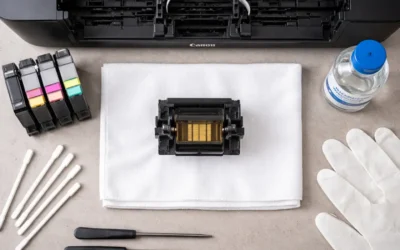
The printhead is one of the most important components in any inkjet printer. Over time, dried ink can clog the tiny nozzles responsible for spraying ink onto paper. When this happens, printed pages may show streaks or missing colors.
Most Epson printers include built-in cleaning utilities within their software or control panel. Running these cleaning cycles occasionally helps keep the printhead functioning properly.
Signs that your printhead needs cleaning include:
Faded colors
Missing lines in printed documents
Uneven print output
Running a nozzle check test before cleaning can help determine whether the printhead requires maintenance. However, avoid excessive cleaning cycles, as they may consume extra ink.
Use Genuine Ink and Quality Paper
Using compatible ink cartridges that are not recommended by the manufacturer may seem like a cost-saving option, but they can cause long-term issues. Poor-quality ink may clog the printhead, damage internal components, or produce inconsistent colors.
Always choose original cartridges designed for your printer model. Genuine ink is formulated to work with the printer’s technology and ensures optimal performance.
Paper quality also plays a role in maintaining your printer. Low-quality paper often sheds tiny fibers that accumulate inside the printer. These fibers can affect rollers and paper feeding mechanisms.
For the best results:
Use paper recommended for your printer type.
Store paper in a dry environment.
Avoid wrinkled or damaged sheets.
These simple habits can prevent paper jams and maintain print quality.
Keep the Printer Active
Inkjet printers perform best when they are used regularly. If a printer remains unused for extended periods, the ink inside the printhead can dry and cause blockages.
Printing a test page once or twice a week helps keep the ink flowing smoothly through the nozzles. This small step significantly reduces the risk of clogged printheads and maintains color consistency.
For offices where printing happens frequently, this issue may not occur. However, home users who print occasionally should make it a habit to run a quick print job every week.
Update Printer Drivers and Firmware
Printer software plays an important role in maintaining performance. Manufacturers often release updates that fix bugs, improve compatibility, and enhance printing efficiency.
Installing the latest drivers ensures that your printer communicates properly with your computer or network. Updated firmware can also improve the accuracy of printing operations and prevent unexpected errors.
Checking for updates periodically through the printer software or the manufacturer’s website can help keep your device running smoothly.
Handle Paper Loading Carefully
Improper paper loading is a common reason for printer problems. Overloading the tray or inserting paper incorrectly can cause jams and damage the rollers.
To avoid these issues:
Do not exceed the recommended paper capacity.
Align the paper guides properly.
Use flat, undamaged sheets.
When a paper jam occurs, remove the paper gently instead of pulling it forcefully. This prevents damage to internal components.
Schedule Periodic Maintenance Checks
Even with proper care, printers benefit from occasional professional inspection. For businesses that rely heavily on printing equipment, scheduling maintenance checks can prevent downtime.
A technician can inspect internal components, clean areas that are difficult to access, and identify potential issues before they become major problems.
Regular servicing is especially useful for large office printers or production printing equipment where continuous operation is essential.
Conclusion
Understanding how to maintain an Epson printer is essential for ensuring consistent print quality, reliable performance, and a longer device lifespan. Simple habits such as cleaning the printer regularly, using genuine ink, keeping the device active, and handling paper carefully can make a significant difference in how well your printer performs over time. Regular maintenance not only prevents common problems like clogged printheads and paper jams but also reduces unnecessary repair costs and downtime. Whether you use your printer for home tasks or business operations, following these maintenance practices will keep your equipment running efficiently. By applying these steps and staying consistent with upkeep, you can confidently rely on your printer for high-quality results and smooth operation whenever you need it.
Frequently Asked Questions
1. How often should I clean my Epson printer?
It is recommended to clean the printer exterior every few weeks and perform printhead cleaning only when print quality issues appear.
2. Why does my printer produce faded prints?
Faded prints usually occur due to clogged printhead nozzles, low ink levels, or incorrect print settings.
3. Can I use third-party ink cartridges in my printer?
While third-party cartridges may work, they can sometimes cause print quality issues or clog the printhead. Genuine cartridges are generally safer.
4. What should I do if my printer frequently jams paper?
Check that the paper tray is not overloaded, use high-quality paper, and ensure the paper guides are properly aligned.
5. How long can an Epson printer last with proper maintenance?
With regular care and proper usage, many printers can operate efficiently for several years before requiring major servicing or replacement.