How to Connect Epson Printer with Phone? Complete Step-by-Step Guide!
Connecting your printer and smartphone is useful these days because technology moves so quickly. Whether printing business documents, travel tickets, school assignments, or pictures, printing from your mobile device saves more time and effort than having to use multiple devices to accomplish what you want to do. If you are looking for how to connect your Epson Printer to a mobile phone, you will discover it is a simple process of following the appropriate directions.
Epson printers have an extensive variety of wireless printing features that make it easy for you to print wirelessly when using your mobile device. This guide will provide you with information on how to connect your printer via Wi-Fi, Wi-Fi Direct, and the Epson Smart Panel application, as well as troubleshooting tips should any issues arise while using these connection methods. Upon completion, you should feel confident and comfortable in your ability to print directly from your mobile device.
Why Connect Your Epson Printer to Your Phone?
Using your smartphone to print gives you freedom and ease. You can print documents, email, PDFs, and photos straight from your phone without having to copy them back to a laptop or desktop first. Epson printers will work with all Android and iOS devices, so they can be used at home or at work. Using wireless printing eliminates the clutter of cables and allows multiple users to use a single printer without having to set anything up. This is especially helpful to small businesses, students, and home offices where you want quick access to a printer. Most new Epson printers have wireless capabilities built in, so printing from your phone should be simple and efficient.
Requirements Before You Start
Before connecting your Epson printer with your smartphone (either Android or iPhone), you should ensure you have everything below:
• A Wi-Fi capable Epson printer;
• A stable wireless network;
• A smartphone (Android or iPhone);
• Epson Smart Panel or iPrint app installed;
• Your printer is powered up, has paper in it, and is full of ink. You should have these items in place to avoid errors in establishing a connection and delays in setting up your printer.
Method 1: Connect Using Wi-Fi and Epson Smart Panel
This method of printing from a mobile phone to a printer using a shared Wi-Fi network is by far the most popular and recommended method for doing so; assuming that the Printer and Mobile Phone are connected to the same Wi-Fi network.
Step 1 – Connect Printer to Wi-Fi
To begin, turn on your Epson printer and then access the printer’s control panel to select ‘Wi-Fi Setup’ and then select your wireless network from the list of available networks. Enter your Wi-Fi password correctly and then confirm that your printer has connected to the wireless network. You will know your printer has connected to the wireless network because the Wi-Fi indicator light will be solid (not flashing).
Step 2 – Install Epson Smart Panel
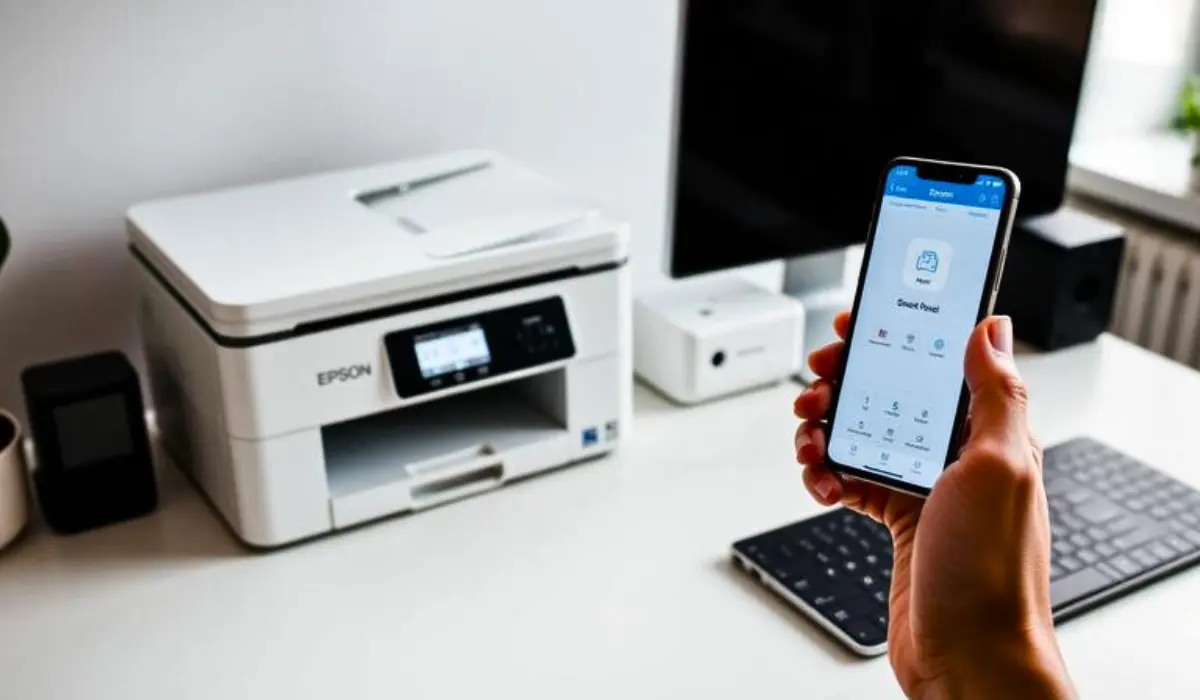
Next, download the Epson Smart Panel App from the Google Play Store or Apple App Store. Once installed, open the App and grant the necessary permissions to the App (e.g., allowing the App to access your location and network).
Step 3 – Add Your Printer
Now that your App is installed and running, tap the “Add Printer” option in the App. The App will automatically search for any available printers on your home or business shared wireless network. Select your printer model and confirm the connection of the printer with the App. Once connected, you will be able to print documents and photos from your mobile device to your wireless printer.
This method is appropriate for households and businesses that all share a wireless home or business network.
Method 2: Connect Using Wi-Fi Direct
Wi-Fi Direct is a great choice if you don’t have a router. You can connect your phone directly to the printer without needing a wireless network.
To turn on Wi-Fi Direct on the printer
On the printer’s control panel, click on the Wi-Fi Direct tab. The printer will show both the SSID (network name) and the password for the Wi-Fi Direct connection.
To connect your phone:
Find the printer’s SSID in the Wi-Fi settings on your phone. Tap the SSID and type in the password that shows up on your printer’s screen. After that, you can print with the Epson app.
Wi-Fi Direct is great for traveling, having small meetings, or being in places where there isn’t a router.
Method 3: Print Using Apple AirPrint or Mopria
Modern Epson printers have built-in printing services that let them work with a wide range of devices. Apple AirPrint for iPhones and Mopria Print Service for Android smartphones are two examples of these services.
To print from an iPhone, users just need to choose the document or photo they want to print and tap the Share icon, then Print. After that, they will see all the printers that are available. They just need to tap on the one they want to use and confirm it.
To use Mopria Print Service on your Android device, you need to first turn it on in Settings. Then, open the document you want to print and choose Print from the list of options. Finally, choose your printer from the list of options.
When you use Epson’s built-in printing options, you often don’t need to download any other apps.
Troubleshooting Common Connection Issues
Sometimes, you may face connection challenges. Here are quick solutions to common problems:
• Ensure both devices are on the same Wi-Fi network
• Restart the printer and smartphone
• Update the Epson app to the latest version
• Check printer firmware updates
• Move the printer closer to the router for better signal strength.
If your printer does not appear in the app, resetting the network settings on the printer and reconnecting can often solve the issue.
Tips for Smooth Mobile Printing
To enhance your printing experience, keep these best practices in mind:
• Maintain a stable Wi-Fi signal
• Regularly update printer firmware
• Use original ink cartridges for optimal performance
• Keep the Epson app updated
• Avoid overloading the print queue.
These small steps can significantly improve printing reliability and speed.
Security Considerations When Printing Wirelessly
Wireless printing is not only practical but can also come with security risks. Always secure your WiFi network with a complex password. Disable WiFi Direct unless you’re actively using it to deter unapproved users from accessing the system via this method. Businesses should utilize a secure network and potentially enable printing access controls for employees. Using a secure network is critical to printing safely.
Benefits of Mobile Printing with Epson
Epson’s printers have great wireless connectivity and are easy to use. Once you learn how to connect an Epson printer to your phone, you can take advantage of features such as remote printing, scanning to your mobile device, checking ink levels, and managing the printer from your mobile device. Better yet, you will enjoy an improved level of productivity because you will not have the same dependency on your computer. Whether you are printing out business proposals or family pictures, mobile printing from your mobile device will enable you to do so quickly and effectively.
Conclusion
If you know how to connect your mobile devices to an Epson printer, you can control all aspects of mobile printing and finish projects without using your computer. There are different ways for you to connect to your Epson printer. Wi-Fi, Wi-Fi direct, Apple AirPrint, and the Epson Smart Panel app are the most common ways to do this. If you did everything right, both devices should now be connected and ready to print.
To keep the connection going, you need to keep the network up and running, ensure all apps on both devices are up to date, and perform basic troubleshooting whenever there is a problem. Printing wirelessly from your phone to your Epson printer makes it easier to print while you’re on the go, at work, or at home. It will also save you time and energy when you need to print every day.
Frequently Asked Questions
- Can I connect my Epson printer to my phone without Wi-Fi?
Yes, it is possible to connect your mobile device to your Epson printer without using a wireless router by using Wi-Fi Direct.
- Which app do I need to print from my phone?
Depending on the Epson printer you own, you may need the Epson Smart Panel app or the Epson iPrint app to be able to print from your mobile device.
- Why is my phone not finding my Epson printer?
Make sure that both your mobile device and your printer are on the same Wi-Fi network, and reboot both devices if necessary.
- Is mobile printing done from my mobile device safe and secure?
As long as your mobile device’s firmware has been updated and the wireless network it is connected onto is secured by a strong password, yes, mobile printing from your mobile device will be secure.
- Can I print photos directly from my gallery?
Yes, as long as your mobile device is connected to your Epson printer you will have the ability to print photos, documents, emails, and PDF files directly from your mobile device.