How To Connect A Canon Printer To The WiFi? A Step-by-Step Guide
When you use a wireless network for your Canon printer, you can print from more than one device, so you don’t need any cables at home or at work. Canon’s wireless printers let you print directly from laptops, smartphones, and tablets, as well as connect to printers wirelessly. Also, knowing how to connect a Canon printer to WiFi will make things easier for everyone and help you avoid problems like the printer being offline, network errors, and more. Anyone, no matter how much technical knowledge they have, can follow the steps in this guide to easily connect their Canon printer to their WiFi network. Users save time by following these steps, which ultimately makes their printing experience better.
There are many benefits to using a Canon printer that is connected to WiFi. For example, you can print from multiple devices, move the printer around more easily, and share it with others, such as family members or coworkers. This article provides instructions on how to connect a Canon printer to the WiFi network in three different ways: directly through the printer’s control panel, via the Canon software on the user’s computer, and using a mobile device. This article will also give you tips and solutions for troubleshooting that will help you set up your Canon printer correctly. Following all of the steps in this article will set up the Canon printer and connect it to the user’s home or office WiFi network. This will make printing faster and easier.
Preparing Your Canon Printer for WiFi Connection
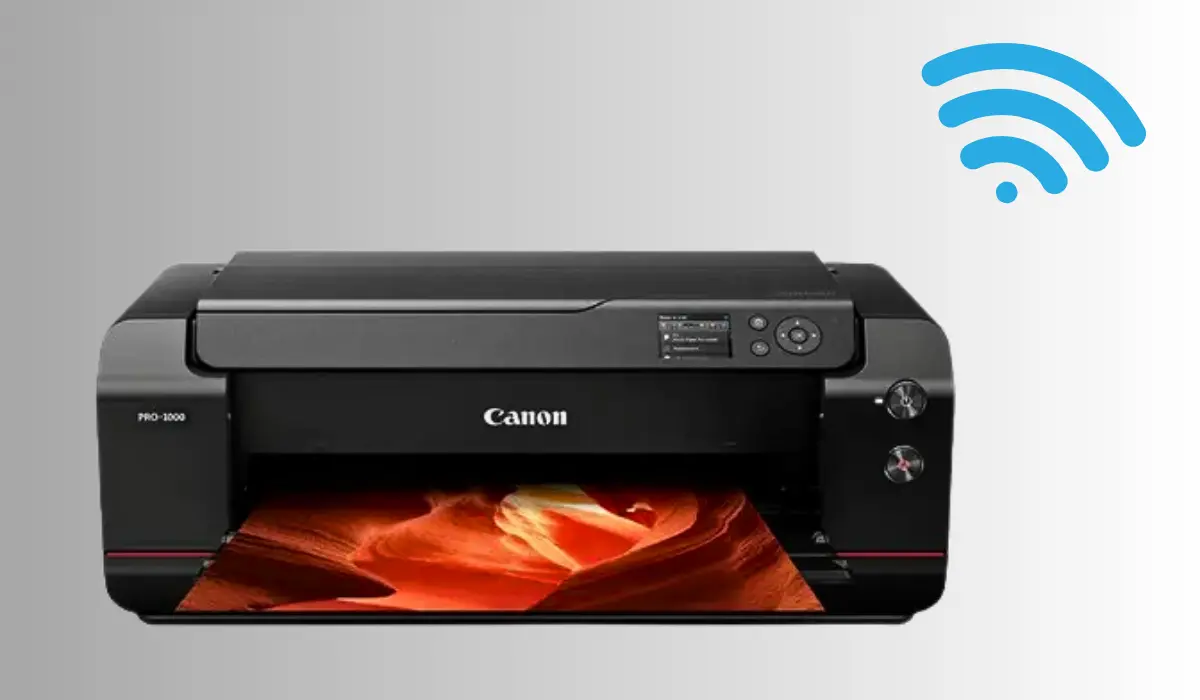
Make sure your Canon printer can be wirelessly connected before beginning. You need to refer to either your Canon printer user’s manual or the model specifications to verify whether it supports WiFi. Place the Canon printer near the wireless router so it gets a strong signal. Power the printer up and unplug all the cables connected to it (only keep the power cable attached). You will also need the SSID (name of the Network) and WiFi Password. If connecting a computer or mobile phone, ensure that the computer/mobile phone is connected to the same Network as your Canon Printer before you start.
Connecting Canon Printer to WiFi Using the Printer Control Panel
Most Canon printers come with a built-in LCD screen and menu options that allow you to connect directly to a WiFi network. Follow these steps:
- Press the Menu or Setup button on your printer.
- Navigate to Wireless LAN setup and select it.
- The printer will search for available networks. Choose your WiFi network from the list.
- Enter your WiFi password using the on-screen keyboard.
- Confirm the settings and wait for the printer to connect. A successful connection message or wireless indicator light will show on the screen.
This method is simple and works well for printers with display screens, providing a direct way to connect without additional devices.
Connecting Through Canon Software on Your Computer
For printers without an LCD screen or if you prefer using your computer, Canon provides software solutions such as Canon IJ Network Tool or Canon PRINT Inkjet/SELPHY app. These tools guide you step by step to connect your printer to WiFi.
- Install the Canon software on your computer from the official Canon website.
- Run the setup wizard and select the wireless connection option.
- Choose your network and enter the WiFi password.
- Follow the on-screen instructions to complete the connection.
Using Canon software ensures your printer is correctly recognized by your computer and avoids manual configuration errors.
Connecting Canon Printer to WiFi Using a Mobile Device
If you want to print directly from your smartphone or tablet, Canon mobile apps simplify the process. The Canon PRINT Inkjet/SELPHY app is available for both iOS and Android devices.
- Download and open the app on your mobile device.
- Tap Add Printer and select Wireless LAN Setup.
- Choose your WiFi network and enter the password.
- Confirm the connection and test by printing a sample page.
This method is convenient for home users who primarily print from mobile devices without needing a computer.
Troubleshooting WiFi Connection Issues
Even with the right steps, some users may encounter connectivity problems. Here are common issues and solutions:
- Printer not detecting WiFi network: Ensure your router is broadcasting the SSID and that your printer is within range.
- Incorrect password error: Double-check your WiFi password and ensure it matches exactly, including capitalization.
- Printer offline message: Restart both the printer and router to refresh the network. Check that the printer is connected to the correct network.
- Firewall or antivirus blocking connection: Temporarily disable security software during setup and re-enable it afterward.
Following these tips can resolve most connectivity problems and help maintain a stable wireless connection.
Benefits of Connecting Your Canon Printer to WiFi
When you connect your Canon printer to Wi-Fi, you don’t need to run a lot of cords from the printer to different computers anymore. You can now connect more than one device to the printer at the same time. You can print from a laptop, tablet, or phone without having to move the file to a USB drive first. If you have a network that lets your networked printers use cloud printing services, you can also print from a distance. You can work more efficiently and from anywhere, including at home or in the office, by connecting your Canon Printer to your Wi-Fi.
Conclusion
Connecting your Canon printer to Wi-Fi is a simple process that gives you a better way to print. You can connect to your printer using its own control panel, Canon software on your computer, or an app you download to your phone. You shouldn’t have any trouble setting up and using your printer wirelessly if you follow these simple steps. It’s also good for customers to know what to do if something goes wrong. Once you’ve successfully connected your Canon printer to your wireless network, you can print from your home or office using more than one device at the same time. Learning how to connect a Canon printer to the Wi-Fi will make it easy to use more than one printer and keep your workspace neat.