
How to Update Canon Printer Firmware? Practical Advice for Printer Users!
Printers are essential tools for homes, offices, and professional printing environments. Just like computers and smartphones, printers also require software updates to maintain optimal performance. Firmware is the internal software that controls how your printer operates, manages hardware components, and communicates with connected devices. Learning how to update Canon printer firmware can help ensure your printer runs smoothly, prints accurately, and stays compatible with new operating systems and applications. Many users overlook firmware updates, but they play a crucial role in fixing bugs, improving security, and enhancing printing features. When firmware is updated regularly, printers become more reliable and efficient. In this guide, you will learn how firmware works, why updates are important, and the exact steps you should follow to update your Canon printer safely and effectively.
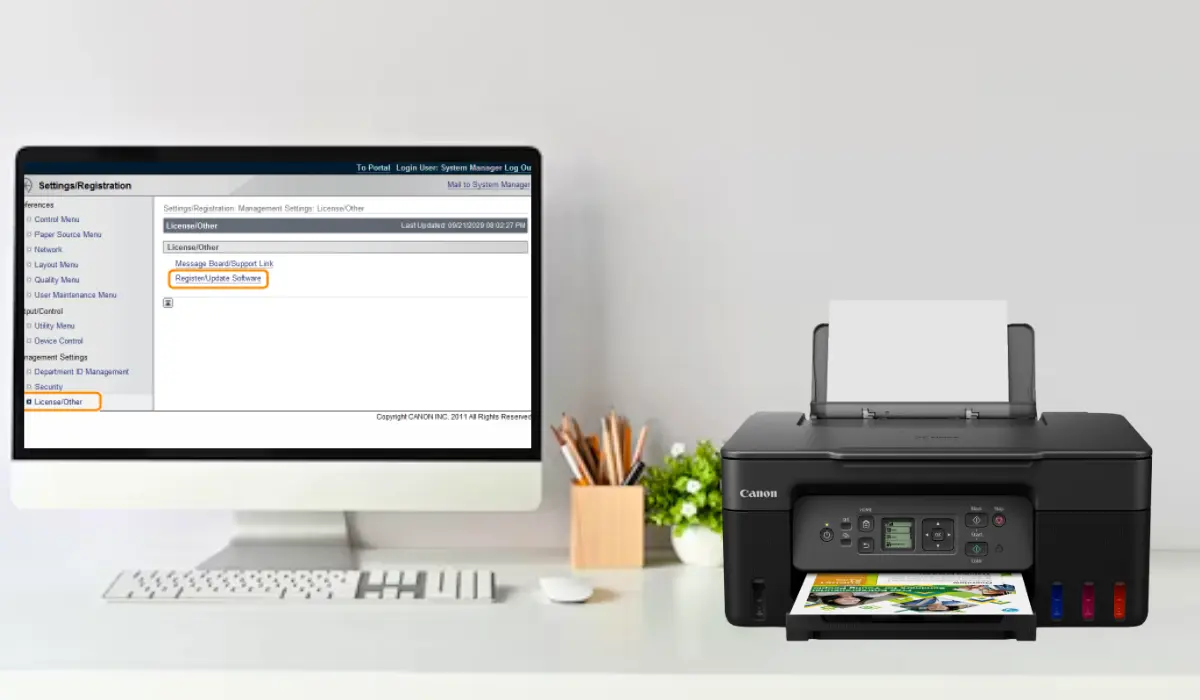
What Is Canon Printer Firmware?
Firmware is the built-in software that controls the internal functions of a printer. Unlike drivers installed on your computer, firmware operates directly within the printer’s hardware. It manages tasks such as print processing, communication with computers, ink usage, and system stability. Manufacturers release firmware updates to fix performance issues, improve compatibility with new devices, and add additional functionality. These updates help the printer work better with modern operating systems and software applications.
Firmware also ensures the printer operates safely by resolving technical glitches and security vulnerabilities. Without updates, printers may experience slower processing speeds, connection problems, or compatibility errors. Keeping firmware updated ensures the printer continues functioning as intended. Regular updates also allow users to take advantage of improvements made by the manufacturer, including enhanced print quality and improved connectivity options.
Why Updating Canon Printer Firmware Is Important?
Updating firmware may seem like a small task, but it provides several long-term benefits. When users understand how to update Canon printer firmware, they can maintain their printer’s performance and prevent common operational issues.
Here are some important benefits of updating firmware:
Improved printer stability and reliability
Better compatibility with new operating systems
Security improvements to protect the device
Fixes for bugs and printing errors
Enhanced communication with computers and networks
Firmware updates also help optimize printer components such as the print head, ink management system, and network connectivity features. In business environments where printers handle large workloads, firmware updates can significantly reduce downtime and technical problems. For individuals using printers at home, updates ensure smoother operation when printing documents, photos, or graphics.
Preparing Your Printer Before Updating Firmware
Before updating firmware, it is important to prepare your printer to avoid interruptions during the process. Proper preparation ensures the update completes successfully without damaging the printer software.
Follow these preparation steps before starting the update process:
- Ensure the printer is connected to a stable power source.
- Confirm that the printer is connected to the internet or computer.
- Check the printer model number to download the correct firmware.
- Close any active printing jobs before starting the update.
- Avoid turning off the printer during the update process.
These precautions help prevent errors that could interrupt the firmware installation. If the update process stops unexpectedly, it may cause printer malfunction or system errors. Taking a few minutes to prepare your device can save time and prevent technical issues later.
Step-by-Step Guide to Update Canon Printer Firmware
Many users search online for how to update Canon printer firmware, but the process is usually simple when you follow the correct steps. Canon provides firmware updates through its official support platform, making the update safe and easy to install.
Step 1: Check the Current Firmware Version
Start by checking the firmware version currently installed on your printer. This information can usually be found in the printer settings menu or system information section. Knowing the current version helps you determine whether an update is available.
Step 2: Visit the Canon Support Website
Go to the official Canon support website and search for your printer model. The support page will provide available firmware updates, drivers, and software tools designed for your specific printer.
Step 3: Download the Latest Firmware
Once you locate the firmware update, download the file to your computer. Make sure you select the correct firmware version for your operating system and printer model.
Step 4: Install the Firmware Update
Open the downloaded firmware file and follow the installation instructions provided. During installation, your printer may restart automatically while the new firmware is being applied.
Step 5: Confirm the Update
After installation is complete, check the printer settings again to confirm the firmware version has been updated successfully. This ensures the new software has been installed correctly.
The entire process usually takes only a few minutes, depending on the printer model and internet speed.
Alternative Method: Updating Firmware Through Printer Settings
Some modern Canon printers allow firmware updates directly from the printer interface without using a computer. This method is convenient for users who prefer a quick update process.
Steps typically include:
Open the printer’s settings menu
Navigate to device or system settings
Select firmware update or software update
Allow the printer to search for available updates
Confirm the installation
This feature is commonly available on printers with touchscreen displays or advanced network capabilities. The printer automatically connects to the manufacturer’s server and downloads the latest firmware update.
Common Problems During Firmware Updates
Although firmware updates are usually straightforward, users may occasionally encounter issues during the process. Understanding these problems can help prevent errors and ensure successful installation.
Common issues include:
Interrupted internet connection during download
Turning off the printer during installation
Installing the incorrect firmware version
The firewall is blocking the update software
If the update fails, restarting the printer and repeating the process often resolves the problem. It is always recommended to download firmware only from official manufacturer websites to avoid security risks.
Tips to Maintain Canon Printer Performance
Updating firmware is only one part of maintaining printer efficiency. Regular maintenance helps keep printers functioning properly for a long time.
Here are a few helpful maintenance tips:
Clean the print head periodically
Use genuine ink cartridges
Store the printer in a dust-free environment
Perform routine printer diagnostics
Combining firmware updates with regular maintenance improves print quality and reduces hardware issues. Proper care also extends the lifespan of the printer.
Conclusion
Understanding how to update Canon printer firmware is an important step in maintaining the performance, security, and reliability of your printer. Firmware updates ensure that the printer’s internal system runs smoothly, supports modern devices, and continues delivering high-quality printing results. Although many users overlook firmware updates, they are essential for preventing software glitches and improving overall functionality. By following the correct preparation steps and installing updates from official sources, the process becomes simple and safe.
Regular updates also allow users to benefit from new improvements and bug fixes released by the manufacturer. When combined with proper printer maintenance and updated drivers, firmware updates help extend the lifespan of the printer and ensure consistent performance. Taking a few minutes to update firmware can significantly improve printing efficiency and prevent future technical problems.
Frequently Asked Questions
1. How often should I update Canon printer firmware?
Firmware updates should be checked every few months or whenever the manufacturer releases a new version. Regular updates help maintain printer performance and compatibility.
2. Is it safe to update printer firmware?
Yes, firmware updates are safe when downloaded from the official Canon support website. Always ensure you install the correct version for your printer model.
3. Can firmware updates improve print quality?
Yes, some firmware updates include performance improvements that optimize ink usage, print head operation, and color accuracy.
4. What happens if the firmware update is interrupted?
If the update process stops unexpectedly, the printer may experience system errors. Restarting the printer and reinstalling the update usually resolves the issue.
5. Do all Canon printers support firmware updates?
Most modern Canon printers support firmware updates. However, the update method may vary depending on the printer model and connectivity features.